All categories
Business & Offices
Electronics & Media
Fashion & Accessories
Groceries & Essentials
Health & Personal Care
Home & Living
Kids & Family
Sports & Outdoors
Search in ZoneOffer

Loading...
USB adapters are the unsung heroes of modern tech setups. They connect the laptop that dropped full-size ports years ago to your monitor, your backup drive, your camera, even your wired internet. If you’ve upgraded to a sleek USB‑C laptop or you’re trying to fast‑charge your phone without frying the battery, the right adapter makes all the difference. In the UK, it’s easy to get lost in a sea of options and specs. That’s where smart comparisons help—you want fast, reliable, and compact gear without overpaying. Looking for popular offers? A comparison site like ZoneOffer helps you quickly stack features, brands, and prices so you can buy with confidence.
Let’s cut through the jargon. USB standards control how fast your data moves and how much power flows through your cable or adapter. Think of them like motorway limits—some lanes are slow and steady, others are superfast. Understanding USB types and versions helps you avoid mismatched gear and disappointing performance. Below, you’ll find a quick primer to help you pick the right adapter for your laptop, phone, tablet, console, or smart TV—without needing an engineering degree.
USB‑A is the classic rectangular plug you’ve used for years. It’s still everywhere, but it’s limited compared to newer tech. USB‑C is the small, oval connector that works either way up—no more flipping the plug three times. It supports faster data, more video options, and higher charging power. If your device has USB‑C, choose adapters built around USB‑C for future‑proofing. If you’ve still got older peripherals (flash drives, printers, headsets), look for hubs that include a couple of USB‑A ports so you don’t ditch perfectly good gear.
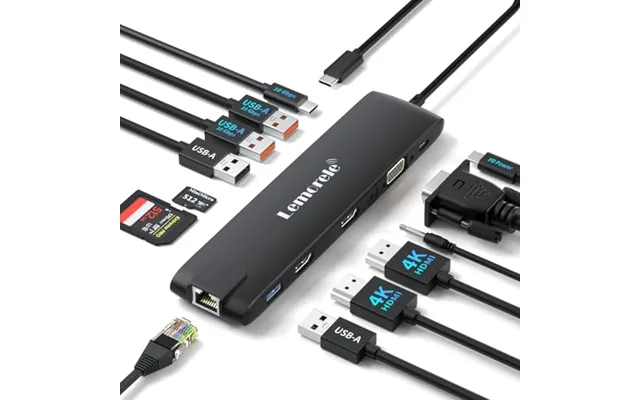
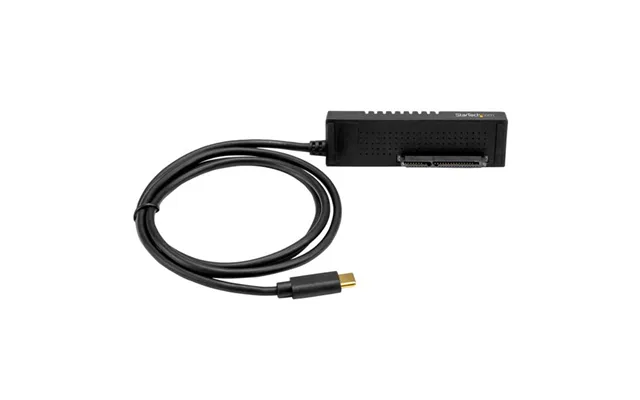
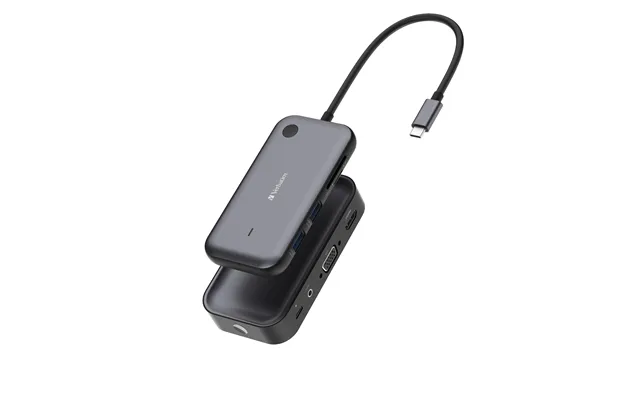
USB 2.0 is fine for keyboards and mice, but slow for file transfers. USB 3.2 ramps up to multi‑gigabit speeds, perfect for SSDs and fast cameras. USB4 takes it further, merging high‑speed data with smart features like better video support—great for 4K displays and beyond. When you’re shopping hubs and adapters, check for “USB 3.2 Gen 2” or “USB4” if speed matters. If you only need to plug in a keyboard or charge earbuds, 2.0 is still OK, but don’t expect fast transfers.
Power Delivery (PD) is the fast‑charging standard most USB‑C devices use. A good PD charger negotiates the right power level for your device—no guesswork, no stress. Look for chargers rated 30W to 45W for phones and small tablets, 65W to 100W for most laptops, and 140W+ for power‑hungry machines. If your adapter supports PD and the right wattage, you’ll get quicker, safer charging without overheating your battery.
There are dozens of adapters out there, but only a handful genuinely upgrade your day‑to‑day. Here’s what most people in the UK actually need, whether you’re working from the kitchen table, editing video on the train, or gaming on a TV.
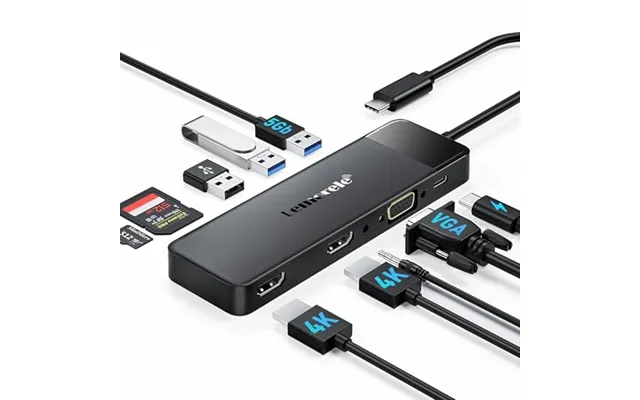
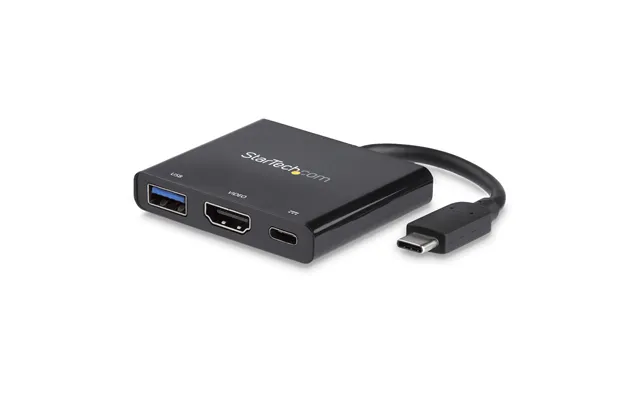
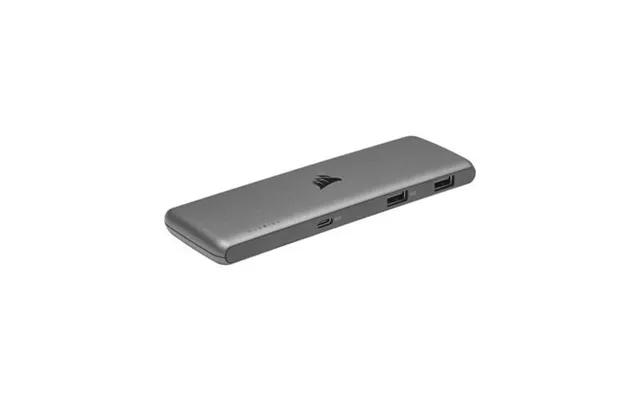
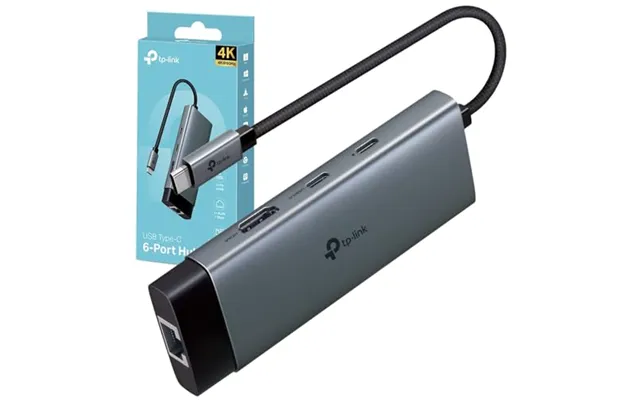
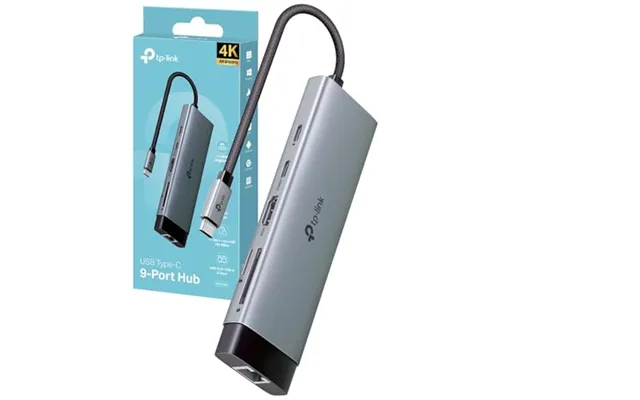
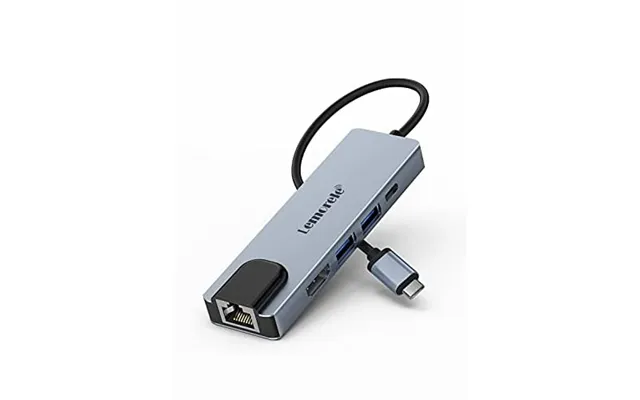
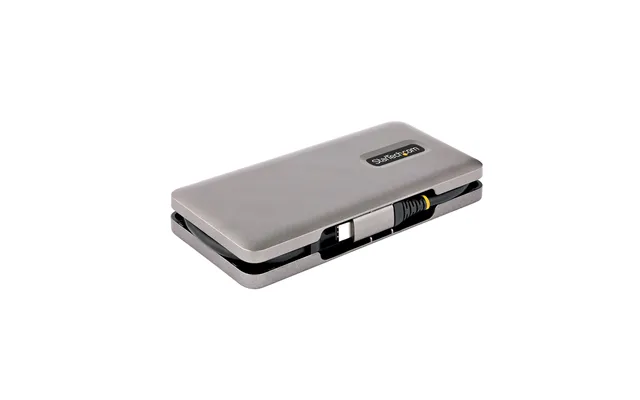
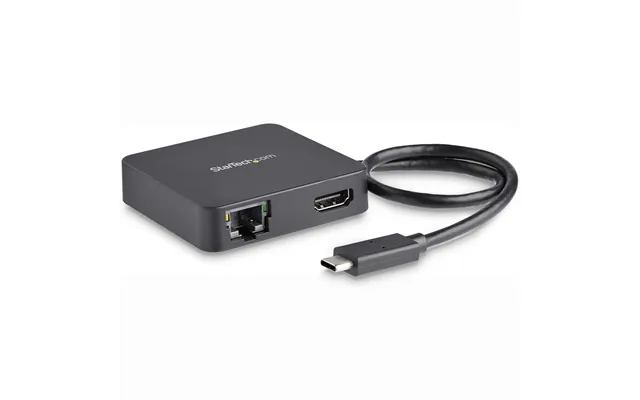
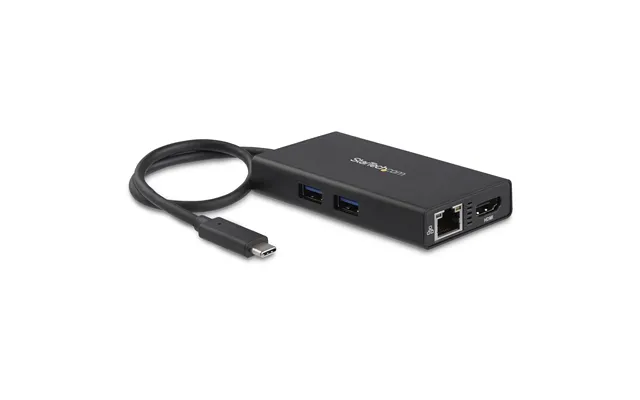
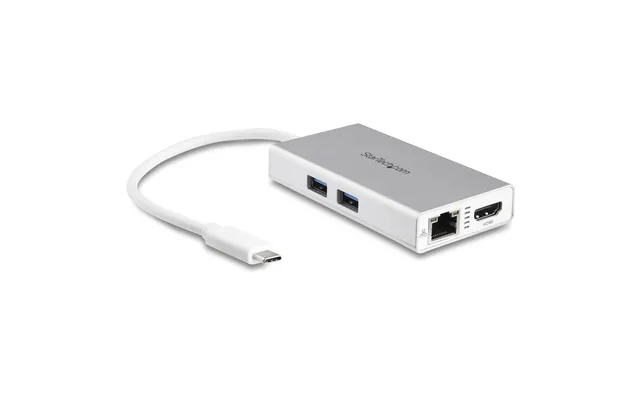
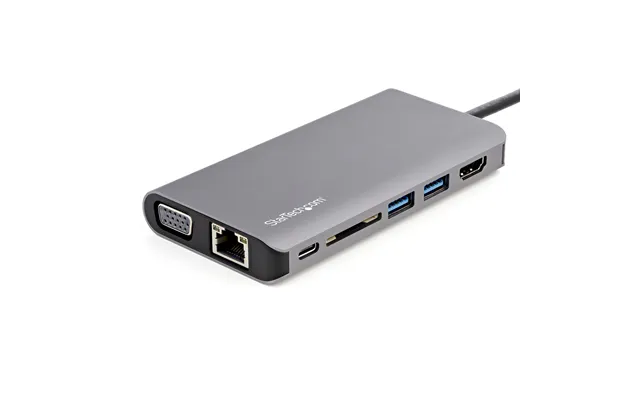
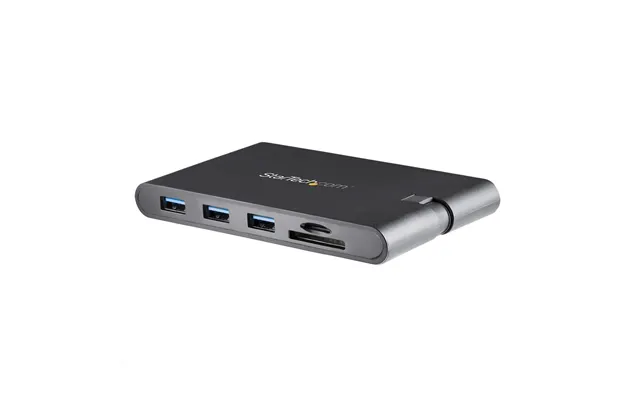
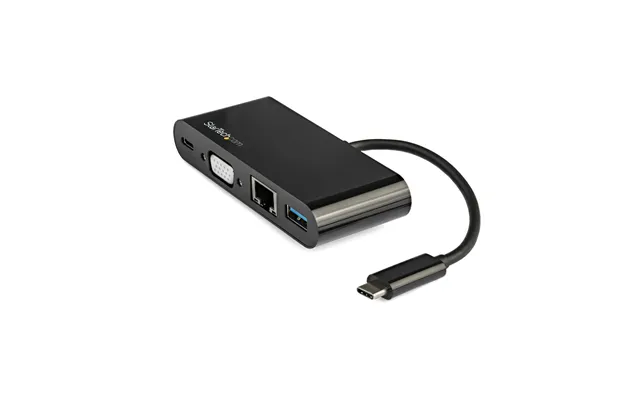
These are the Swiss Army knife of adapters. A solid hub turns a single USB‑C port into multiple USB‑A ports, an SD card reader, HDMI for your monitor, and sometimes Ethernet for wired internet. If you own a thin‑and‑light laptop, a multi‑port hub is practically essential. Look for hubs with at least one 10Gbps USB‑A port for fast drives, and make sure the hub supports PD passthrough so you can charge your laptop while using all the ports.
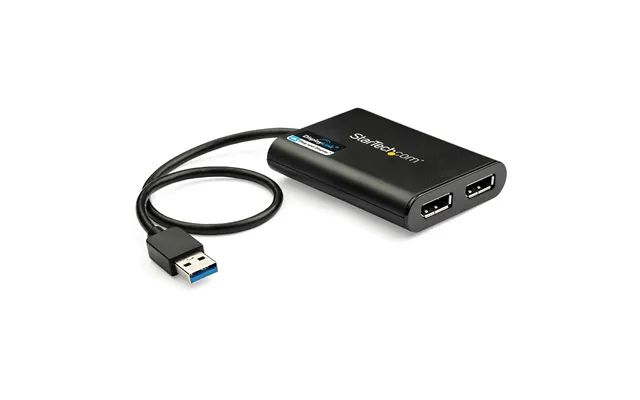
Need to present at work or connect to a living room TV? A dedicated video adapter is the simplest path. Check for 4K at 60Hz if you want smooth visuals, especially for design work or console‑class gaming. If you’re a creator, DisplayPort can be more flexible with high‑refresh monitors. For most, HDMI 2.0 is plenty: it handles 4K60 without a fuss.
Wi‑Fi is convenient, but nothing beats wired for stability. A USB 3.0 or USB‑C to Gigabit Ethernet adapter saves the day when your router’s across the room and streaming stutters. If you’re in a shared house or a busy office, this adapter is the secret weapon that keeps your calls crisp and your downloads snappy. Bonus points if the adapter has a short built‑in cable so it doesn’t block other ports.
On‑The‑Go (OTG) adapters connect phones and tablets to flash drives, controllers, or even microphones. If you’re shooting video on your phone and need to dump footage to a portable SSD, a simple USB‑C OTG adapter is pure gold. For creators and students, it turns your phone into a mini workstation. Keep a tiny OTG plug in your bag—you’ll be surprised how often it saves you.
Heading on a road trip or just commuting? A compact USB‑C car charger with PD can fast‑charge your phone during a short drive. For travel, a plug adapter with multiple USB‑C and USB‑A ports keeps everything topped up from one outlet. Look for foldable prongs, a sturdy shell, and at least two USB‑C ports so you’re not fighting over one charger in a hotel room.
You’ll find a wide range of USB adapters from trusted brands across UK retailers. Comparison platforms like ZoneOffer make it easy to scan the market, sort by features, and spot popular offers without trawling dozens of tabs. Here are the kinds of adapters shoppers regularly compare—and the features to look for—so you can choose like a pro.
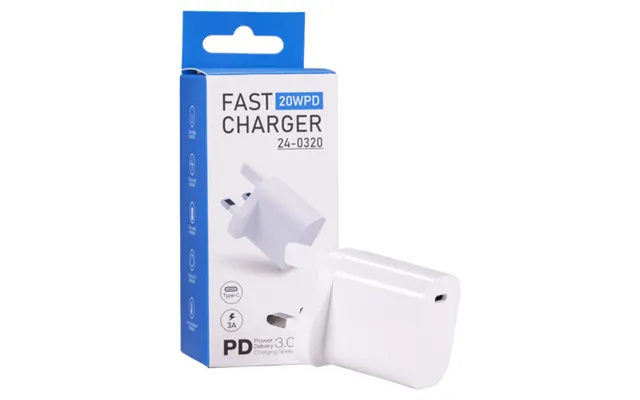
GaN chargers squeeze serious wattage into tiny bodies, perfect for travel or a clean desk. A 45W unit fast‑charges most phones and tablets, while 65W–100W models handle ultrabooks and some pro laptops. Look for dual USB‑C outputs if you want to charge a laptop and phone together. A removable 6 ft cable is handy; keep a spare 3 ft one in your backpack. Safety certifications—like UKCA and ETL—are non‑negotiable.
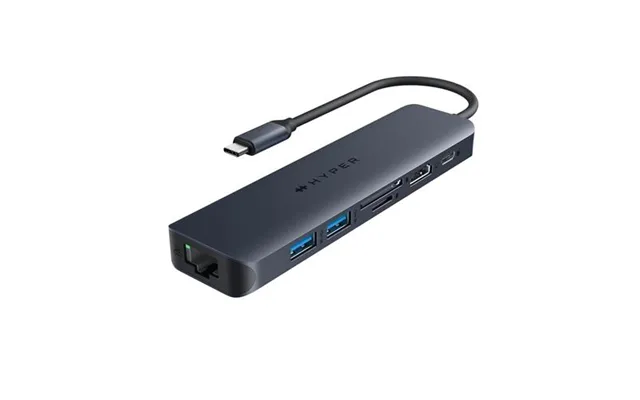
A typical 7‑in‑1 hub bundles HDMI 4K60, two or three USB‑A ports, SD and microSD readers, and a USB‑C PD passthrough. This is the sweet spot for students and hybrid workers. Premium models feature aluminum shells for better heat dissipation and braided 6 in pigtails that won’t fray. If you run external SSDs, make sure the hub has at least one 10Gbps port to avoid bottlenecks.
If you don’t need all the hub extras, a single‑purpose video adapter is cheap, tiny, and reliable. For home offices, 4K at 60Hz support keeps text sharp and scrolling smooth. If you’re gaming or streaming sports, 60Hz is the minimum for fluid motion. Some adapters add HDR support; great on compatible TVs.
For stable calls, high‑speed downloads, and low‑latency gaming, a compact USB‑C to Gigabit Ethernet adapter is worth its weight. Look for LED link lights, a flexible 4 in cable, and good driver support for Windows, macOS, and Linux. If you’re security‑minded, wired connections also reduce Wi‑Fi attack surfaces in public spaces.
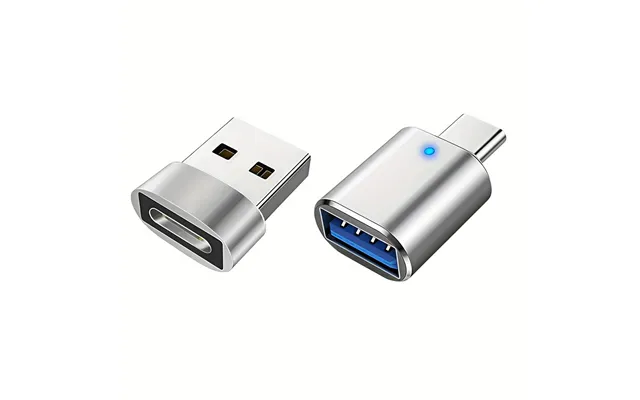
Need to plug a card reader or a mic into your phone or tablet? A small USB‑C to USB‑A 3.0 adapter gets the job done. Creators often pair it with a short 1 ft USB‑C to USB‑C cable for SSDs when offloading footage. Choose rugged housings, snug connectors, and ensure the adapter supports at least 5Gbps transfers.
Forget guesswork—match the adapter to your devices and use case. A little planning saves cash and frustration. Consider the ports you need today and the ones you’ll need in a year. If you’ve moved to USB‑C everything, lean into that. If you still have older gear, pick a hub with mixed ports so you can transition gracefully.
Check your laptop’s USB‑C port: does it support video out (DisplayPort Alt‑Mode)? Not all do. For phones, verify PD fast‑charging and whether the device supports video output—some Android phones do; many don’t. For consoles like Nintendo Switch, ensure the dock or adapter supports the required power and video specs. Apple users should confirm whether they need a specific adapter for high‑resolution displays or dual‑monitor setups.
Only buy adapters and chargers with clear safety certifications. In the UK, look for UKCA marks and reputable lab approvals. GaN chargers should list supported PD profiles and maximum wattages. If you’re charging laptops, make sure the adapter delivers at least the manufacturer’s recommended wattage. Underpowering leads to slow charging or draining while plugged in, which is as annoying as it sounds.
Premium adapters use aluminum shells or high‑grade polycarbonate to manage heat better. Cables should be thick, flexible, and strain‑relieved at both ends. If you often unplug and replug, choose braided 3 ft to 6 ft cables for durability. Good adapters run warm under load but shouldn’t be hot to the touch. Persistent overheating is a red flag.
Short pigtail hubs (about 4 in to 6 in) are great on the go; longer desk cables (3 ft to 6 ft) give you tidier routing. If you’re using external drives, avoid adapters that block neighboring ports. Vertical “stick” hubs look neat but can crowd laptop ports; consider a hub with a short cable instead. For desks, add a 10 ft USB‑C extension if your outlet is awkwardly placed.
Fast charging should be simple. Yet wattages, acronyms, and hidden caveats can make it feel like decoding a secret message. The trick is matching the right charger to your device and using a quality cable that supports the same power profile.
PD (Power Delivery) is the universal standard for most laptops, tablets, and many phones. PPS (Programmable Power Supply) is a smarter version of PD used by some Android phones to fine‑tune voltage and reduce heat. Quick Charge is a separate standard often found on older devices. If you want maximum compatibility across brands, pick a charger that supports PD and PPS—you’ll cover most modern phones and still fast‑charge tablets and laptops.
More watts mean more potential speed, but your device decides how much it will accept. If your laptop asks for 65W, pair it with a 65W or higher charger. If your phone peaks at 25W, a 100W charger won’t make it charge faster—but it could charge multiple devices at once without slowing down. Always use a cable rated for the wattage you need; for 100W, choose a cable clearly labeled for 100W or 240W.
Even the best adapters can hiccup. Before you assume it’s broken, try a few quick fixes. Many “bad adapter” stories are actually mismatched standards, flaky cables, or outdated drivers.
If your monitor won’t light up, confirm your USB‑C port supports video. Then try a different cable and make sure the adapter can handle your monitor’s resolution and refresh rate. For 4K60, both the adapter and cable must support it. Update your GPU drivers and check your OS display settings—sometimes it’s a simple configuration issue.
Slow speeds often boil down to plugging a fast drive into a slow port. Ensure the adapter’s port supports 5Gbps or 10Gbps if you’re moving big files. Disconnect other high‑draw devices on the same hub, and try a shorter 3 ft cable to reduce signal loss. On Windows and macOS, disable power saving on USB controllers if your drives keep dropping.
All hubs get warm, but excessive heat signals trouble. Move the hub to a well‑ventilated spot and avoid stacking heavy data transfer, 4K video out, and high‑wattage charging all at once on cheaper hubs. If it still runs hot to the touch, consider a premium aluminum model with better thermal design.
Your perfect adapter kit depends on what you actually do. Keep it lean, but don’t cripple your workflow. A little planning means you can plug in anywhere and focus on the job—not on chasing dongles.
For students and remote workers, a 7‑in‑1 USB‑C hub, a 65W GaN charger, a 6 ft USB‑C cable, and a slim USB‑C to HDMI adapter will cover nearly everything. Toss in a tiny USB‑C to USB‑A 3.0 adapter for older gadgets and you’re set for lectures, cafes, or hot‑desking. Keep the weight low, and choose a hub with a short, sturdy cable so it fits any laptop position.
If you edit video, record podcasts, or manage large photo libraries, go a step up. Add a dedicated USB‑C to DisplayPort adapter for high refresh monitors, a 10Gbps USB‑C to USB‑C cable for SSDs, and a Gigabit Ethernet adapter for ultra‑stable uploads. A 100W GaN charger with dual USB‑C outputs keeps a laptop and SSD enclosure powered with ease.
Great adapters aren’t just fast; they last. Buying thoughtfully reduces e‑waste and saves money long‑term. Think of adapters as part of your core kit, not throwaway accessories. That means picking future‑proof ports, robust materials, and brands with solid support.
Cheaper hubs often skimp on controllers and thermal design. They work—until you stress them. Paying a bit more for quality components means fewer random disconnects, better heat management, and years of reliable use. If you routinely push 4K video and fast SSD transfers, choose a hub with an aluminum body and clearly listed chipsets and speeds.
Some premium docks and adapters support firmware updates that fix bugs or add features—worth checking from time to time. When you upgrade, pass old adapters to family or friends who need basic connectivity. Recycle damaged cables and broken gear through proper UK e‑waste channels to keep harmful materials out of landfills.
Not every adapter needs to be top‑shelf. Spend where performance and safety matter most. Chargers and high‑speed storage links deserve premium picks because they handle lots of power and data. For simple USB‑A expansion for keyboards and mice, a budget hub is fine. Video adapters should match your monitor’s capabilities; don’t overpay for 8K if your display is 4K. And remember: comparison tools like ZoneOffer help you find popular offers on both budget and premium options so you can stretch your money further.
The right USB adapter makes your tech feel seamless—fast charging without fuss, stable internet when it counts, and enough ports to handle whatever the day throws at you. Focus on standards (USB‑C, PD, USB 3.2 or USB4), choose the type that matches your setup (multi‑port hub, video adapter, Ethernet, OTG), and invest a little more where power and performance matter. In the UK market, there are plenty of powerful, reliable, compact options from trusted brands, and comparing features and prices side by side helps you lock in real value. Build a small, smart kit and you’ll be ready to plug in anywhere, work faster, and charge safely for years to come.

| £ 83,58 |