All categories
Business & Offices
Electronics & Media
Fashion & Accessories
Groceries & Essentials
Health & Personal Care
Home & Living
Kids & Family
Sports & Outdoors
Search in ZoneOffer

Loading...
If you’ve ever wanted to control two or more computers using just one keyboard, one monitor, and one mouse, you’ve stepped into KVM territory—short for Keyboard, Video, and Mouse. A KVM cable is the lifeline between your computers and a KVM switch, bundling video, USB (or PS/2), and sometimes audio into a neat, reliable connection. Think of it like a tidy, well-marked motorway that keeps your signals flowing smoothly from point A to point B without traffic jams. Whether you’re running a gaming PC alongside a work laptop, managing a compact home lab, or juggling servers, the right KVM cable makes the whole setup simpler, cleaner, and more dependable.
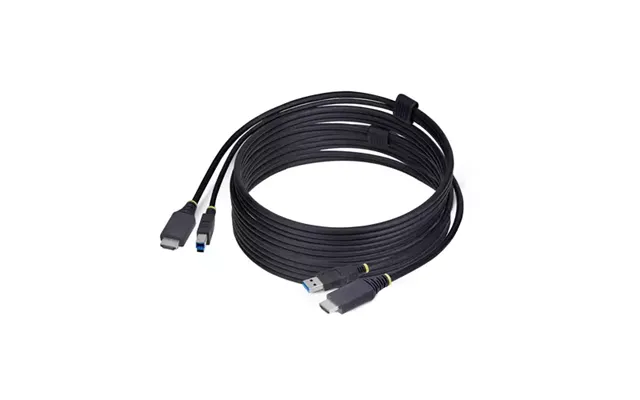
Ever try to swap HDMI cables every time you switch machines? It’s as fun as untangling a box of fairy lights. KVM cables eliminate that drama. You hit a button, and everything just works—your peripherals follow your focus. For productivity, that means less friction and more flow. For gaming, it means your high-refresh monitor isn’t stuck on the wrong system when your squad is waiting. And for anyone who values a clean desk, using a bundled KVM cable kit cuts the cable clutter massively. Fewer cables means fewer points of failure, fewer handshake hiccups, and fewer “why is the display not waking up?” moments.
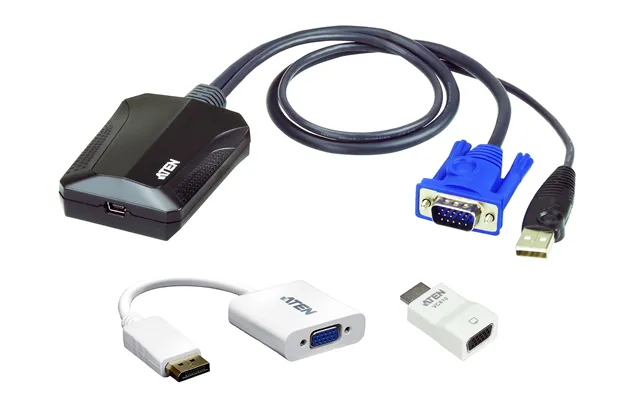
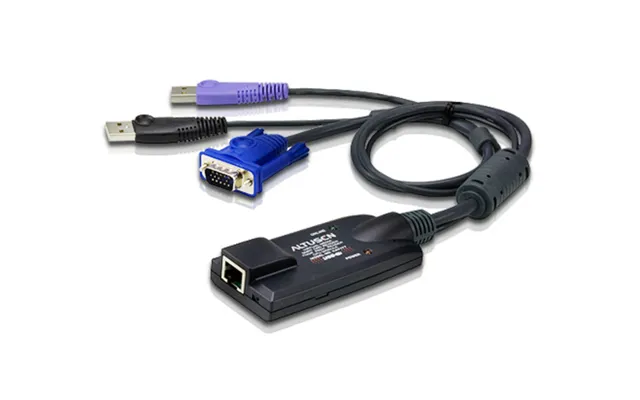
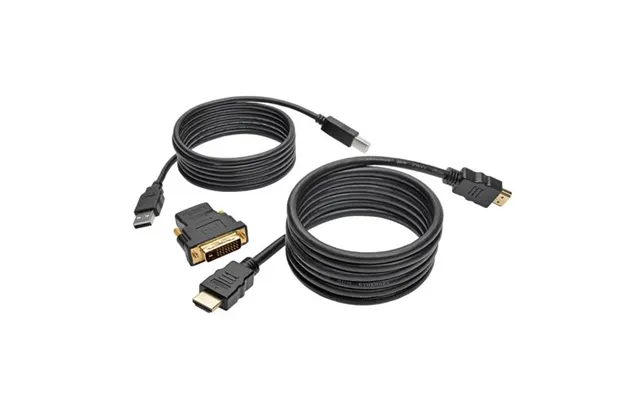
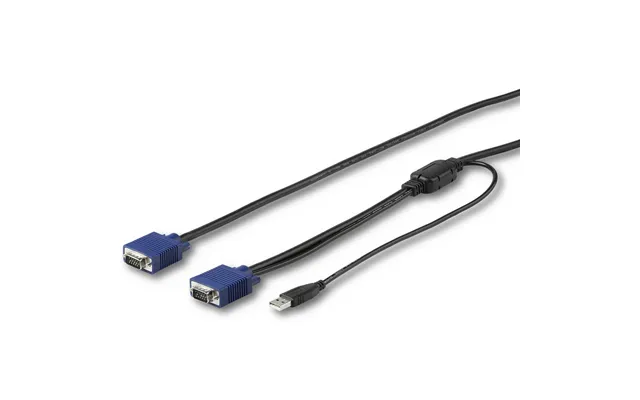
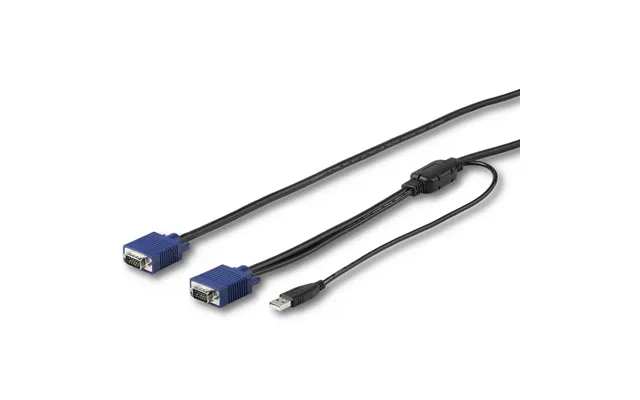
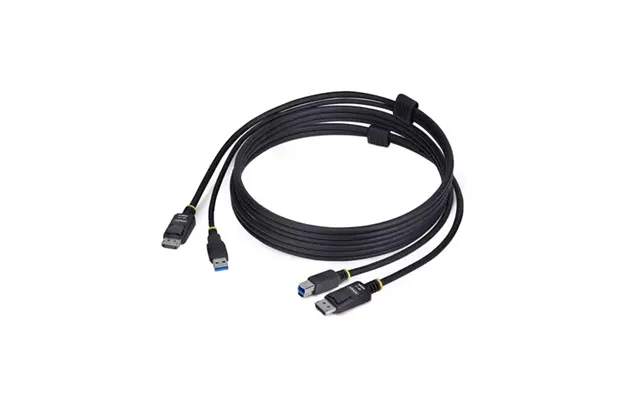
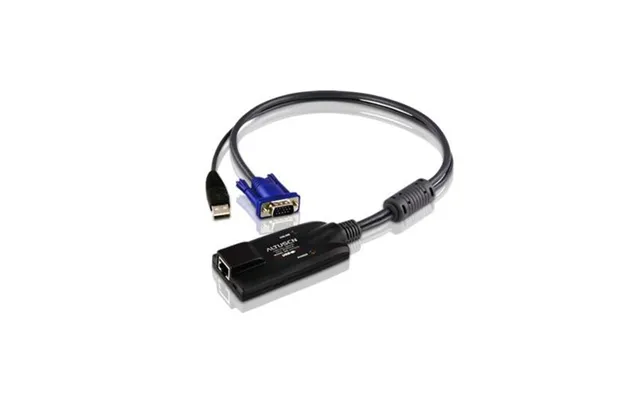
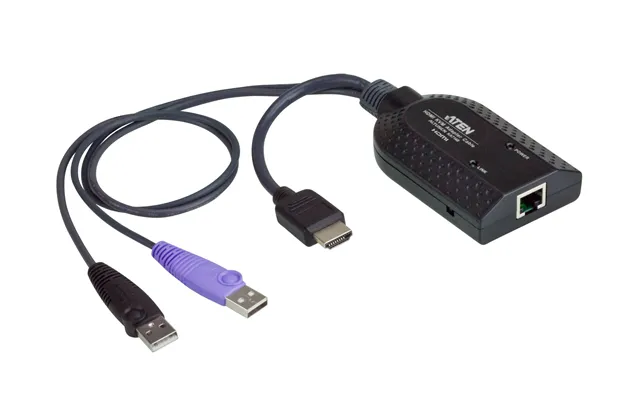
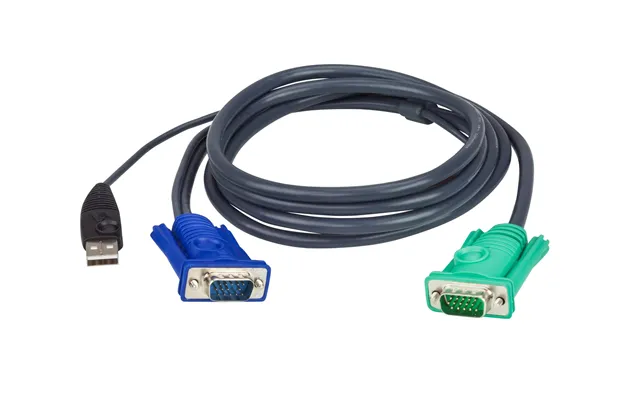
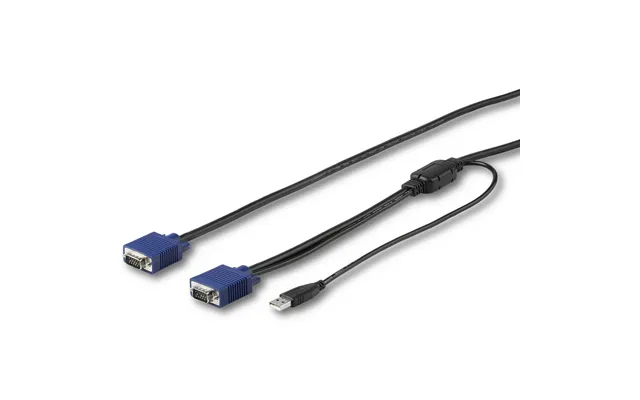
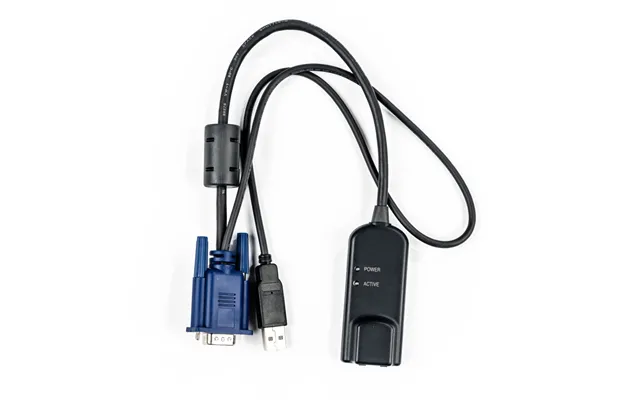
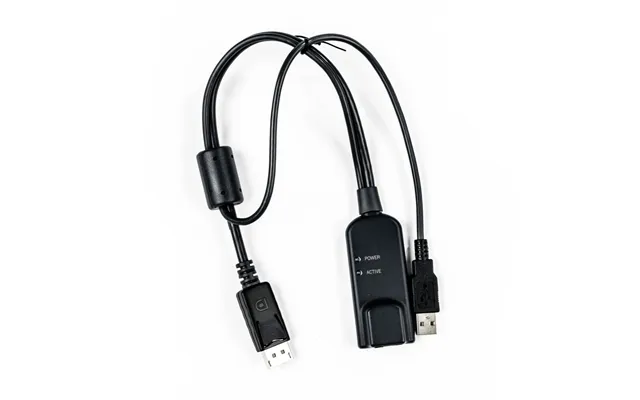
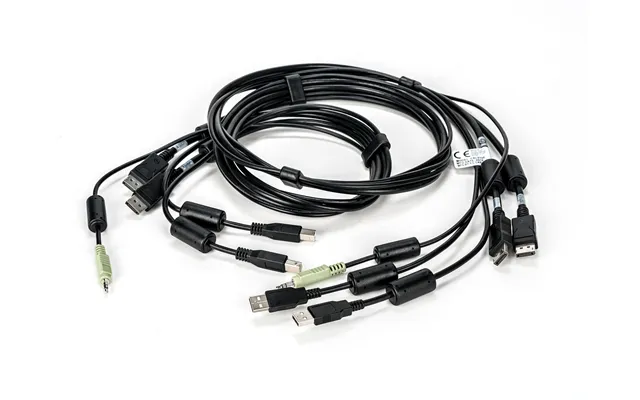
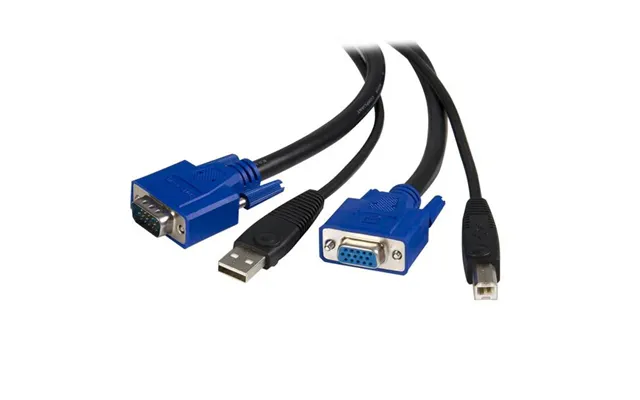
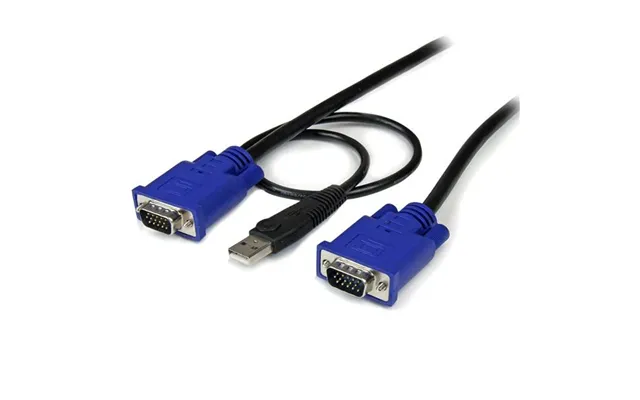
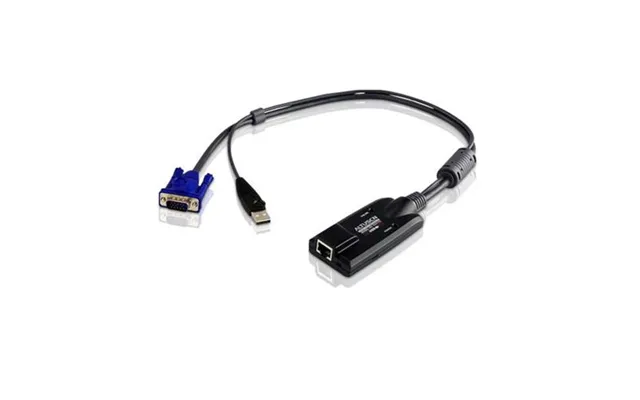
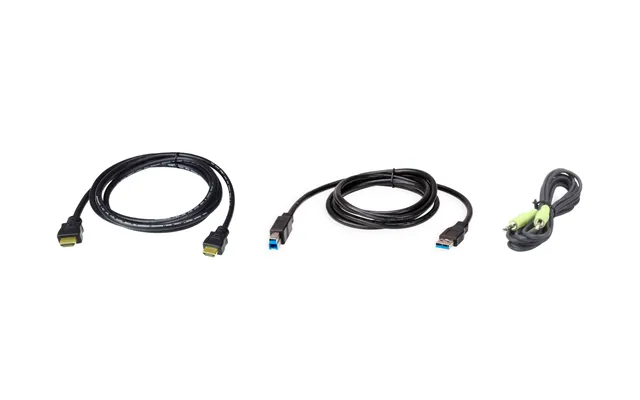
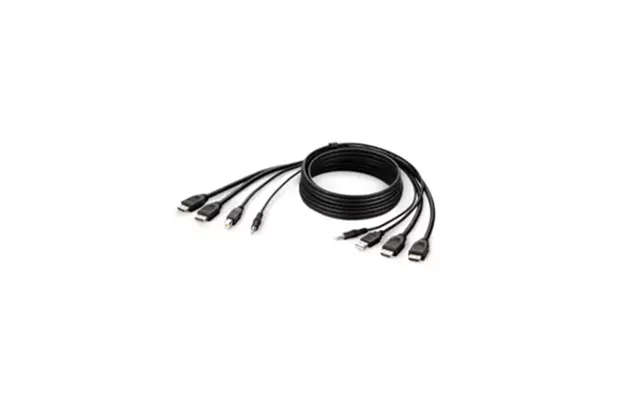
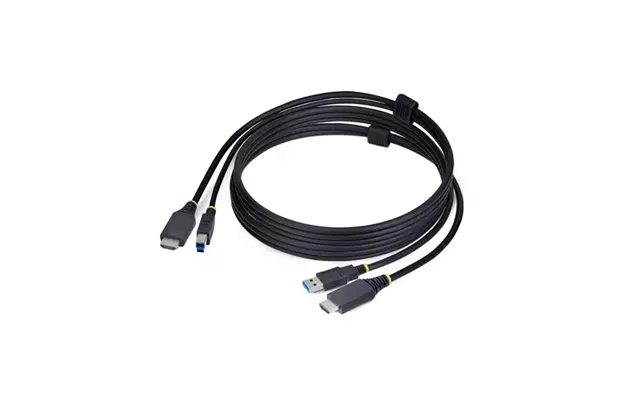
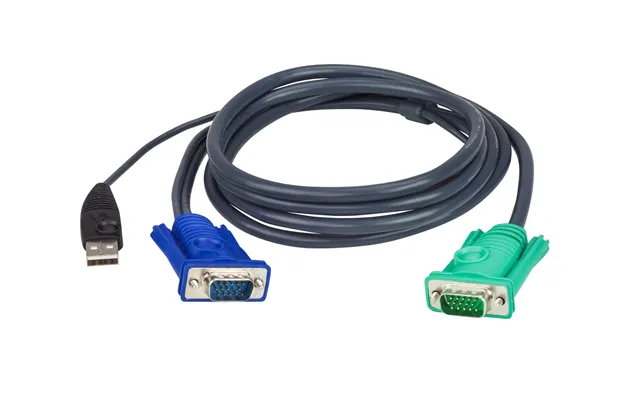
KVM cables come in multiple flavors, and the best choice depends on your gear. Some kits combine video plus two USB leads and audio in one jacket. Others keep things separate so you can fine-tune each connection. The big variables you’ll compare are the video interface (HDMI, DisplayPort, DVI, or VGA), the USB type (USB 2.0 or USB 3.x), and whether audio and mic are included. Good news? You don’t have to guess. Match your equipment’s ports and the supported specs of your KVM switch, and you’ll be golden.
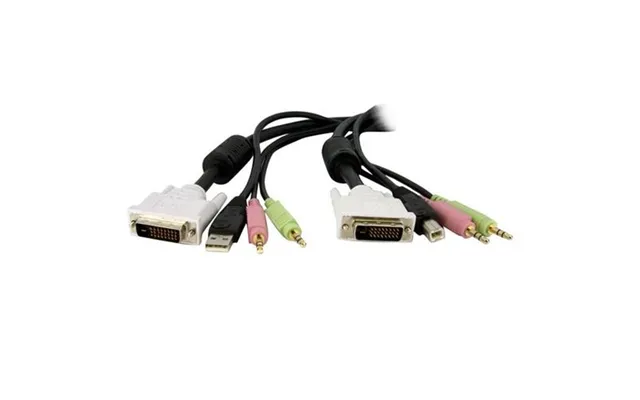
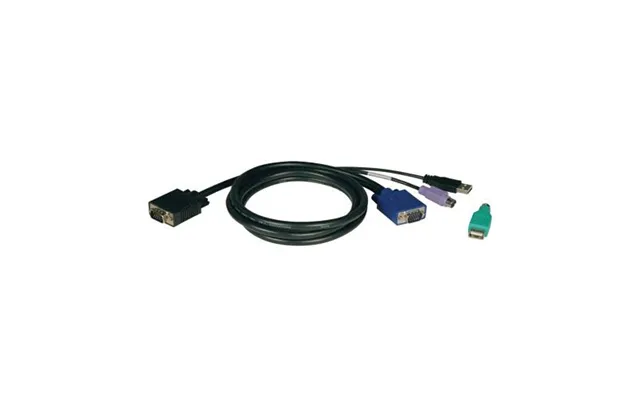
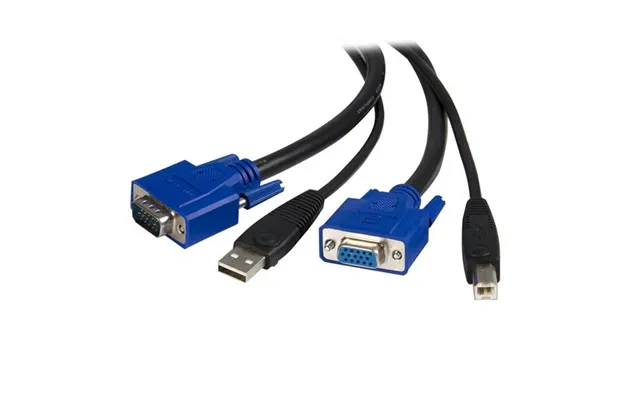
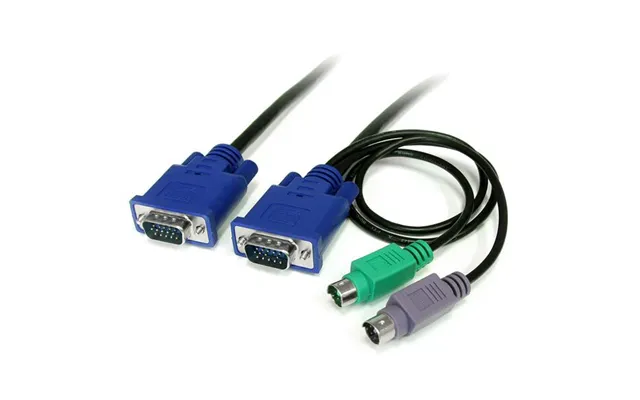
Most modern setups use USB for keyboard and mouse. USB 2.0 is the standard for basic peripherals, while USB 3.x is handy if your KVM switch also shares webcams, external drives, or capture cards. Legacy servers and older desktops might still rely on PS/2 for keyboard and mouse, and yes, you can still find KVM cable kits that support PS/2 if you need them. Just remember the direction of the connectors matters: many KVM kits have USB-A for the computer side and a USB-B plug for the switch side, while others are all USB-A depending on the switch design.
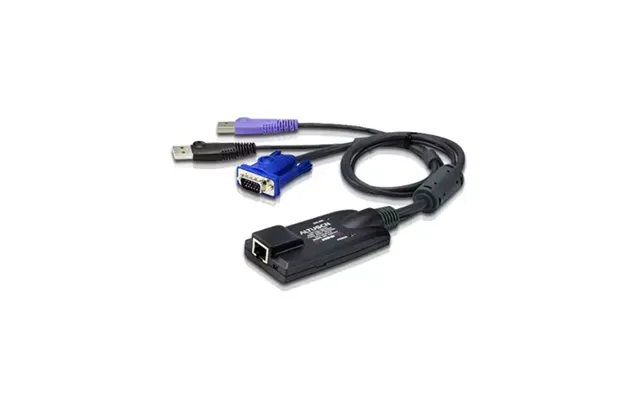
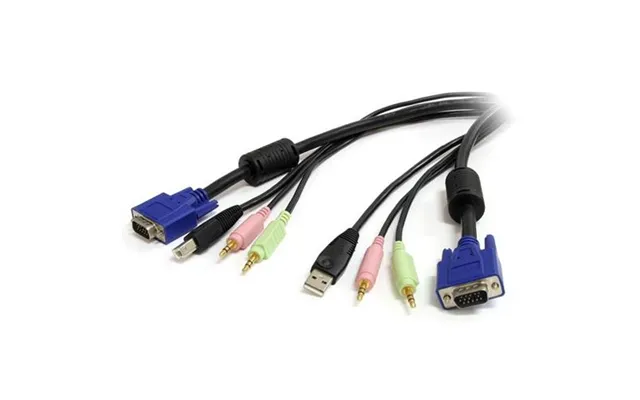
The video feed is the star of the show. HDMI KVM cables are common and easy to find, great for 1080p and 4K at 60 Hz in many cases. DisplayPort KVM cables are the go-to for higher refresh rates, ultrawide resolutions, and premium gaming—think 1440p at 144 Hz or ultrawide panels that push beyond the basics. DVI is still around for older gear or certain pro monitors, while VGA is strictly legacy, useful in server rooms and with vintage hardware. Make sure your cable and switch can handle the resolution and refresh rate you care about.
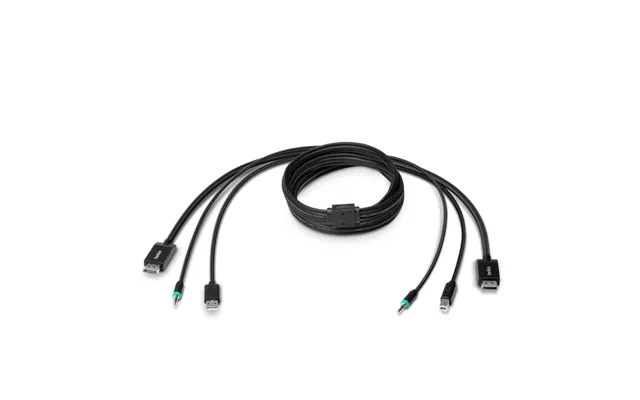
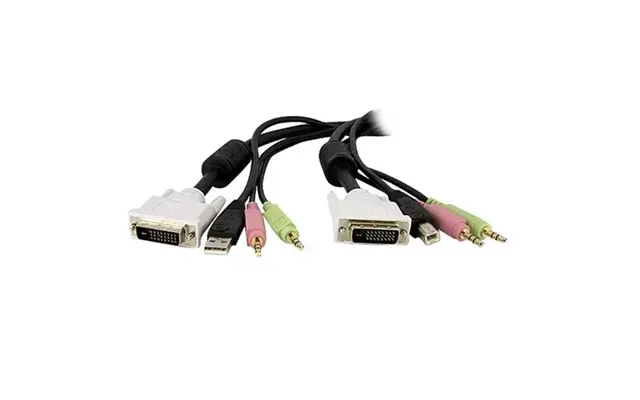
If your KVM switch supports audio switching, go for a cable kit that includes 3.5 mm audio and mic connectors. It’s a small add-on that saves you from running extra lines and manually switching your speakers or headset between machines. For creators and streamers, that little convenience adds up to a smoother workflow.
Cable length isn’t just a detail—it impacts signal quality and how clean your setup looks. For a typical desk, 6 ft to 10 ft is the sweet spot, giving you enough slack to route behind the monitor arm and under the desk without adding a spaghetti bowl of excess cable. Going longer, like 15 ft or 25 ft, can work if you’re spanning to a rack or a media console, but you’ll want well-shielded cables and possibly active signal support for certain high-bandwidth video formats.
Measure before you buy. A 6 ft kit will handle most side-by-side desk layouts. If your PC towers live on the floor or in a cabinet, 10 ft often feels just right. For gear tucked in a closet or small rack, 15 ft buys flexibility. Only go 25 ft if you truly need it; longer cable runs need more careful routing and better shielding to fend off interference. And if you’re stretching beyond that, consider KVM extenders or fiber-based video solutions to maintain top-notch quality.
Good KVM cables use robust shielding to block electromagnetic interference from power supplies, Wi‑Fi routers, or nearby high-voltage lines. Ferrite cores—the chunky cylinders near the ends—help squash high-frequency noise. Look for molded strain relief on each connector to prevent the jacket from fraying or splitting under stress. If your environment is noisy (think server racks and power distribution units), these durability details are non-negotiable.
Specs can feel like alphabet soup, but a few key markers make all the difference. Video bandwidth determines whether you can push 4K at 60 Hz, or 1440p at 144 Hz, or 1080p at 240 Hz without flicker or dropouts. DisplayPort often wins for high refresh gaming and ultrawides, while HDMI KVM cables are solid for 4K at 60 Hz movie nights and general use. On the USB side, USB 2.0 is fine for keyboards and mice, but if you’re switching a webcam, mic interface, or fast storage through the KVM, USB 3.x support is worth it.
Match your KVM cable and switch to your monitor’s demands. For mainstream work setups, 1080p or 1440p at standard refresh rates is easy-peasy for modern HDMI and DisplayPort cables. For gaming, 144 Hz or higher is where the wheat separates from the chaff—DisplayPort KVM cables usually perform better at higher refresh rates. Running 4K at 60 Hz? Many HDMI and DisplayPort KVM solutions can handle that. If you’re aiming for 4K at 120 Hz or 144 Hz, be picky: you’ll likely need DisplayPort 1.4-level performance and a KVM designed for that load.
Keyboards and mice don’t need a firehose, so USB 2.0 is enough for input devices. But USB 3.x can make a real difference for webcams, audio interfaces, or external SSDs that you want to share. Also check whether your KVM switch provides enough bus power on the USB ports; some peripherals behave better with a powered switch or a separate powered hub. If you ever see random disconnects, power—and cable quality—is the first thing to investigate.
Should you buy an all-in-one KVM cable kit or mix and match? Kits are tidy, color-coded, and sized to match, which keeps your workspace classy and reduces confusion. They’re often designed for a specific switch model, which removes guesswork. Individual cables can be cost-effective if you already own some high-end video cables or need a custom length and spec. The catch is consistency; mismatched cables may work, but troubleshooting takes longer. If you value plug-and-play reliability, a matched kit is hard to beat.
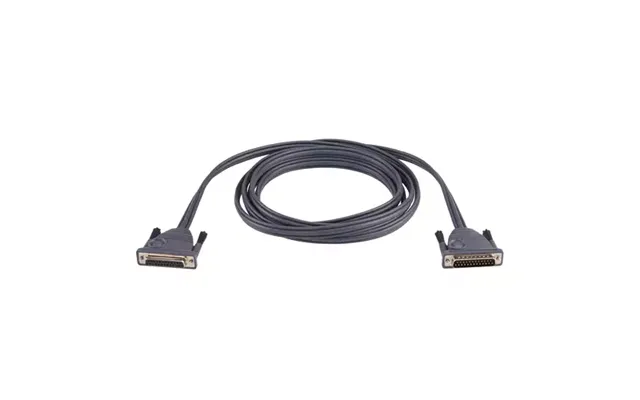
KVM cables don’t care what you’re running—as long as the ports and protocols line up. Windows PCs, Macs, and Linux machines all play nicely with modern USB-based KVMs. Consoles can work too, provided your KVM and cable combination supports the console’s video output and HDCP where needed. For servers and legacy desktops, look for cables that offer DVI, VGA, or PS/2 if your rack gear still leans old-school. The mantra is simple: port match first, then confirm your resolution and refresh.
If you’re rocking dual monitors or a single ultrawide, you have two main options. Either choose a dual-monitor KVM switch and run two video lines per machine, or use a single high-bandwidth connection if your setup and switch support MST or similar features. For ultrawide panels—especially those at 1440p or 1600p height—DisplayPort KVM cables tend to be the safer bet, especially if you want high refresh without compression.
Laptops with USB‑C or Thunderbolt can connect through adapters or docks. A USB‑C to DisplayPort adapter plus a USB lead into the KVM switch is a common, clean approach. Some KVMs support USB‑C directly, passing power and video; if yours doesn’t, just split the signals with quality adapters. Keep adapters short—6 in to 1 ft—and stick to reputable brands to avoid handshake gremlins.
Even without quoting exact numbers, you can predict where a KVM cable lands on the price ladder. Longer lengths, higher video specs (like 4K at 60 Hz or high refresh rates), heavier shielding, and brand reputation all nudge the price upward. Kits designed for specific pro-grade switches tend to cost more, but they save time and reduce compatibility headaches. Budget-friendly options exist and can be great for basic 1080p office use. If you’re running premium monitors or mission-critical systems, stepping up a tier often pays for itself in stability.
Well-known brands usually list detailed specs, compatibility notes, and support tighter tolerances—things like DisplayPort 1.4 or HDMI 2.0-level performance and robust shielding. Length is a cost lever: 6 ft and 10 ft are common and affordable; 15 ft and 25 ft start to demand better materials and sometimes active components, which lifts the price. Look for proper version labels and certifications where applicable; vague listings are a red flag.
Save on basic 1080p workstations with standard USB 2.0 needs. Splurge if you demand 144 Hz gaming, 4K at 60 Hz or higher, or if you work in a dense RF environment. If a single dropout would wreck a stream or disrupt a client call, go for a higher-grade kit. Think of it as paying for insurance against time-wasting troubleshooting.
The magic of KVM cables is how they simplify varied workflows. In a home office, a single monitor and keyboard can serve both your work laptop and personal desktop with the tap of a button. Creators and streamers can keep their production PC and gaming rig in sync, sending crisp video and responsive input through one high-spec cable kit. Home lab enthusiasts and IT pros appreciate how stable KVM connections tame server racks and cut down on monitor juggling.
Picture a compact desk with a laptop stand and a tower PC beneath. A 10 ft KVM cable kit with HDMI and USB 2.0 is often perfect here. You’ll get enough slack to route behind the desk and still keep things tidy. Add audio leads if you want your speakers to follow you between work and personal sessions without manual switching.
If you’re chasing buttery-smooth visuals, lean toward a DisplayPort KVM cable designed for high refresh rates. Keep your run short—6 ft to 10 ft—and avoid daisy-chaining adapters. Some gaming monitors behave best when they see a consistent EDID signal, so pairing the right cable with a KVM that supports EDID emulation can eliminate flicker and “no signal” surprises when switching mid-match.
In a closet rack or under-stairs lab, 10 ft to 15 ft cables give you room to slide servers out for maintenance without unplugging everything. If you need long-distance control, KVM extenders that run over Cat6 can reach around 330 ft, keeping your noisy gear away from the living space. For reliability, pick cables with sturdy connectors, metal shells where possible, and integrated strain relief—your kit will thank you during the next late-night maintenance window.
A bit of planning stops most KVM gremlins before they appear. Start with the monitor’s demands, pick the right video spec, then select a cable length that allows a gentle routing path. Keep power bricks and high-voltage lines away from your video cable where possible. And connect one system at a time during the initial setup so you can verify the chain works at each step rather than debugging everything at once.
Label both ends of each KVM cable with the connected system name. It sounds basic, but when something goes fuzzy, you’ll fix it faster. Use hook-and-loop ties instead of zip ties so you can adjust without pinching the jacket. Respect bend radius—no sharp turns—and leave a service loop behind the desk so you can pull the tower out without yanking connectors. A few inches of slack can save a lot of swearing.
If you see flicker, black screens after switching, or laggy peripherals, troubleshoot systematically. Try a shorter video cable first. Check the KVM’s firmware. Disable extra adapters to test a direct path. If you’re using G‑Sync or FreeSync, try standard refresh rates to isolate the variable. Ferrite chokes can help if you suspect interference, and a powered USB hub can stabilize picky peripherals. Nine times out of ten, clean routing and a higher-quality cable solve the problem.
You’ll find a rich mix of KVM cable options in the UK, from established brands known for rock-solid pro gear to budget lines that cover the basics. Alongside cables, consider whether a small upgrade to your KVM switch would simplify your life—some newer models support higher bandwidth, EDID emulation, and USB 3.x sharing, which can unlock better results with the same cables. If you’re deep into creative or gaming work, choosing a DisplayPort-first path often grants more headroom for future monitor upgrades.
If you haven’t picked a switch yet, work backward from your monitor and peripherals. Need dual monitors? Make sure the switch and cables handle two video lines per system. Going long distance? A KVM extender over Cat6 can stretch control up to around 330 ft while keeping latency low. Just remember that an extender’s endpoints still rely on good short cables at each side, so don’t skimp there.
A short USB‑C to DisplayPort adapter, an HDMI audio extractor, or a compact powered USB hub can round out your setup nicely. Keep adapters short—6 in to 1 ft—so you don’t add weak links. For laptops, a slim dock that provides both video and USB upstream into your KVM can cut cable count to a minimum. Just confirm the dock’s output aligns with your KVM’s inputs to avoid conversion gymnastics.
Finding the right KVM cable is easier when you can compare specs, lengths, and prices at a glance. Use price-comparison platforms in the UK to scan multiple retailers quickly, filter by video type and cable length, and spot promotions. Platforms like ZoneOffer operate as comparison sites, helping you identify solid deals and read spec details before you commit. Keep an eye on seasonal sales and bundle offers with compatible KVM switches—those kits can deliver excellent value while reducing compatibility guesswork.
KVM cables are the unsung heroes of a streamlined workspace. Get the video spec right, choose a sensible length, and invest in decent shielding, and you’ll enjoy a setup that switches cleanly and just works. For everyday productivity, a simple HDMI and USB 2.0 kit might be perfect. For high-refresh gaming or ultrawide creatives, DisplayPort-centric cables and a capable switch will keep your monitor happy. Measure, match, and compare across UK deals, and you’ll land the perfect cable at a smart price—no cable spaghetti, no drama.