All categories
Business & Offices
Electronics & Media
Fashion & Accessories
Groceries & Essentials
Health & Personal Care
Home & Living
Kids & Family
Sports & Outdoors
Search in ZoneOffer

Loading...
Ever wished your slim laptop could behave like a full desktop when you’re at your desk, then instantly go portable when you leave? That’s the magic of a laptop docking station. It turns one cable into your entire workspace—monitors, keyboard, mouse, Ethernet, audio, external storage, and more—so you can plug in once and get straight to work. No juggling a handful of cables, no fuss, just flow.
With hybrid work now the norm across the UK, a reliable dock isn’t a luxury; it’s a productivity multiplier. It’s how you connect dual or even triple displays, charge your laptop, and keep your desk clean and calm. Whether you’re editing video, crunching numbers, or running a home office, the right dock can make your setup feel purpose-built and professional.
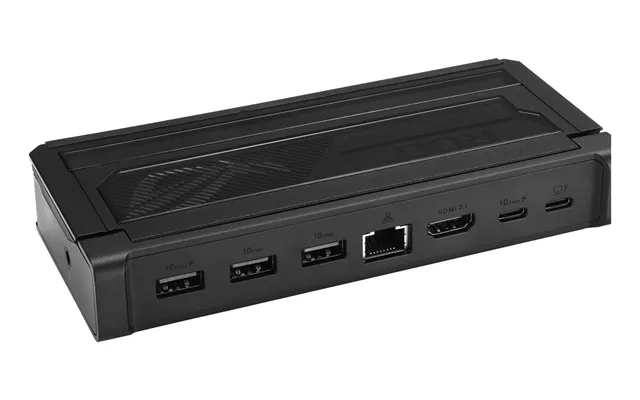
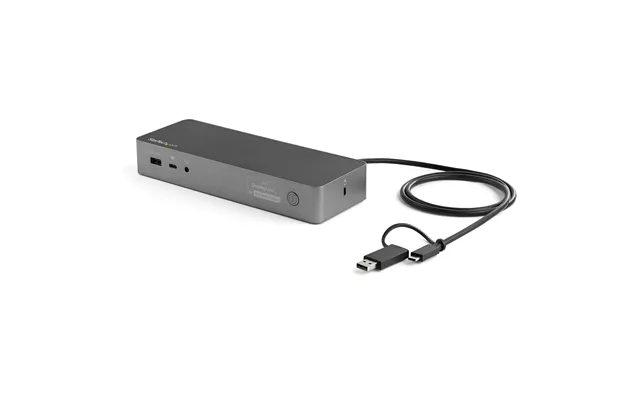
Ports are the heart of any dock. Think about what you need every day: how many USB ports for drives and peripherals, whether you want fast USB-C or legacy USB-A, and whether you prefer HDMI or DisplayPort for displays. If you still use a wired network, Ethernet on the dock keeps your laptop’s Wi‑Fi clear for calls. A memory card slot can be a quiet hero for creators, while a front audio jack saves you from reaching behind the laptop every time.
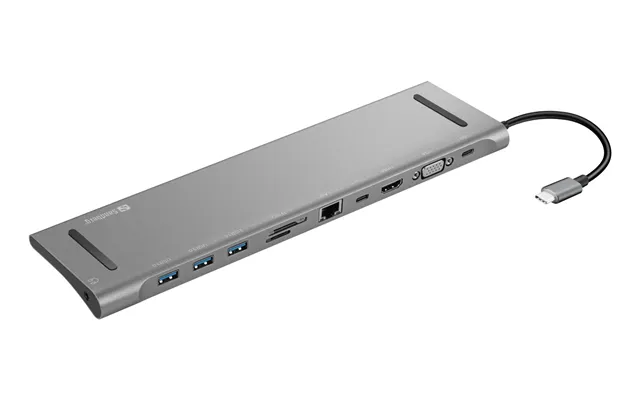
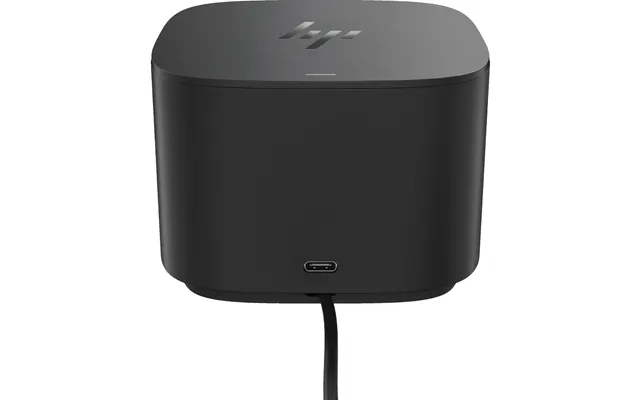
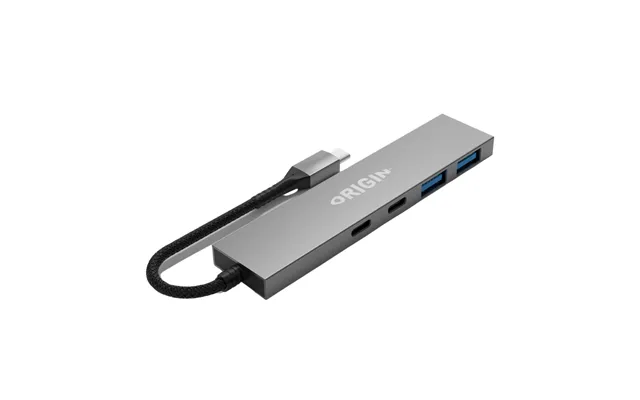
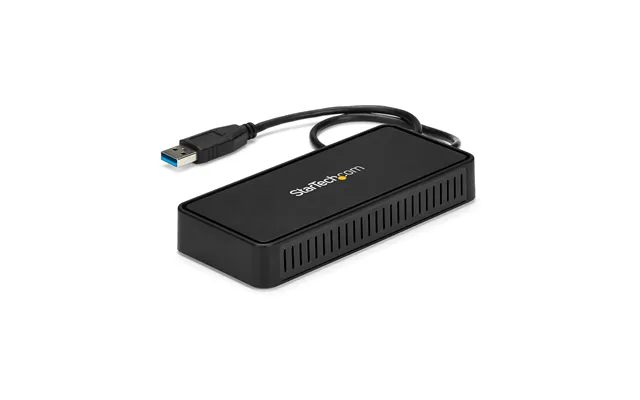
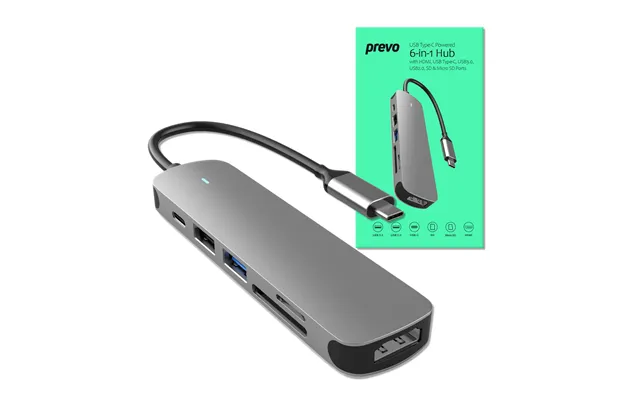
One-cable charging is the dream. The dock should power your laptop while also running your monitors and accessories. If you use a performance laptop, look for high-output charging support and a robust external power brick. The aim is simple: plug in one cable and forget about your charger, your battery, and your power bar. No unit numbers needed—just make sure the dock is described as capable of charging your specific laptop model.
Do you want dual 4K displays, or a single high-resolution ultrawide? Your answer determines the dock you need. Thunderbolt models tend to enable the most robust multi‑display setups with minimal fuss. USB‑C Alt Mode docks are great for straightforward dual‑display setups on many modern laptops. DisplayLink-based docks can unlock multi‑monitor support even on laptops that normally struggle with it, which is ideal for mixed environments or older machines.
Not all docks are created equal for every laptop. Some are tuned for macOS, some for Windows, and many are now excellent at both. If your laptop has Thunderbolt, you’ll get broader bandwidth and smoother multi‑display options with Thunderbolt docks. If you have a standard USB‑C port with Alt Mode, a universal USB‑C dock is often the simplest path. For ultraflexibility, DisplayLink docks bridge gaps between various brands and models—handy in shared office spaces.
A dock sits at the center of your setup, so reliability matters. Solid metal chassis help with heat and durability, and a clean front panel makes your daily plug‑ins easier. A dock that doesn’t move when you plug in a cable is more than a nicety; it’s sanity-saving. If you care about neatness, look for a dock with rear ports for the long-term cables and a few front ports for grab‑and‑go accessories.
In offices, management features can be a lifesaver. Enterprise-friendly docks often support network pass‑through for management and may include lock slots for physical security. If you manage a fleet of laptops, choosing a dock line designed for your brand—Dell, HP, Lenovo—can simplify firmware updates and remote support. For home users, these features are nice to have, not need to have.
Beloved by power users, the CalDigit TS4 is a connectivity beast. It’s built like a small desktop hub, with a smart mix of front convenience ports and rear cable-management ports. Creators appreciate its steady performance with high-resolution displays, external drives, and audio. It’s platform-friendly too, working well with modern Windows laptops and MacBooks. If you want a dock that handles heavy daily workloads without breaking a sweat, this one sits high on the shortlist.
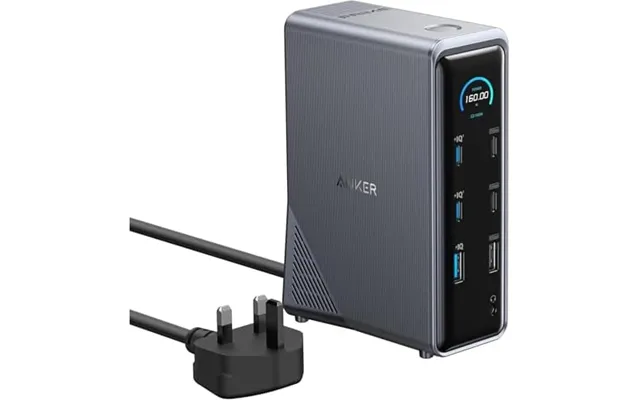
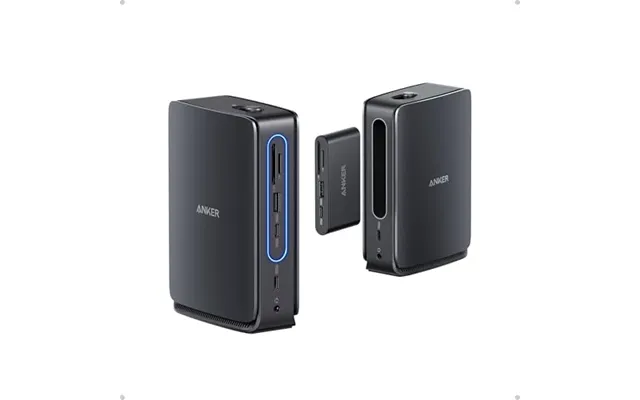
The Anker 777 blends sleek design with dependable everyday performance. It’s a strong fit for professionals who prize clean aesthetics but still need room for multiple displays, quick peripherals, and stable networking. Anker’s consumer-friendly approach makes it approachable: you plug it in, it works, and it looks good doing it. If you’re upgrading from a basic USB hub to a real desk anchor, this is a smooth step up.
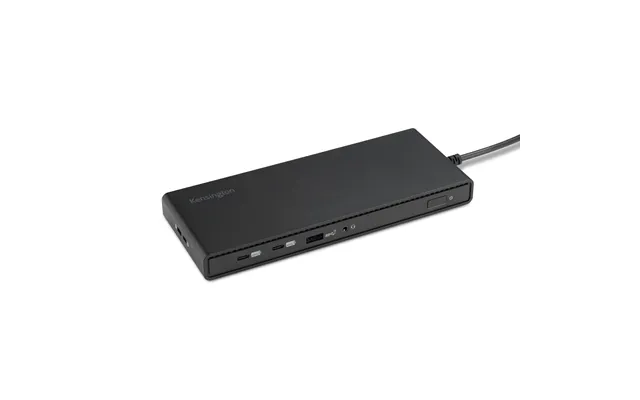
Kensington brings office-grade reliability with the SD5700T. It’s great for multi‑monitor setups, offers sturdy construction, and usually includes tidy management touches that IT teams love. The brand’s heritage in security shows—everything feels designed for long-term use. If your desk doubles as a home office and a professional workstation, this dock’s stability is comforting.
If your goal is to connect several displays across a range of laptops, the Plugable UD‑6950H is a versatile pick. It uses DisplayLink technology to enable multi‑monitor productivity, even on machines that would otherwise cap out. It’s a favorite for hot desks and mixed laptop environments. The design focuses on function first: all the ports you need, clearly labeled, and ready for action.
The WD19S is a staple in corporate fleets for a reason: it’s reliable, consistent, and designed with Dell laptops in mind while still working with many others. Expect straightforward dual‑display support, neat cable routing, and the kind of durability that suits a busy office. If you rotate between meeting rooms and your desk, this dock gives you the predictable experience you need day after day.
HP’s USB‑C G5 is a practical, budget‑friendly choice that still gets the job done. It’s ideal for knowledge workers who want dual displays, wired Ethernet, and simple plug‑and‑play connectivity. The design is compact and clean, making it easy to tuck behind a monitor. If you’re equipping a home office without going all‑in on premium Thunderbolt gear, this is a sensible pick.
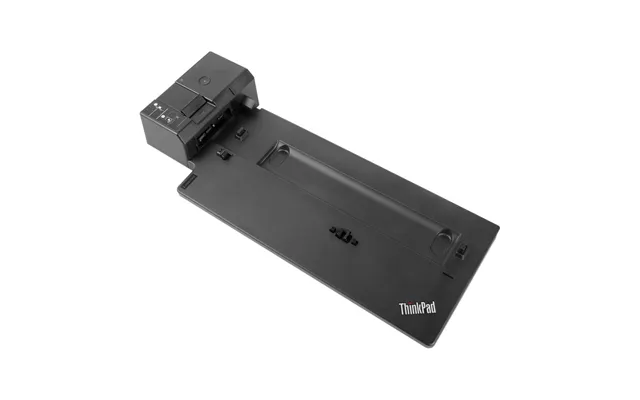
Lenovo’s ThinkPad dock is purpose-built for ThinkPads but plays nicely with many USB‑C laptops. It strikes a balance between price and performance, with dependable multi‑display support and a stable power connection. If your laptop lives in a ThinkPad ecosystem, choosing this dock helps ensure firmware harmony and stress‑free updates.
Targus leans on DisplayLink to make the DV4K a universal multi‑monitor solution. It’s a strong partner for ultrabooks that need dual high‑resolution screens and a full desk of peripherals. The industrial design is understated, the footprint is compact, and setup is painless. If you’re helping a team standardize across different laptop brands, this dock’s flexibility earns its keep.
Belkin’s Thunderbolt dock stays popular with MacBook users while keeping cross‑platform compatibility in view. It’s a dependable choice for creative workflows where stable display output and quick peripheral access matter. The layout is practical, with enough front ports for quick swaps and rear ports for the long-haul cables you want out of sight.
If you’re using a Surface device, the Surface Dock 2 offers the most seamless experience. It’s tuned for the Surface connector, keeps your workspace clean, and leans into the ecosystem advantages of Microsoft hardware. You get easy display expansion, fast accessory connections, and a sleek design that matches your Surface hardware. For Surface owners, it’s the “just works” option.
Thunderbolt docks deliver the widest pipeline for data, displays, and accessories. If you’re a creator, developer, or power user juggling external drives and multiple high‑resolution monitors, it’s the smoothest experience. Think of it like a multi‑lane motorway—everything moves without bottlenecks.
USB‑C Alt Mode docks are the sweet spot for many modern laptops. They keep things simple: plug in, get displays, connect peripherals, and charge. If your day is mostly documents, video calls, and a couple of screens, you’ll be happy here. It’s the dependable family car of docking—no flashy extras, just reliable transport for your workflow.
DisplayLink‑powered docks shine when compatibility is the wildcard. They use a software driver to efficiently send video over USB, unlocking multi‑monitor support even on laptops that don’t natively support it. For offices with shared desks or a mix of brands and ages, DisplayLink is the universal handshake that makes it all work.
If you might switch laptops in the next year, a universal dock with broad compatibility keeps your setup flexible. Thunderbolt offers the most headroom, while DisplayLink maximizes adaptability. Choosing a well‑reviewed model from a major brand protects you from firmware weirdness down the road.
Route long‑term cables to the rear of the dock and use short leads for front ports. Keep the one laptop cable free from twists so plug‑in feels light and easy. A simple cable clip or under‑desk channel can make your desk look like a magazine spread without breaking a sweat.
Decide which display is your primary, then align them in your operating system to match the physical arrangement. If your dock supports multiple high‑resolution screens, test different scaling options until text is crisp and comfortable. This five‑minute tweak pays off every single day.
Give the dock a bit of breathing room and avoid stacking it under warm devices. If your laptop is a performance model, keep its vents clear when you connect through the dock. A calm, cool setup prevents thermal throttling and keeps your gear feeling snappy.
For DisplayLink docks, install the latest driver from the brand’s site. For Thunderbolt and brand‑specific USB‑C docks, check firmware tools provided by the manufacturer. A quick update now saves you from little glitches later—like flickering displays or sleepy USB ports.
If you travel, keep a compact USB‑C hub in your bag and leave your big dock at home. Your one‑cable routine at the desk will still feel premium, and your mobile life stays light. It’s the best of both worlds without duplicating your entire setup.
Affordable USB‑C docks focus on the basics: a couple of displays, several USB ports, and stable charging. They’re perfect for documents, browsing, calls, and light creative work. You won’t get every premium feature, but you’ll cover your daily must‑haves without stretching your budget.
Mid‑range options unlock better multi‑monitor support, sturdier build quality, and a more generous port mix. This is the sweet spot for most home offices and hybrid workers. You’ll get a desk that feels pro, without going full studio rig.
High‑end Thunderbolt docks bring the most bandwidth, the richest port selection, and superb multi‑display headroom. If you juggle large media files, rely on fast external storage, or run multiple high‑resolution screens, the premium tier pays for itself in time saved and headaches avoided.
MacBooks pair brilliantly with Thunderbolt docks from CalDigit, Anker, and Kensington. If you’re deep in the Apple ecosystem, you’ll appreciate clean clamshell setups, solid multiple‑monitor support, and consistent sleep/wake behavior. Just confirm display limitations for your exact model, especially if you’re aiming for more than two screens.
Most modern Windows ultrabooks handle USB‑C Alt Mode beautifully and can step up to Thunderbolt for bigger setups. Dell WD19S, HP USB‑C G5, and Lenovo ThinkPad USB‑C docks are safe, well‑tested choices that keep firmware harmony and driver friction to a minimum.
Performance laptops often benefit most from Thunderbolt docks due to the wider data lanes for displays and external drives. If yours includes discrete graphics, check the manufacturer’s notes on display routing so you know which ports feed which GPU. The right pairing avoids surprise limits on external monitors.
For Chromebooks and shared desks with multiple brands, DisplayLink docks like the Plugable UD‑6950H and Targus DV4K keep everything working smoothly. The driver install is straightforward, and once it’s set, you get consistent multi‑monitor productivity across different machines.
A good dock is only as strong as its weakest cable. Invest in certified cables for your displays and a sturdy primary cable to the laptop. If you’re mixing HDMI and DisplayPort, a small set of reliable adapters can save the day when you least expect it.
Free your desk space by floating your monitors on arms. It keeps your posture happy and makes cable routing a breeze. With the dock tucked behind a screen, your setup looks intentional and is easier to clean.
Use a quality surge protector or a power station with spaced outlets for chunky power bricks. Keep the dock’s power supply off the floor and away from dust. Good power hygiene prevents random disconnects and extends the life of your gear.
Pair your dock with a speedy external drive for backups, media libraries, or project files. Connect it to a high‑bandwidth port on the dock for consistent performance. You’ll feel the difference when apps load faster and files transfer in a snap.
Before you click buy, list your non‑negotiables: number of displays, preferred video ports, how many USB ports, and whether you need Ethernet or an audio jack. Check a trusted comparison site like ZoneOffer to see current offers, narrow in on models that fit your checklist, and read user feedback for your exact laptop line. A few minutes here saves hours of troubleshooting later.
USB‑C is a shape, not a promise. Some ports carry video and charging, others don’t. Check your laptop’s specs for Alt Mode video and charging support. If you have Thunderbolt, you’re even more flexible—but confirm model‑specific display limits.
Your dock might support multiple high‑resolution screens, but the wrong cable can kneecap performance. Use high‑quality cables matched to the port standard on both dock and monitor. It’s a small detail that makes a big difference.
If your dock offers firmware updates, take them. Brands iron out display quirks and connectivity hiccups over time. A quick update can turn a “mostly great” dock into a flawless one.
Place the dock where you can easily reach a front port without standing up. Keep your primary cable path short and smooth. A tiny ergonomic tweak makes plugging in feel effortless and keeps your routine friction‑free.
The right laptop docking station transforms your daily workflow, turning a single cable into a full powerhouse desk. Decide how many screens you want, which ports you rely on, and how much headroom you need for creative work or data‑heavy tasks. Thunderbolt docks bring premium bandwidth and polish, USB‑C Alt Mode keeps things simple and solid, and DisplayLink delivers flexibility across mixed laptop fleets. Shortlist proven models like CalDigit TS4, Anker 777, Kensington SD5700T, Plugable UD‑6950H, Dell WD19S, HP USB‑C G5, Lenovo ThinkPad USB‑C Dock Gen 2, Targus DV4K, Belkin Thunderbolt 3 Dock Pro, and Surface Dock 2. Then compare live offers on a trusted comparison site like ZoneOffer, match the dock to your exact laptop, and enjoy a desk that works as fast as you do.

| £ 143,60 |
| Dell Wd19s-180w Wired Usb 3.2 Gen 2 3.1 Gen 2 Type-c Black | £ 157,12 |
| Belkin Inc003vfbk Laptop Dock Port Replicator Docking Usb 3.2 Gen 2 3 | £ 158,25 |