All categories
Business & Offices
Electronics & Media
Fashion & Accessories
Groceries & Essentials
Health & Personal Care
Home & Living
Kids & Family
Sports & Outdoors
Search in ZoneOffer

Loading...
Scrolling with your finger is fine—until you’re sketching, signing, or writing fast. That’s where a stylus pen earns its keep. It gives you pinpoint control, cleaner lines, and a more natural way to interact with your tablet or 2‑in‑1. Whether you’re annotating a PDF on the train or shading a portrait at home, the right stylus can make your screen feel like a proper notebook or canvas—minus the smudges and eraser dust.
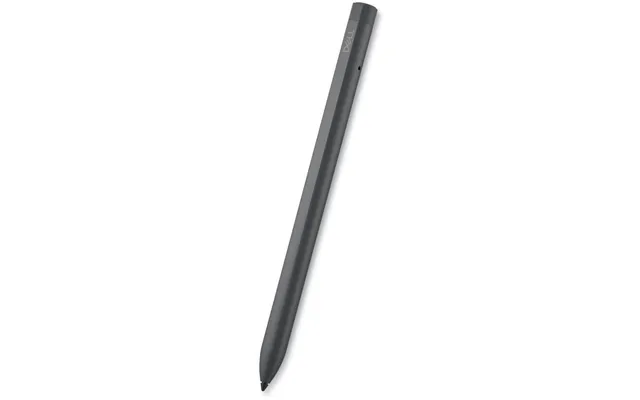
A good stylus pen behaves like a well‑balanced fountain pen: it glides where you want, stops when you need, and leaves crisp, predictable marks. Fine tips—often around the width of a needle—make small handwriting legible and let you tap tiny interface elements without frustration. If you’ve ever fought with clumsy finger taps in a spreadsheet, you know exactly why precision matters.
Prefer to think on paper? A stylus brings that muscle memory onto glass. With palm rejection and smooth inking, you can rest your hand naturally and scribble lecture notes, brainstorm mind maps, or mark up slides. It’s fast, tidy, and easy to search later. And unlike paper, you can back up everything, share it instantly, and never run out of pages.
From quick thumbnails to detailed digital paintings, an active stylus with pressure and tilt support lets you vary line weight, build texture, and shade like you would with real tools. Artists love the way a responsive pen turns a tablet into a portable studio. If creativity is your thing, the right pen can be the difference between “nice try” and “nailed it.”
Not all styluses are built the same. Some are smart, some are simple, and both have their place. Knowing the difference helps you pick the right tool—and avoid paying for features you’ll never use.
Active styluses communicate with your device to deliver goodies like palm rejection, pressure sensitivity, tilt, shortcut buttons, and super‑low latency. They usually pair or sync with your tablet, and many charge magnetically or via USB‑C. If you draw, take dense notes, or annotate PDFs daily, an active stylus is the productivity multiplier you want.
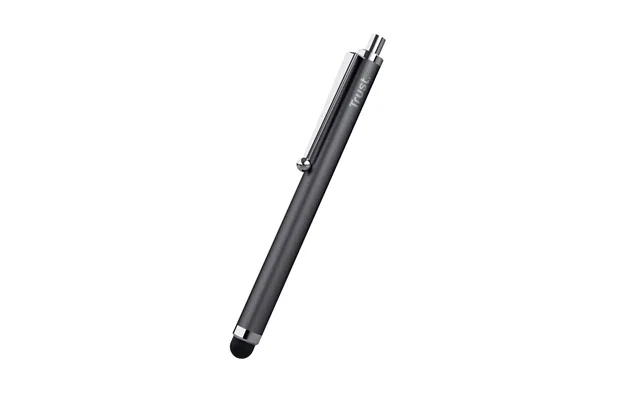
Passive styluses don’t need pairing or batteries. They work by mimicking your finger on any capacitive touchscreen. They’re great for broad navigation, quick sketches, and kids’ apps. You’ll see soft mesh tips and disc tips (a clear disk at the end so you can see where you’re landing). They lack pressure and palm rejection, but they’re affordable and universally compatible.
If you’re writing every day or doing creative work, go active. The jump in accuracy, comfort, and features is huge. If you just need a better “finger” for occasional tasks, a passive stylus is a budget‑friendly helper. Still unsure? Think about your main apps. If they emphasize drawing, handwriting, or fine editing, you’ll benefit from an active pen almost immediately.
Hunting for the best deals and the right fit? Here are popular options UK buyers regularly compare—each with strengths that make them shine for specific devices and tasks.
If you own a compatible iPad, this is the gold standard for latency, palm rejection, and accuracy. It snaps magnetically to the tablet, charges wirelessly, and supports a handy double‑tap gesture to switch tools. Artists love its natural line variation and consistent feel. For note‑takers, it turns iPad into a focused writing machine. Keep an eye on seasonal discounts and bundle deals that include tips or cases.
This newer option is a budget‑friendlier way to enter the Apple Pencil world. It attaches magnetically for storage and charges via a hidden USB‑C port. It supports tilt and hover on supported iPads, offering very smooth inking. It skips pressure sensitivity and the double‑tap gesture, but for students and everyday annotators, it’s a strong value play—especially when you spot a price drop.
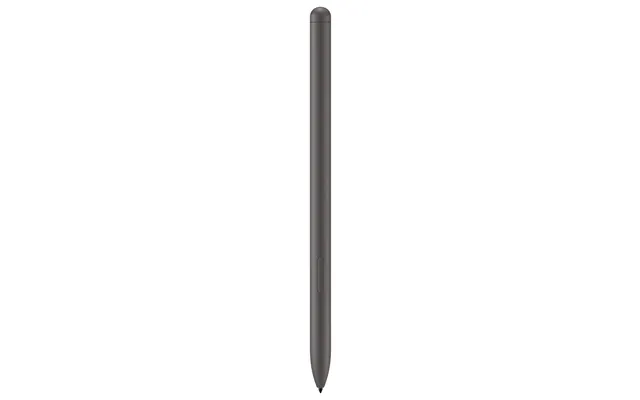
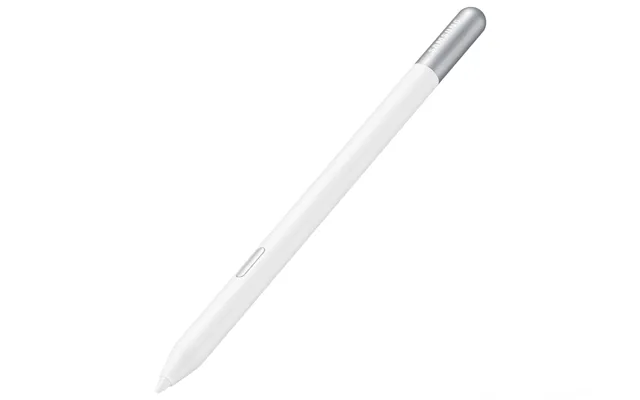
For Galaxy tablets and phones, the S Pen is a no‑brainer. Many S Pens work without charging for basic writing and drawing, delivering dependable palm rejection and low latency. If you want Bluetooth “air” features, the S Pen Pro adds advanced controls and charging. Paired with Samsung’s note and drawing apps, it’s a well‑rounded tool for work and creativity.
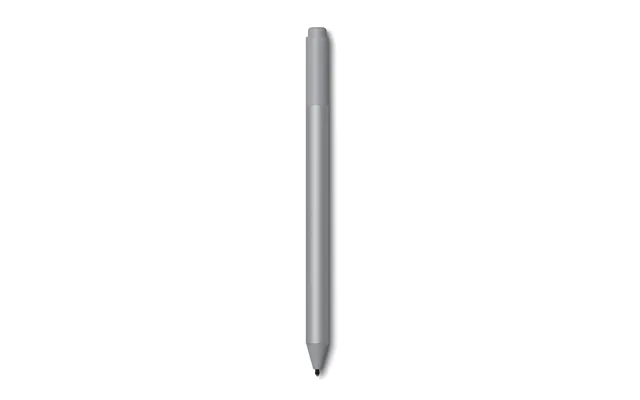
Surface users get a sleek, rechargeable pen that docks neatly in compatible keyboards or charging cases. On supported Surface devices, you can even feel subtle haptics that mimic the texture of writing on paper. It’s great for inking in OneNote, signing documents, and making precise selections in design apps. Look for bundle savings with keyboards or chargers.
Crayon taps into Apple Pencil tech but keeps things simple. It pairs instantly with compatible iPads, supports tilt for dynamic line width, and charges via USB‑C. It doesn’t offer pressure sensitivity, yet it’s incredibly reliable for classrooms and fast note‑taking. The flat, rugged design is kid‑friendly and desk‑friendly—you won’t watch it roll away mid‑lecture.
Adonit offers a wide range for iPad and other devices. The Note and Note+ models target precision writing and drawing, with options like palm rejection and app‑friendly shortcut buttons. The Dash is a universal pick for basic tasks across capacitive screens. Compatibility matters here, so double‑check your device list before you buy, and compare features carefully to match your workflow.
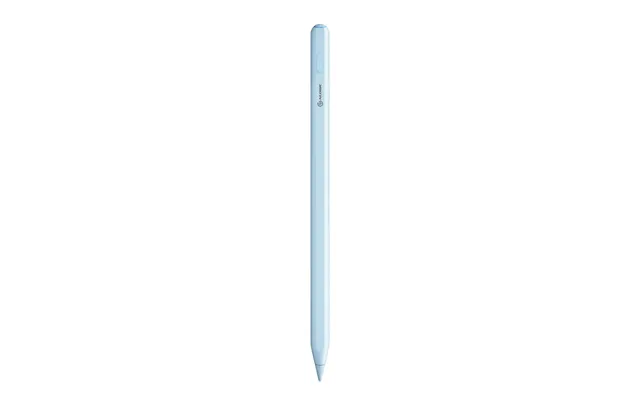
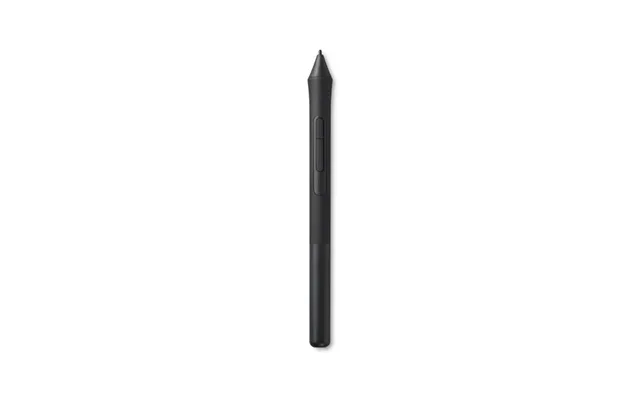
For Windows machines, Bamboo Ink is a popular choice built for Windows Ink. It supports advanced inking on many 2‑in‑1 laptops and tablets, often with configurable side buttons for eraser or selection tools. If you’re in the Microsoft ecosystem and annotate or sketch regularly, it’s a dependable, ergonomic pick.
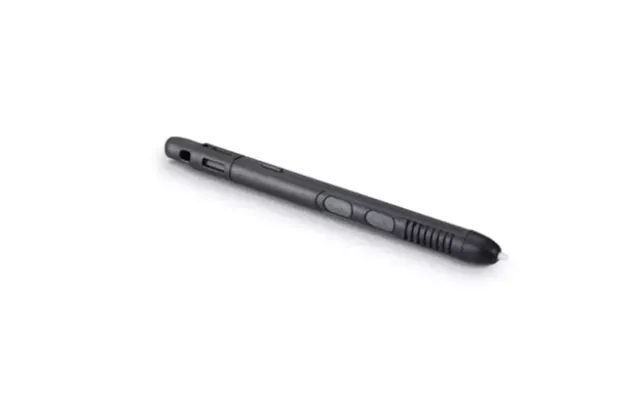
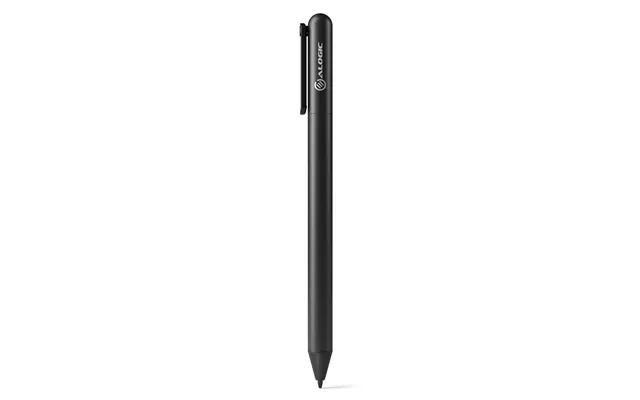
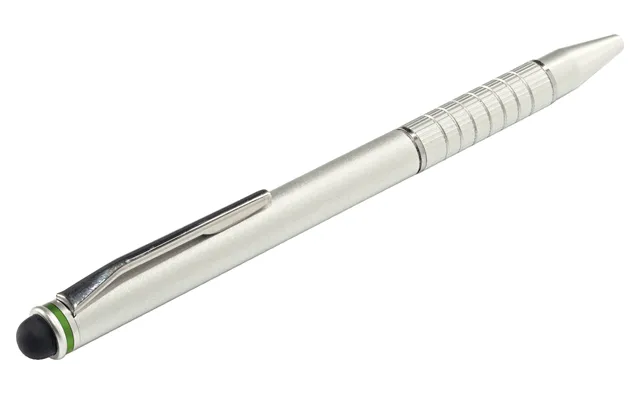
Need something that works everywhere without fuss? A universal stylus is the trusty spare you toss in a bag. Mesh tips feel soft and glide easily; disc tips give you a clear view of the point of contact for finer control. They aren’t ideal for serious art, but they’re perfect for tapping tiny icons, quick signatures, and casual doodling.
Nothing kills a deal like buying the wrong pen for your device. A few quick checks will save you time and returns, and make sure your stylus works the way you expect the moment it arrives.
Apple Pencil models are designed for specific iPads, and not all iPads support every Pencil. Always confirm your iPad generation against the pen’s compatibility list. Third‑party iPad styluses vary: some offer palm rejection and tilt on supported apps, while others behave like basic capacitive pens. iPhones don’t support Apple Pencil, so choose a third‑party option if you’re stylus‑writing on a phone.
Samsung tablets and phones often shine with S Pen support built into the hardware. For other Android devices, compatibility depends on the pen and screen tech. Many third‑party capacitive styluses will work for basic input, while active features like palm rejection require explicit support. Check the manufacturer’s device list before you commit.
Windows devices support inking through different standards. Pens like Surface Slim Pen and Bamboo Ink target Windows Ink and specific digitizers. If you own a Surface, start with Microsoft’s own pens for best results. For other brands, confirm whether your device supports the pen’s protocol so you get full features instead of basic tapping only.
Specs can feel like alphabet soup. Here’s how to translate the feature list into real‑world performance you’ll actually notice—and appreciate—every day.
Pressure sensitivity lets your pen go from whisper‑thin to bold with a gentle squeeze, just like pencil on paper. It’s essential for artists and helpful for expressive note‑takers. If you draw often, prioritise a pen and device combo that supports pressure in your favourite apps. If you mostly annotate or highlight, tilt alone might be plenty.
Palm rejection allows you to rest your hand while writing naturally. Tilt simulates shading and calligraphic strokes. Both features reduce frustration and make your writing look cleaner. Active styluses and supported screens handle these features gracefully; passive pens do not. If your notes look wobbly, lack of palm rejection is usually the culprit.
Latency is the delay between pen movement and line appearance. Modern tablets and pens can feel near‑instant, especially on high‑refresh screens. If you draw quick shapes or write fast, you’ll feel the difference. Look for pens known for low lag with your device, and test a “fast scribble” in your note app to judge responsiveness.
Fine tips give tighter control; softer tips add friction that can feel more “paper‑like.” Replaceable nibs extend the life of your pen and let you tweak the feel. Some pens support different tip textures—from smooth to more resistant—so you can dial in your perfect glide. Consider the body shape too: a flat side resists rolling, while a chunkier grip eases long writing sessions.
Magnetic attachment keeps your pen handy and less likely to vanish between cushions. Wireless charging is effortless; USB‑C charging is quick and universal. If you hate pairing hassles, choose pens that connect instantly or store in a keyboard tray. For Bluetooth features, make sure there’s a convenient way to top up without rummaging for obscure cables.
Small add‑ons can transform the experience from “good” to “wow.” A few pounds spent smartly can save tips, protect screens, and boost comfort.
Prefer a bit of tooth so your pen doesn’t skate across glass? A matte, paper‑like protector adds gentle friction that can improve control and handwriting legibility. It also reduces glare. The trade‑off is a slight softening of display sharpness, but for writers and artists, the comfort often outweighs the tiny loss in crispness.
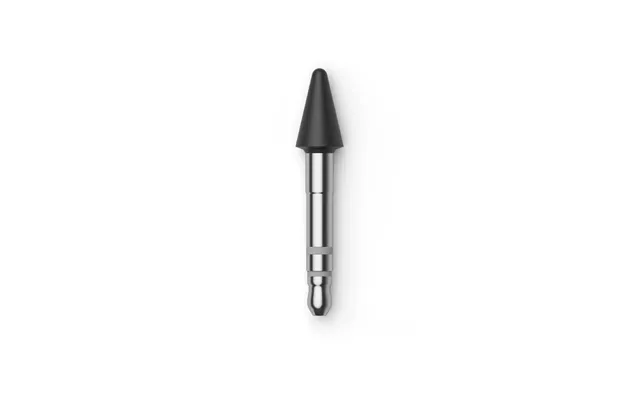
Nibs wear down over time—especially if you press hard or use textured protectors. Keep a pack of replacements so your lines stay consistent. Silicone grip sleeves can increase comfort and reduce fatigue during long study or sketch sessions. They’re inexpensive and surprisingly effective.
If your pen supports magnetic charging, a compatible dock or keyboard tray keeps it topped up. Otherwise, consider a slim case or a pen loop that attaches to your tablet cover. Losing a stylus is the worst kind of “deal”—the one you have to buy twice.
Finger oils and dust increase drag and make tips wear faster. A microfiber cloth and a few alcohol‑free wipes go a long way. Clean your screen regularly, and you’ll feel smoother strokes, fewer skips, and a longer‑lasting nib.
Stylus pens span a wide price range, and you don’t have to pay full RRP to get a great tool. A smart plan and a good comparison site can cut your costs without compromising performance.
Before you buy, scan a trusted comparison site like ZoneOffer to line up prices from multiple retailers, track drops, and spot bundled extras. Because it isn’t a store, you’ll get a broader view of the market in one place, which makes it easier to choose based on value, not hype.
Bundles that include spare nibs, sleeves, or screen protectors can save cash versus buying parts separately. If a retailer offers a case or keyboard with integrated charging for your pen, do the math—sometimes the “expensive” bundle is the smarter long‑term buy.
Refurbished or open‑box pens can deliver like‑new performance at a friendlier price. Check warranty terms and authenticity, and buy from reputable sellers. Pens are durable, and a gently used unit can be a savvy pick—especially for students.
Back‑to‑school, Black Friday, and end‑of‑year sales often bring standout stylus deals. If your need isn’t urgent, set alerts and wait a week or two. Prices for big‑name pens can swing significantly during peak promo periods.
Even with careful research, compatibility surprises happen. Make sure the seller offers a reasonable return window, and double‑check device lists. A few minutes here can save a lot of back‑and‑forth later.
A well‑kept stylus writes better and lasts longer. A few habits will keep your lines smooth and your pen dependable day after day.
Wipe your screen and pen tip regularly with a microfiber cloth. Skip harsh chemicals; a light, alcohol‑free cleaner is enough. If you feel scratchy strokes or skipping, it’s usually dust or a worn tip—not a dead pen.
Some devices and apps allow calibration or pen sensitivity tweaks. If your lines land slightly off or pressure feels too heavy/light, adjust settings. Also make sure palm rejection is enabled where supported. Firmware updates—on pens that support them—can improve stability.
If the tip looks flattened or shiny, swap it. A tired nib can slip more, scratch protectors, and make lines inconsistent. Keeping a spare in your bag is cheap insurance against mid‑meeting mishaps.
Use magnetic mounts, keyboard trays, or pen loops so your stylus isn’t loose in a pocket with keys. Extreme heat or cold is hard on batteries, so avoid hot dashboards or chilly windowsills. Treat your stylus like a nice pen, and it will treat you well back.
Different users need different superpowers. Here’s a quick way to match your daily routine to the right pen and features, so you spend wisely and enjoy the upgrade.
Prioritise palm rejection, comfortable grip, and dependable battery life. Apple Pencil (2nd Gen) and Logitech Crayon are fantastic for iPad note‑takers; Samsung S Pen shines for Galaxy tablets. Look for deals that include nibs and a paper‑like protector to boost handwriting comfort during long lectures.
Pressure sensitivity, tilt, low latency, and a stable pairing are must‑haves. Apple Pencil (2nd Gen) on a compatible iPad or Surface Slim Pen 2 on a supported Surface device deliver excellent creative control. Consider spare nibs with different textures and a matte protector for that “pencil on paper” feel.
If you annotate contracts or whiteboard ideas daily, reliability and quick access trump fancy extras. A pen that docks and charges automatically (Apple Pencil 2, Surface Slim Pen 2) is perfect. Shortcut buttons for eraser/select can save time. Seek bundle discounts with keyboard covers or cases.
Durability and cost matter more than pro‑grade features. A universal capacitive stylus or Logitech Crayon is sturdy and easy to use. Mesh or disc tips also work well for basic drawing apps and navigation without the worry of losing an expensive pen.
The right stylus pen turns your screen into a more precise, more creative, more productive workspace. Start by matching the pen to your device, then pick features that suit how you actually work: palm rejection and tilt for writers, pressure and ultra‑low latency for artists, strong magnets and easy charging for everyday pros. Finally, compare prices across multiple retailers and watch for bundles to stretch your budget further. With a little homework—and a good comparison site—you can land a stylus that feels natural in the hand, behaves beautifully on glass, and makes every tap, stroke, and signature feel effortless.
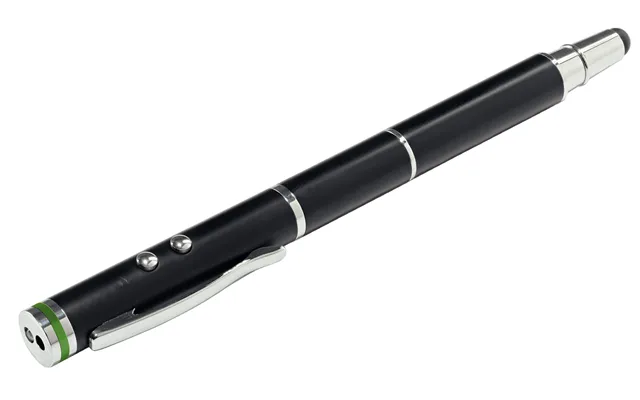
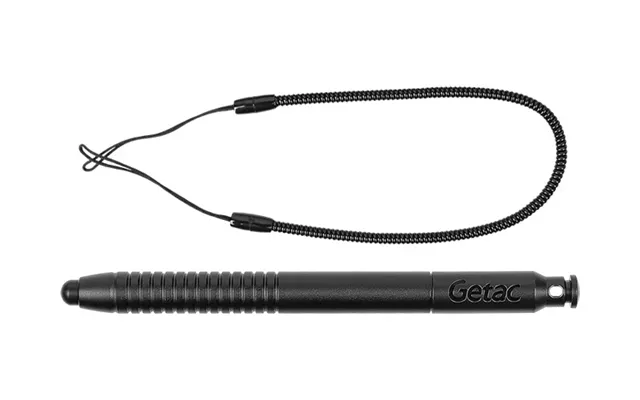
| Stylus Pens | Price | |
|---|---|---|
| Targus Amm163amgl Stylus Pen 10 G Black. Silver | £ 15,33 | |
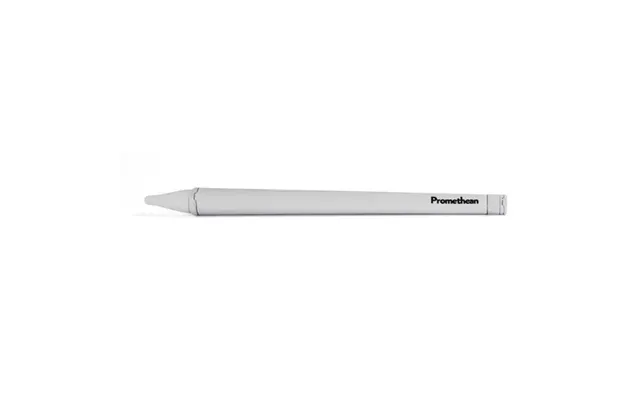
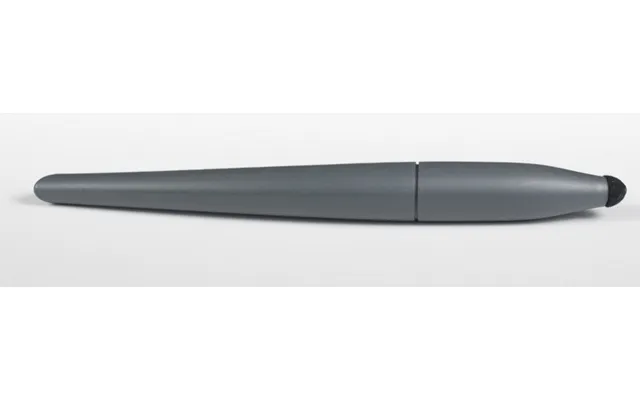
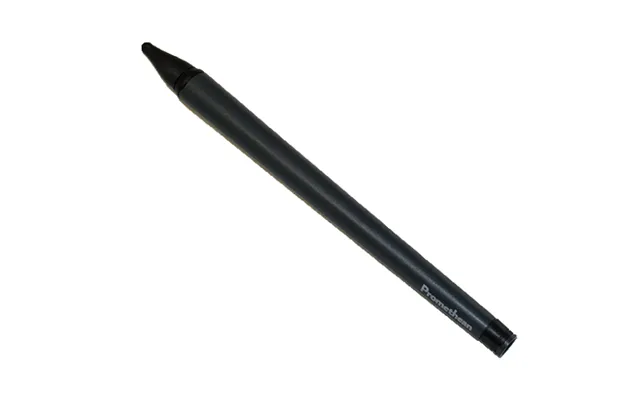
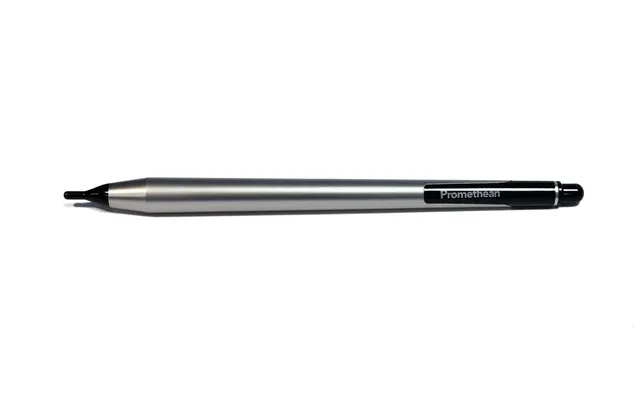
| Promethean Activpanel Stylus Pen Grey | £ 16,26 | |
| Samsung Ej-px510 Stylus Pen 8.7 G Grey | £ 40,29 | |
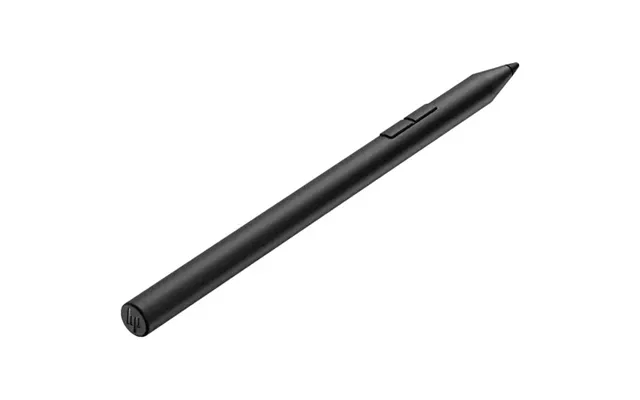
| Hp 705 Rechargeable Multi Pen | £ 45,32 | |
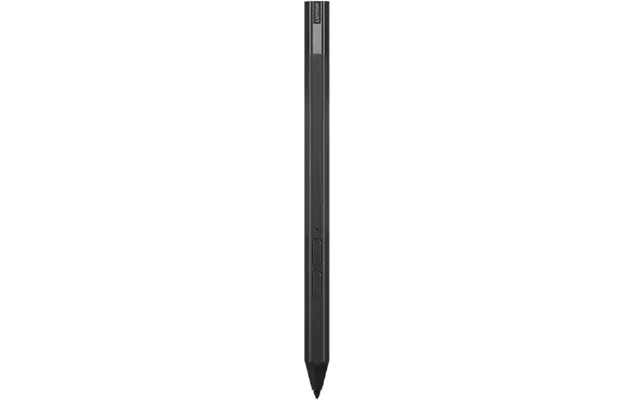
| Lenovo Precision Pen 2 Stylus Pen 15 G Black | £ 57,09 | |
| Panasonic Fz-vnp026u Stylus Pen 11.3 G Black | £ 62,54 | |
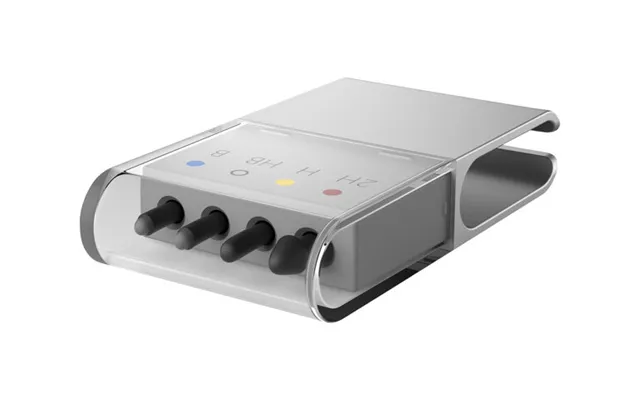
| Microsoft Surface Pen Tip Kit 80 Pc S | £ 75,44 | |
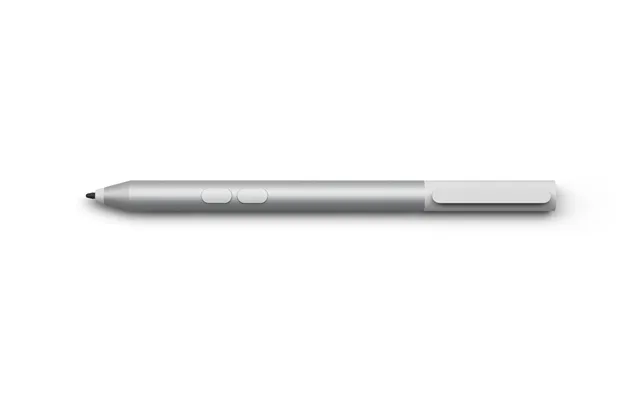
| Microsoft Surface Pen Stylus Pen 20 G Platinum | £ 79,72 | |
| Microsoft Surface Slim Pen 2 Tips Black | £ 172,58 | |
| Microsoft Classroom Pen 2 Stylus Pen 8 G Platinum | £ 382,69 |