All categories
Business & Offices
Electronics & Media
Fashion & Accessories
Groceries & Essentials
Health & Personal Care
Home & Living
Kids & Family
Sports & Outdoors
Search in ZoneOffer

Loading...
When a tablet starts acting up—maybe the screen cracks, the battery drains too fast, or the charging port wiggles—many people assume it’s time to replace the whole device. But why throw out a trusty companion when a single part swap can bring it back to life? Tablet computer parts are widely available in the UK, often at wallet-friendly prices, and the right replacement can add years to your device’s lifespan. Whether you’re repairing an iPad, a Samsung Galaxy Tab, a Microsoft Surface, or an Amazon Fire, choosing the right parts and comparing offers can slash costs while keeping your tech running smoothly.
Think of your tablet like a car: you wouldn’t bin a car because it needs new tires, right? Replacing a digitizer, upgrading a battery, or swapping a speaker can cost a fraction of buying a brand-new tablet. With clear compatibility checks and a few essential tools, many common fixes are surprisingly approachable for DIYers. And even if you prefer a pro repair service, buying the parts yourself after comparing prices often lowers the final bill.
Repairing instead of replacing isn’t just good for your budget; it’s good for the planet. Tablets contain precious materials, and giving your device a second life reduces electronic waste. Every screen or battery you replace is one fewer device headed to the scrap heap. Small steps add up—especially when you consider the millions of tablets used across the UK.
Some parts wear out faster than others, and certain fixes pop up again and again. If you’ve noticed a cracked display, a tablet that won’t hold charge, or a port that only works at a certain angle, you’re not alone. Below are the parts shoppers most often compare, with tips to help you choose smartly and snag great value.
The screen is the star of the show—and also the most vulnerable. On many models, the touch layer (digitizer) and the display are fused; on others, they’re separate. For iPads and many Galaxy Tabs, you’ll find options like glass-only (rare and tricky), digitizer-only, LCD-only, or full assembly. If a 10.2-inch iPad screen shows lines, backlight bleed, or dead zones, a full assembly usually makes the job cleaner and quicker. For premium tablets like 12.9-inch iPad Pro or 12.4-inch Galaxy Tab S7+, quality matters: opt for panels with strong color accuracy and true-to-original brightness to avoid a dull, washed-out look.
Batteries age with time and charges. If your tablet drops quickly from 30% to 5%, shuts down early, or runs hot, a battery swap can transform it. Choose batteries specified for your exact model, read reviews for real-world longevity, and check for safety certifications. Avoid sketchy listings that don’t state the compatible model clearly. While you’re at it, consider power-related flex cables and power buttons—these small parts can also cause boot and charging quirks that look like battery issues.
Loose, wobbly ports are a common pain point. Many tablets use soldered-on ports that require precision to replace, while others use a flex-cable-based sub-board. If your tablet charges at a weird angle or only with one specific cable, it might be the port. Compare sub-board assemblies when available; they can make port swaps plug-and-play rather than a micro-soldering job. Also consider a fresh cable—sometimes the “broken port” is really a tired lead.
Volume buttons, microphones, speakers, and front/rear cameras are the unsung heroes. Static on calls, muffled audio, or a camera that won’t focus is often a straightforward module swap. Home buttons on certain tablets double as fingerprint sensors; mismatched parts can disable biometric features, so always check compatibility notes carefully. Pay attention to included adhesives and gaskets to keep dust and moisture out after installation.
Not all parts are created equal. The difference between a smooth, reliable repair and a frustrating do-over often comes down to accurate compatibility and quality. Here’s how to pick the right parts the first time and keep your upgrade on budget.
Tablet families can share names but differ under the hood. Always confirm the exact model number printed on the back casing or in the settings menu. For iPads, model identifiers like A2270 or A2602 are critical. Samsung uses series names plus detailed model codes. Microsoft Surface models look similar across generations—verify yours precisely to avoid connector mismatches. If your part listing includes a supported year range and screen size (for example, 10.9-inch or 12.9-inch), cross-check that with your device.
OEM parts (original equipment manufacturer) typically match the original look and performance. Aftermarket parts can still be excellent value, especially for older tablets, but quality varies. Premium aftermarket displays often include laminated glass, accurate color, and strong brightness levels. Batteries should be sourced from reputable brands and sellers with transparent testing standards. When in doubt, read buyer reviews and look for detailed specs rather than vague claims.
You’ll see terms like “Grade A,” “Premium,” or “Service Pack.” These descriptors hint at condition and origin. Grade A generally means near-new, while Service Pack often signals a manufacturer-packaged component. For screens, ask whether they’re fully laminated and whether the digitizer is pre-bonded. For small parts, a clear warranty and transparent returns policy (from the seller) help reduce risk if something arrives DOA or incompatible.
Great parts deserve the right tools. If you’ve never opened a tablet before, a well-curated toolkit can make your first repair feel manageable instead of nerve-wracking. You don’t need a workshop—just the right picks, drivers, and adhesives.
Look for a screwdriver set with precision bits (including Torx and pentalobe where needed), plastic picks, a suction handle, tweezers, and a spudger. A heat source—like a controlled heat gun or a hairdryer—helps soften adhesive along display edges. Magnetic mats keep screws organized by section so reassembly is painless. Want a pro tip? Label screw zones by step; it’s like giving future-you a treasure map for reassembly.
Most tablets rely on strong adhesive to hold the display and internal parts. High-quality double-sided adhesive pre-cuts, thin foam tapes, and perimeter seals keep dust out and the screen flush. If your model originally had water resistance, look for a replacement seal specifically sized for your device. Avoid reusing old adhesive; it rarely bonds well a second time.
You don’t need to be a pro to handle certain tablet fixes. With patience and prep, you can complete common repairs in an evening. Here are quick overviews to help you plan and estimate what you’ll need.
First, power down and discharge any residual charge by holding the power button after shutdown. Warm the edges gently to loosen adhesive, then lift the display with a suction grip and plastic picks, working slowly around corners. Disconnect the battery if accessible before removing display connectors—this step prevents accidental shorts. Install the new screen or assembly, test touch and brightness before sealing, then apply fresh adhesive and clamp lightly while it cures. The payoff? A crystal-clear, responsive display and that “brand-new” feeling.
Open the tablet using heat and picks, then disconnect the battery first. Many batteries are held with stretch-release tabs or strong adhesive. Take your time to pull adhesive tabs flat and slow; if they snap, gently warm the area and use a plastic card to lift. Once the old cell is out, seat the new one snugly, reconnect, and test charge before closing. After a successful boot and charge test, reseal with fresh adhesive. You’ll be amazed how a simple battery swap turns a sluggish slate into a dependable daily driver again.
Not every improvement requires opening your device. The right accessories can refresh your tablet’s versatility and comfort—especially if you use it for work, study, or travel.
A sturdy keyboard case can transform a tablet into a capable laptop alternative, especially on larger screens like 12.9 inches or 12.4 inches. Pair it with a precision stylus for note-taking and creative work. Need more ports? A compact USB-C hub adds HDMI, USB-A, and card readers in one swoop. If your tablet supports desktop modes, a hub can turn it into a desk-friendly workstation without the bulk.
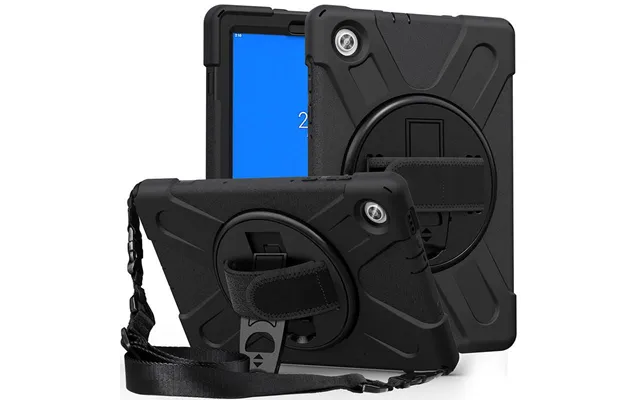
Prevention beats repair. A rugged case and a tempered glass protector can save you from a cracked display or dented corner drop. Look for raised bezel edges, shock-absorbing corners, and a screen protector that preserves clarity and touch sensitivity. Slim cases with magnetic covers are great for travel; rugged cases shine for kids or job sites. It’s like a helmet for your tablet—lightweight insurance you won’t regret.
Hunting down the best deal doesn’t need to be a time sink. With so many sellers, comparing prices, availability, and shipping options in one place keeps things simple. A comparison site like ZoneOffer aggregates offers so you can quickly spot value and avoid overpaying.
Deals ebb and flow. You’ll often find stronger discounts around seasonal sales or when new tablet generations launch. If your repair can wait a week or two, set alerts and watch for price dips. Knowing the market range for a 10.2-inch iPad screen assembly or a Galaxy Tab charging board gives you leverage—don’t be shy about waiting for the right price point.
Kits that include adhesives, tools, and pre-installed components save time and reduce the chance of missing parts. A full iPad screen assembly with pre-applied adhesive might cost a tad more but pays back in simplicity. Likewise, a battery plus adhesive kit often reduces rework and ensures a clean seal on the first try. Compare individual parts versus kits to see which route offers the best overall value.
Different brands, different nuances. If you’re set on fixing a specific model, consider these quick pointers to avoid common pitfalls and pick parts that fit like a glove.
From the classic 9.7-inch models to 10.2-inch, 10.9-inch, and the 12.9-inch Pro line, confirm your exact model ID before buying. For older iPads where glass and LCD are separate, a digitizer-only fix is possible—but many find full assemblies faster and less risky. Touch ID lives in the home button on many models, so preserve your original button for biometric features to keep working after a screen swap.
Samsung offers a wide range—from budget-friendly Galaxy Tab A models to premium Tab S series up to 12.4 inches. AMOLED panels on higher-end models deliver stunning contrast; stick to high-quality replacements to maintain that pop. Many Samsung tablets use sub-boards for the charging port, making certain repairs less fiddly. Always cross-check the exact series and screen size before ordering.
Surface tablets are powerful but can be adhesive-heavy inside. Screens are often fully laminated, so aim for premium assemblies to keep pen accuracy and color integrity. Because some Surfaces run warm, keep internal cable routing clean during reassembly for optimal thermals. If you’re not comfortable with strong adhesive removal, weigh the pros and cons of professional help.
These value-friendly devices are common in households and classrooms. Parts are typically affordable, but quality varies widely. For Fire tablets used by kids, consider rugged cases and glass protectors alongside repairs. Lenovo models often have clear model codes—double-check those codes to avoid connector differences that can look trivial yet stop a repair cold.
Before you buy, diagnose. A quick checklist can prevent ordering the wrong part and save time. Ask yourself: What changed before the issue started? Did the tablet take a tumble? Did a system update occur? Does the fault appear only with certain apps or accessories?
If the tablet won’t power on, try a long press reset first. Swap to a known-good cable and charger. If it boots but dies quickly, suspect the battery. If it won’t charge unless you wiggle the cable, the charging port may be worn. Random shutdowns under light load can also point to a loose internal connector—reseating cables after opening sometimes resolves the problem without part replacements.
Lines, dead zones, ghost touches, or dim backlights each point to different culprits. If touch fails but the image looks fine, the digitizer is likely at fault. If the image is patchy or backlight is uneven, the LCD or OLED needs attention. After any fall, inspect cables and connectors; a half-seated display cable can mimic a failing screen. Test before sealing to avoid reopening the device.
Muffled speakers, missing microphone input, or a camera that won’t focus often tie back to modular parts that are straightforward to replace. First, rule out software: try safe mode, test with voice recorder apps, and check app permissions. If hardware is indeed the issue, compare replacement modules that include gaskets and pre-attached adhesive for a cleaner install.
A successful repair is safe, clean, and data-secure. A few simple precautions make the process smoother and reduce risk to both you and your device.
Static discharge can silently damage electronics. Ground yourself with an anti-static wrist strap or touch a grounded metal object frequently. Work on a clean, dry surface with good lighting. Keep liquids away and avoid metal tools near the battery. If a battery looks swollen, don’t puncture it—seek a safe disposal route and replace it promptly.
Always back up your data before opening your tablet. After installing new parts, test thoroughly before sealing: screen touch in all corners, brightness adjustments, cameras, speakers, microphones, buttons, and charging. Catching an issue now is far easier than reopening later. Label screws and take quick photos during disassembly—those snapshots become your step-by-step roadmap on the way back.
Ready to dive in? Start by identifying your exact tablet model, then list the symptoms and the likely parts needed. Compare multiple offers for the same part to see differences in warranty, included adhesives, and assembly type. A comparison platform such as ZoneOffer helps you scan the UK market quickly, spot real value, and avoid overpaying. With a clear plan and the right parts, you’ll go from “broken” to “brilliant” faster than you might think.
Tablets are more repairable and upgradable than many people realize. From crisp new screens to fresh batteries, solid charging ports, and tiny-but-mighty components like speakers and cameras, the right part can revive your favorite device at a fraction of replacement cost. Equip yourself with a solid toolkit, confirm compatibility, and compare offers to get the best deal. Whether you’re maintaining a 12.9-inch creative powerhouse, a travel-friendly 10.2-inch reader, or a family-friendly Fire tablet, smart repairs and thoughtful accessories will keep your tech thriving—so you can enjoy it longer, spend less, and cut down on waste. That’s a win across the board.

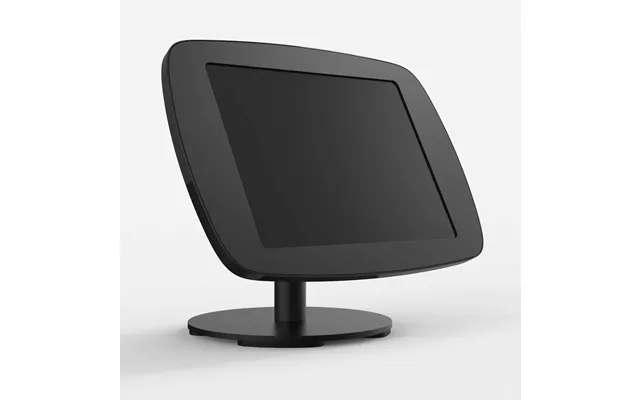
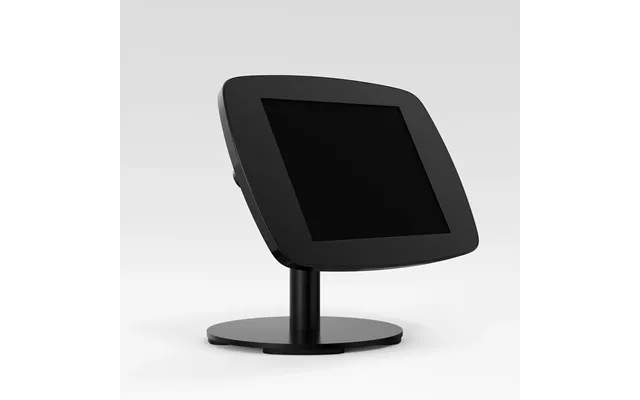
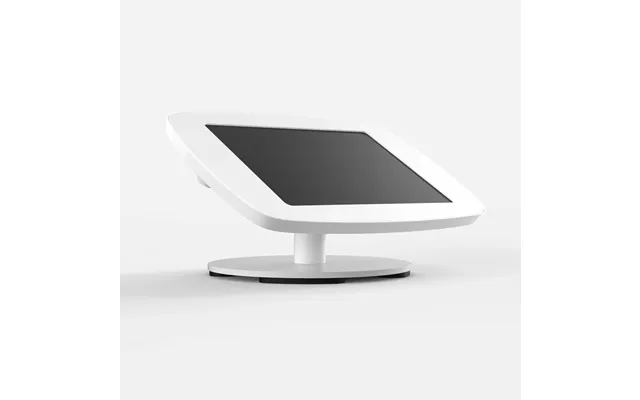
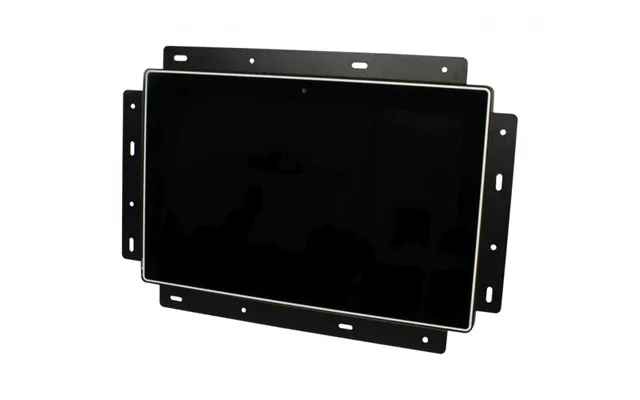
| Bouncepad Original Counter 60 Covered Front Camera And Home Button |
| £ 201,47 |