All categories
Business & Offices
Electronics & Media
Fashion & Accessories
Groceries & Essentials
Health & Personal Care
Home & Living
Kids & Family
Sports & Outdoors
Search in ZoneOffer

Loading...
If you stare at a screen for hours every day, the right computer monitor accessories can transform your setup from “good enough” to “wow, that’s smooth.” We’re talking less neck strain, cleaner cabling, sharper visuals, and faster workflows—all without replacing your monitor. Whether you’re building a home office, squeezing more productivity from a small desk, or creating a color-accurate creative workspace, smart accessories deliver outsized benefits. Looking to track the best Popular Offers and build a clear price list before buying? Smart move—comparison platforms help you spot value at a glance so you only pay for features you’ll actually use.
Let’s start with the basics: raising your screen to eye level reduces neck and shoulder strain, and freeing up desk space keeps your workflow flowing. The right stand, riser, or arm can be the most impactful accessory you buy, dollar for dollar.
Fixed stands and risers are the simplest way to get your monitor to the right height. A sturdy riser lifts the screen by a few inches, often leaving room beneath for a keyboard or notebook. Choose a riser with a surface width that matches your monitor’s base and a weight rating that exceeds your screen by a comfortable margin—if your display is 12 lb, look for a riser rated to at least 20 lb for stability and peace of mind. Bonus points if there’s a built-in drawer or phone slot to keep essentials at arm’s reach.
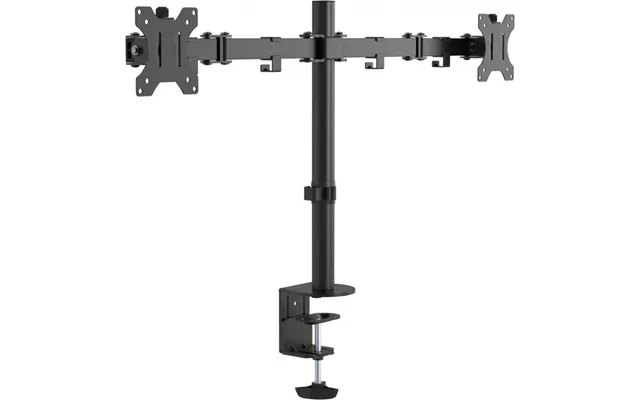
Want true flexibility? A gas-spring monitor arm lets you float your screen and move it with a fingertip—up, down, forward, back, and even pivot to portrait mode. A good arm supports a wide range of screen sizes (think up to 34 inches and beyond) and weight capacities from roughly 4 to 20 lb. If you switch between sitting and standing, an arm with tall vertical travel is worth its weight in gold. It also clears your desk surface, making your workspace feel bigger instantly.
Most arms attach using a desk clamp or a grommet mount. Clamps are fast to install and work with most desks up to about 3 inches thick, while grommet mounts pass through a pre-existing hole for maximum rigidity. If you have a thick or delicate desktop, check the clamp’s supported thickness and consider adding a protective pad. Not sure? Measure your desk edge—if it’s under 3 inches thick and sturdy, a clamp is usually perfect.
Compatibility is the secret sauce. Verify the arm or stand’s maximum weight rating and confirm it supports your monitor’s size. If you’re using a curved 34-inch ultrawide at 18 lb, don’t flirt with a 17 lb limit. Give yourself headroom so adjustments remain smooth and the arm holds position without droop.
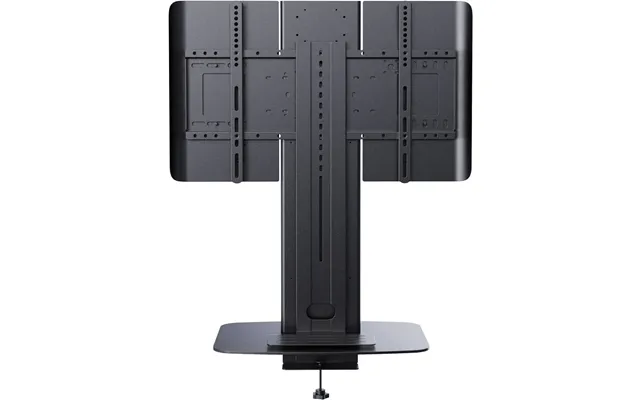
Mounting your monitor on the wall frees up every inch of desk space and creates that clean, modern look everyone wants. The key is matching the mount to your screen’s VESA pattern and weight.
VESA refers to the spacing between mounting holes on the back of your monitor. Common patterns include roughly 3 x 3 inches and 4 x 4 inches, as well as larger rectangles for ultrawides. Check your monitor’s manual or measure the hole spacing center-to-center. Then pick a mount rated comfortably above your monitor’s weight so you’re not pushing the limits.
If you run two displays, a dual wall mount keeps both aligned and balanced. Look for independent articulation on each side so you can angle one screen for reference and square the other for focused work. Ensure the mount’s total weight capacity exceeds both displays combined, not just one of them.
Use a stud finder and lag bolts designed for the load—don’t trust drywall alone. Measure eye level while you’re seated, then position the center of the screen slightly below that line. Leave space to route cables, and add a wall-mounted raceway to keep everything tidy. A little planning up front pays off every single day.
The wrong cable can throttle performance or leave you scratching your head. The right one delivers crisp visuals, smooth refresh rates, and fewer headaches. Here’s how to pick smartly.
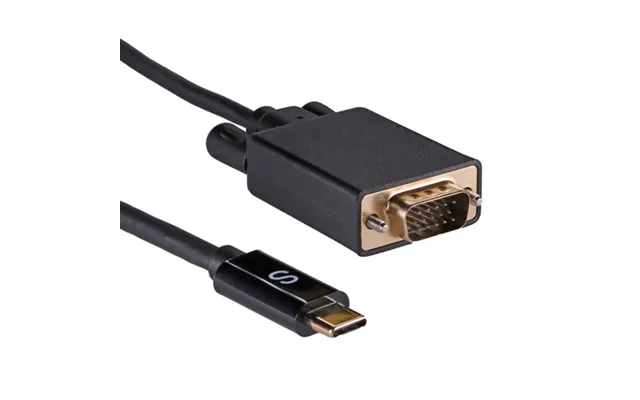
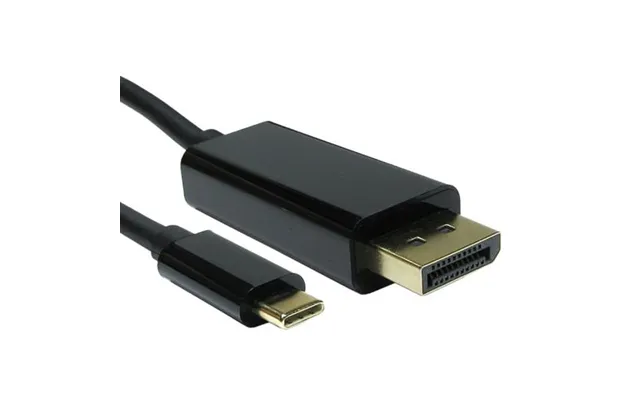
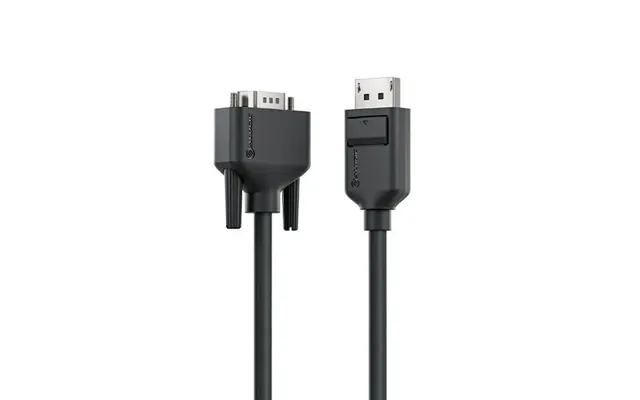
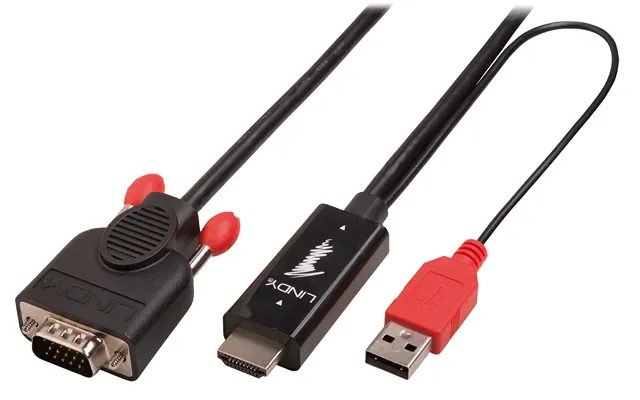
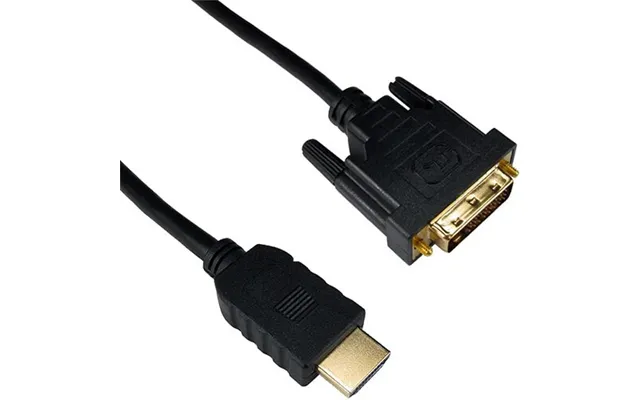
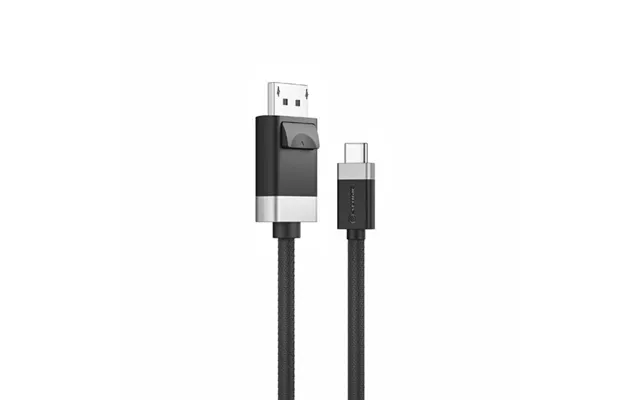
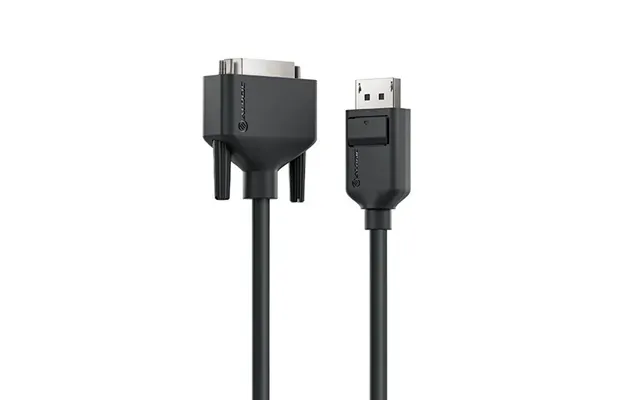
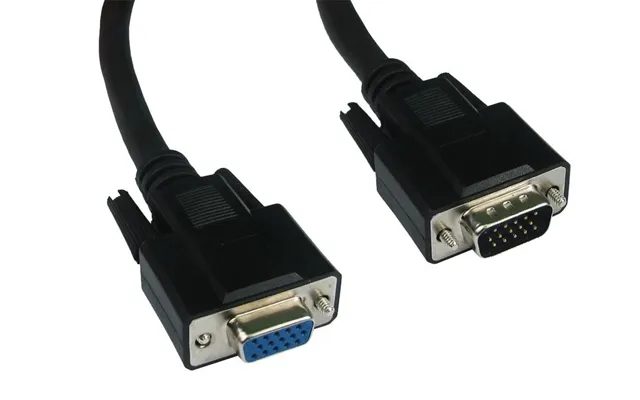
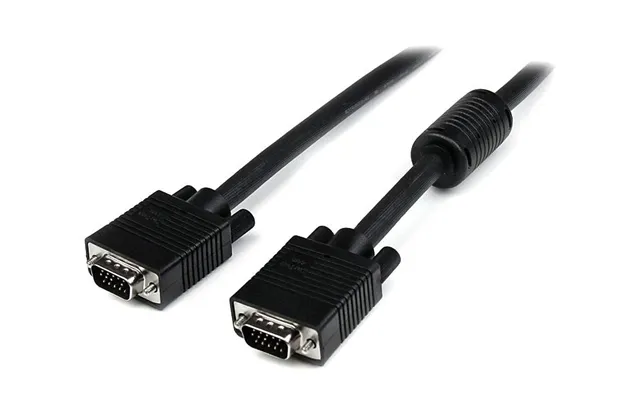
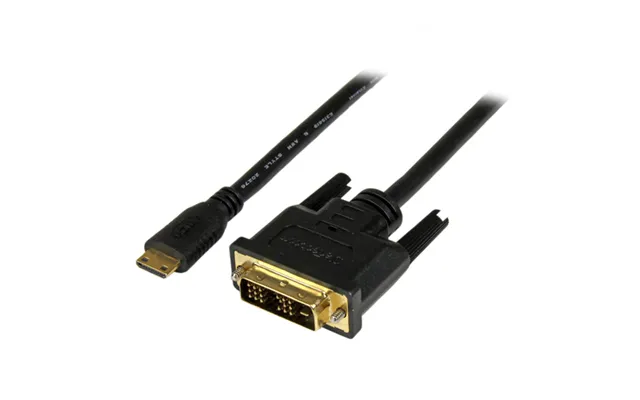
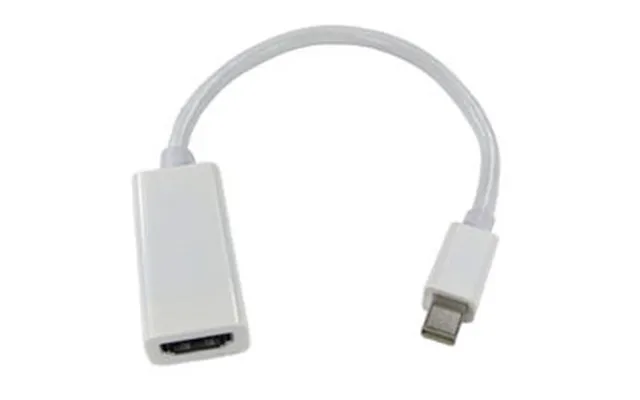
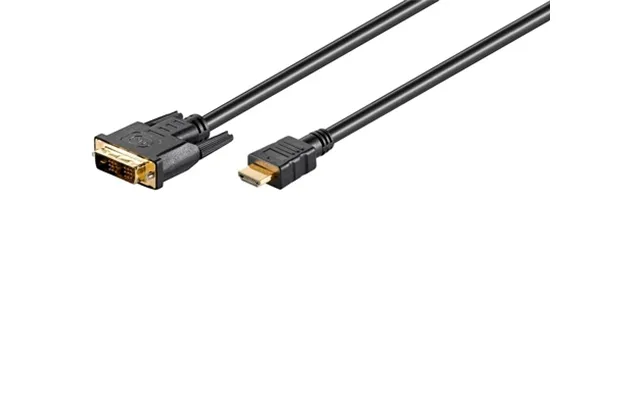
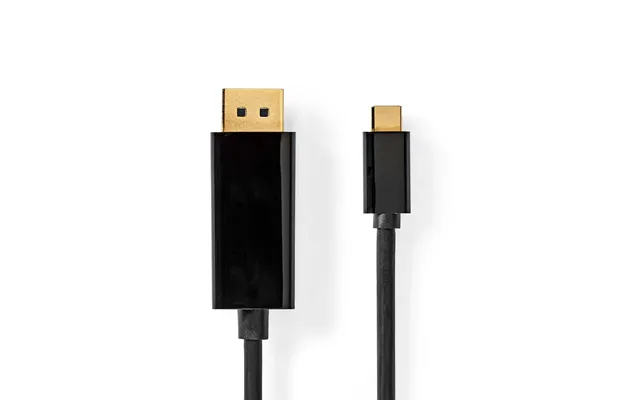
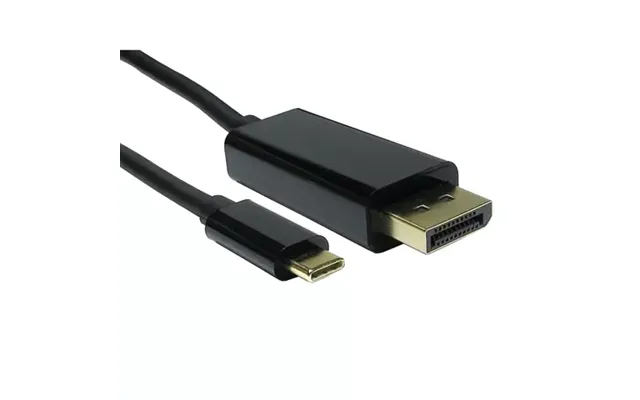
For high-refresh gaming or ultrawide resolutions, DisplayPort often offers the best headroom and reliability. HDMI is widely compatible and great for entertainment setups or secondary screens. USB-C can carry video, data, and power in one cable—perfect for modern laptops—provided your laptop and monitor both support it. Aim for certified, high-quality cables to avoid flickers and dropouts at higher resolutions.
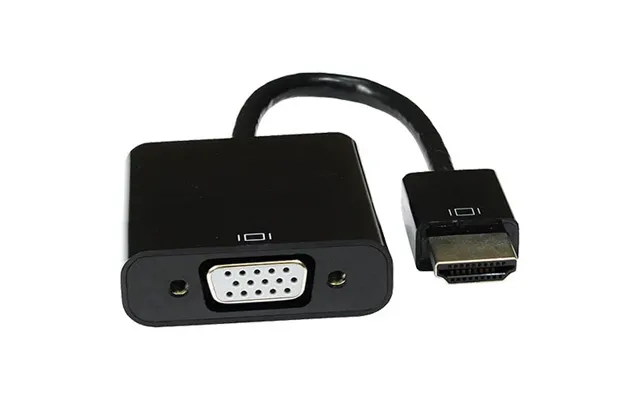
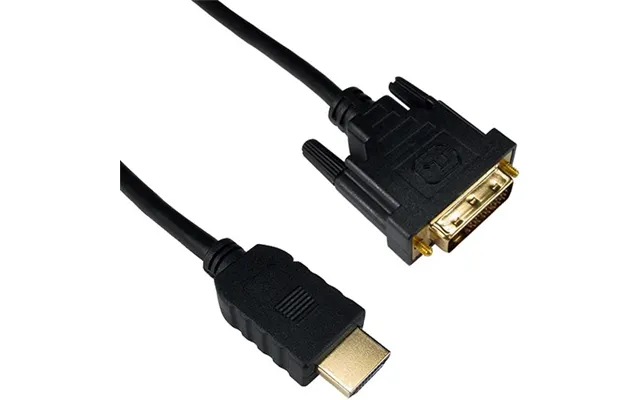
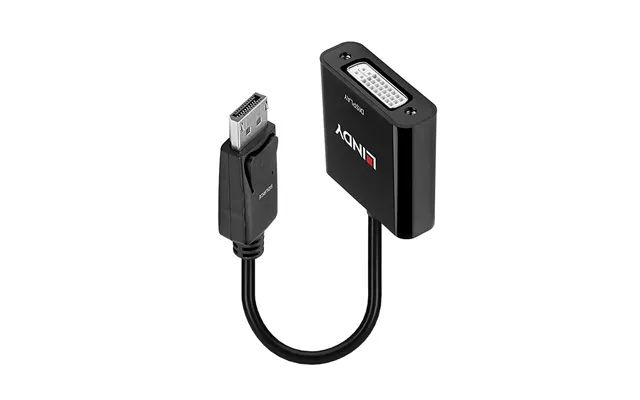
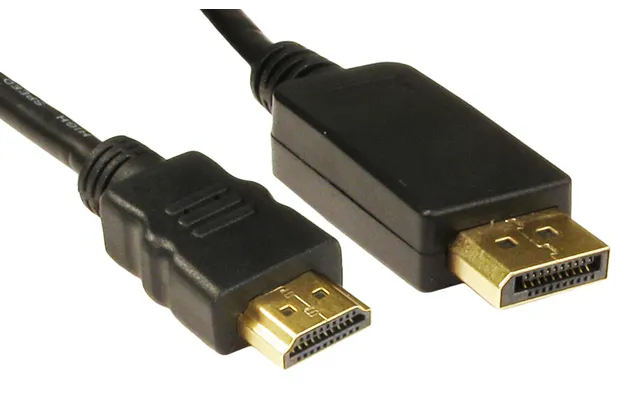
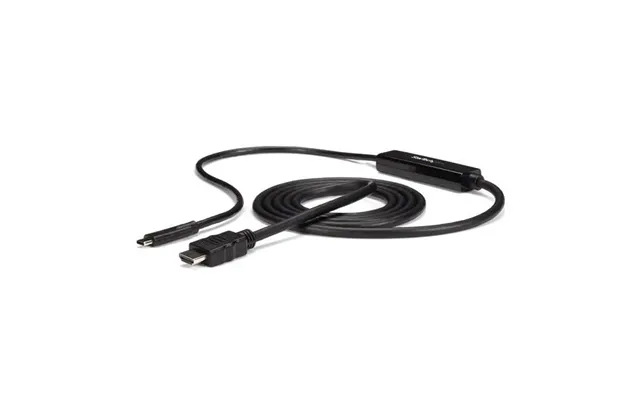
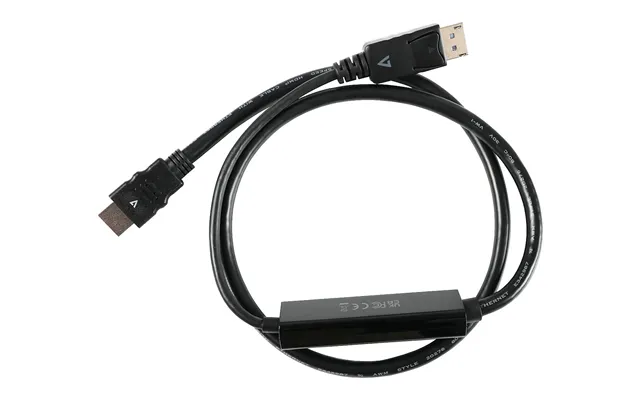
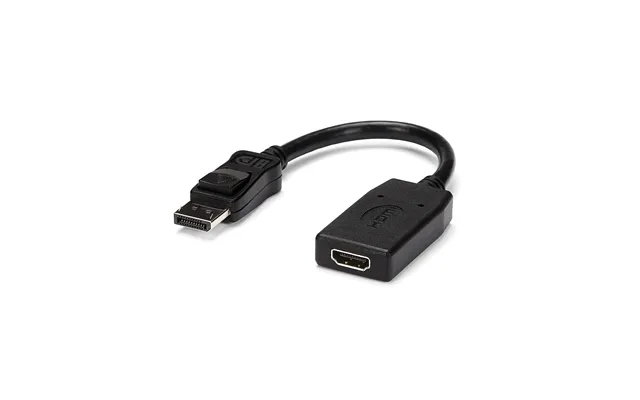
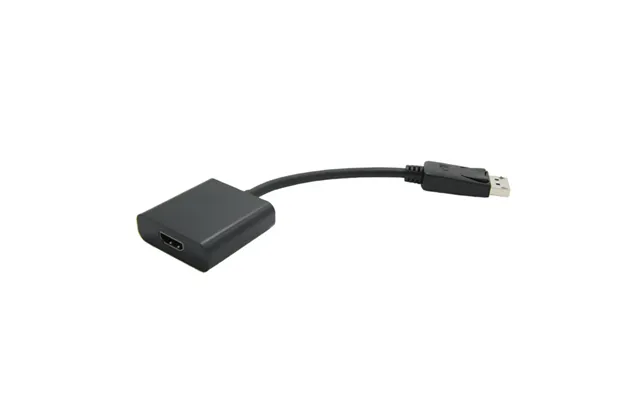
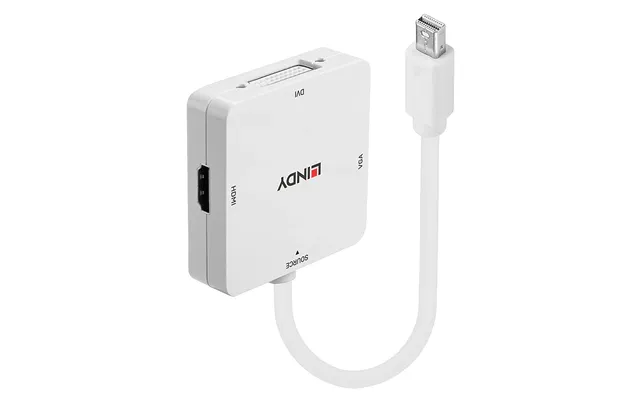
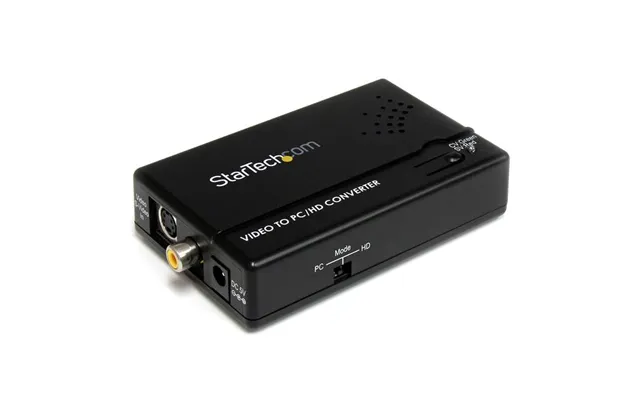
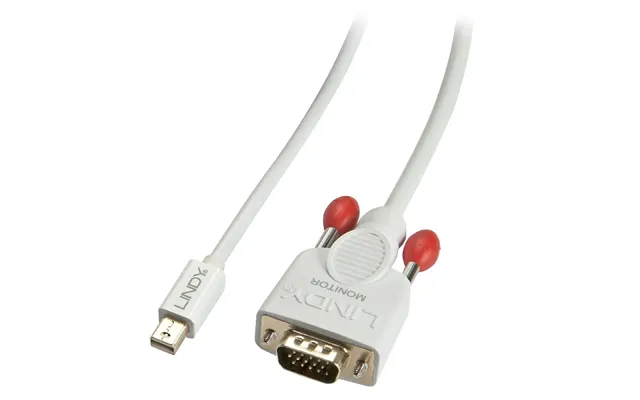
Need to connect old gear to a new monitor? Adapters bridge HDMI to DisplayPort, USB-C to HDMI, and more. Active adapters (with a tiny chip inside) are more reliable for tricky conversions. Keep your run lengths short and avoid daisy-chaining adapters unless absolutely necessary—each link adds potential signal loss.
Wrestling with spaghetti cables? Velcro straps, under-desk trays, and adhesive clips route your lines neatly and protect connectors from stress. Label each end, color-code if it helps, and keep power and signal cables separated when possible to reduce interference. A clean cable path looks sharp and makes upgrades painless.
If you plug and unplug your laptop daily, a docking station will change your life. One cable brings displays, peripherals, Ethernet, and charging together—unplug once, and you’re on the go.
Start with your display needs: do you want dual 4K screens or a single ultrawide? Check the dock’s supported resolutions and refresh rates. Then audit your ports—do you need Ethernet, SD card readers, or extra USB-A for legacy gear? Don’t overlook audio jacks if you use wired speakers or a headset.
If you want a single-cable setup, make sure the dock provides enough charging power for your laptop—many ultrabooks are happy at lower wattages, while more powerful machines need higher power budgets. Bus-powered hubs are handy for travel but may struggle with multiple peripherals; a dock with its own power supply is steadier for daily use.
It’s easy to overbuy “just in case.” Instead, list the gear you actually use and pick a dock that fits with a bit of spare capacity. If you shoot photos, an SD slot is priceless. If you’re a developer, Ethernet might be non-negotiable. Choose versatility, not clutter.
Eye strain is real, and so are prying eyes. The right filters and lighting can make long sessions more comfortable and secure.
Blue-light filters help reduce perceived eye fatigue, especially at night, while anti-glare overlays cut reflections from windows and overhead lights. Choose a filter that matches your monitor’s diagonal size—say, 24 inches or 27 inches—and consider a frameless design for a cleaner look. If you have a glossy panel, an anti-glare overlay can be a game changer.
Privacy filters narrow the viewing angle so onlookers see a darkened screen instead of your work. They’re ideal for open offices, coffee shop sessions, and anyone handling sensitive material. Look for reversible designs (matte on one side, glossier on the other) and easy on/off tabs so you can remove them when you want full clarity.
A monitor light bar illuminates your desk surface without washing out the screen, reducing eye strain in dim rooms. Pick one with adjustable color temperature and brightness so you can dial in a warm tone for late nights and a cooler tone when you need focus. If you already have a lamp, ensure it sits to the side and slightly above your eye line to avoid glare.
Built-in monitor speakers and webcams can be hit-or-miss. A few simple upgrades ensure you sound professional and look sharp in every meeting.
Compact soundbars that mount beneath your monitor save space and center audio where you want it. For clearer calls and videos, look for wide frequency response, a dedicated voice mode, and front-facing controls. If bass is important, pair with a small under-desk subwoofer for depth without clutter.
An external 1080p or 4K webcam with good low-light handling and autofocus makes you look crisp—even in imperfect lighting. Add a physical privacy cover so you can slide it shut in an instant. If you’re streaming or presenting often, a webcam with adjustable field of view and HDR support is worth the extra dollars.
For calls, a USB headset with a noise-cancelling boom mic is simple and effective. If you record content, a dedicated USB microphone on a small boom arm provides cleaner sound and keeps it out of the frame. Keep cables tidy with clips or a small cable sleeve so nothing dangles into your shot.
If you edit photos, design graphics, or grade video, accuracy matters. Accessories here tighten the loop between your screen and the final output.
A colorimeter measures your display and builds a calibrated profile so colors look the way they should. Calibrate regularly—monthly is a solid rhythm—to keep your monitor honest as it ages. Many tools walk you through the process step by step, and the difference can be dramatic if your monitor’s been drifting.
Monitor hoods block surrounding light, boosting contrast and reducing reflections—perfect for bright rooms or critical color work. Choose a hood designed for your monitor’s size and shape, and pair it with a matte screen finish and a neutral wall color behind the display if possible. The goal is consistent, predictable lighting all day long.
Dust, fingerprints, and cable creep sneak up on everyone. A quick weekly reset keeps your setup sharp and extends the life of your gear.
Skip household cleaners—they can damage coatings. Instead, use a dedicated screen cleaning spray and a soft microfiber cloth. Light pressure, circular motions, and patience are the name of the game. While you’re at it, lightly dust the vents and stand to keep everything breathing easy.
A fabric cable sleeve hides multiple lines in one neat bundle, while an under-desk tray keeps power bricks and surge protectors off the floor. Velcro ties are your friend—avoid zip ties unless you’re sure your layout is final. Label both ends of each cable so upgrades are fast and guesswork-free.
If you juggle a work laptop and a personal PC, you don’t need two sets of peripherals. A KVM (keyboard-video-mouse) switch can streamline everything with a tap.
Anyone who runs multiple computers on one set of monitors and peripherals will love a KVM. You can switch between machines with a hotkey or button while sharing your keyboard, mouse, and sometimes USB devices. Look for KVMs that support your monitor’s resolution and refresh rate so you don’t sacrifice image quality.
Modern KVMs often include USB 3.0 ports for sharing webcams, mic interfaces, or storage. Some even pass through audio. Be sure your KVM supports the display standard you use—if you rely on DisplayPort for high refresh, pick a KVM that explicitly lists it. A powered KVM tends to be more stable than a passive one, especially with multiple devices connected.
It’s easy to fall in love with an accessory, buy it in a hurry, and then discover it doesn’t fit. A quick compatibility check saves time and returns.
Confirm your monitor’s VESA hole pattern in inches and its weight without the stand. Then cross-check the accessory’s supported patterns and weight capacity. If your display is close to the limit, move up a model. Over-spec’ing by a few pounds reduces wobble and improves longevity.
For clamp-on mounts or arms, measure desk thickness carefully—many clamps accommodate up to about 3 inches. Avoid clamping on beveled edges or fragile surfaces. If you have a glass top, consider a grommet mount or a reinforcing plate to spread the load safely.
Prices on computer monitor accessories can swing—sometimes dramatically—across brands and seasons. Tracking Popular Offers and building your own price list helps you buy at the right time and prioritize features that matter.
List the must-haves and nice-to-haves for each accessory type: monitor arm weight range, VESA support, cable compatibility, or privacy filter size. With your shortlist in hand, use a comparison platform to line up specs and prices side by side. You’ll quickly see which models deliver the sweet spot of value and performance.
Look for seasonal price dips and bundles that pair a monitor arm with a cable kit, or a docking station with a certified cable. Bundles can save cash while ensuring compatibility out of the box. Just keep your eye on the total: if a bundle inflates the parts you don’t need, skip it and build your own.
Refurbished or open-box accessories can be a savvy buy from reputable sellers, especially for simple gear like stands, risers, and cable kits. Check condition notes closely and confirm the contents—mounting hardware, screws, and spacers matter. If the savings are modest or key parts are missing, new might be the better call.
Not sure where to start your comparison? Focus on categories that deliver immediate impact. Arms and mounts boost ergonomics, docking stations streamline your workflow, and filters protect your eyes and privacy. Add a colorimeter if you create visual content, and finish with cable management for that clean, “I’ve got this” look.
If you want fast wins, prioritize a gas-spring monitor arm, a high-quality DisplayPort or USB-C video cable, a simple cable tray, a monitor light bar, and a compact soundbar. This combo solves comfort, clarity, clutter, and communication all at once without breaking the bank.
The best accessories depend on how you work—and where. Here’s how to tailor your picks without overbuying.
Choose a single gas-spring arm to free desk space, a compact docking station for one-cable laptop use, and a monitor light bar for evening sessions. Add a privacy filter if you’re near a window or share the room. Cable management will make the whole setup feel bigger and calmer.
Go for a dual-arm mount with independent adjustment, identical cables for both displays, and a powered USB hub to keep peripherals steady. If you switch between two computers, a KVM adds even more efficiency without adding extra keyboards and mice.
Pair a stable arm with precise positioning, a colorimeter for monthly calibration, a monitor hood to control glare, and high-quality DisplayPort cables. Keep lighting consistent with a neutral desk lamp or light bar tuned to your preferred color temperature.
Not all accessories are created equal. A few simple checks reveal quality in seconds and help you narrow the field quickly.
Metal arms and mounts, tight but smooth joints, and clear adjustment ranges are hallmarks of quality. If an arm creaks or droops with light pressure, keep looking. For docks and hubs, weight and finish often correlate with decent internal components—flimsy plastics are a red flag.
Reliable cables have sturdy strain reliefs and firm connector fit. If you need long runs, buy from brands that publish tested resolutions and refresh rates over specific lengths. Cheap cables are cheap for a reason, and they’re often the culprit behind mysterious glitches.
Computer monitor accessories are the quiet MVPs of a great setup. From arms and mounts that save your neck to cables and docks that keep everything connected, a thoughtful selection pays off every single day. Start with your goals, check compatibility and weight limits, and use Popular Offers to build a sensible price list. Whether you’re chasing ergonomic comfort, creative precision, or a clutter-free desk, the right accessories make your workspace feel effortless—and that makes your work better, too.
| Computer Monitor Accessories | Price | |
|---|---|---|
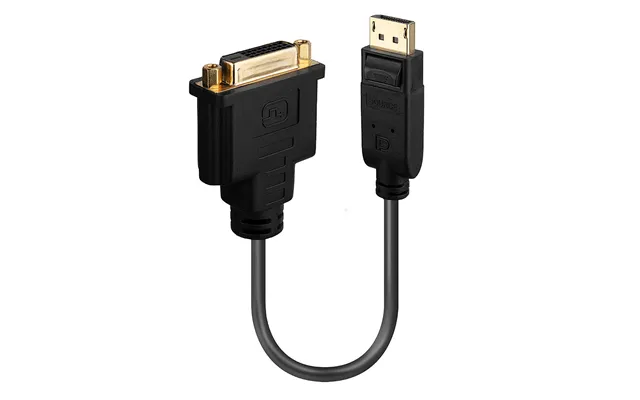
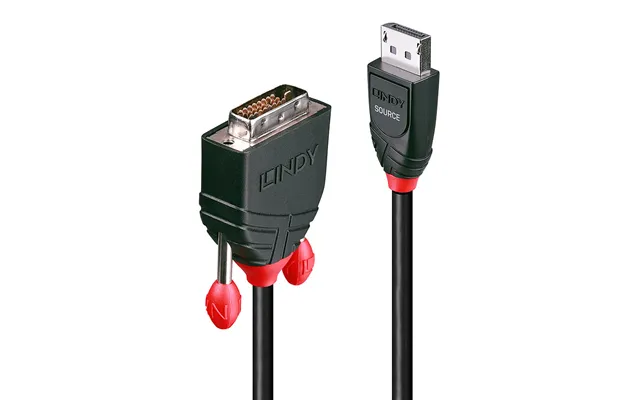
| Dp Building Systems 26-0701 Cable Gender Changer Displayport Dvi-i Black | £ 10,22 | |
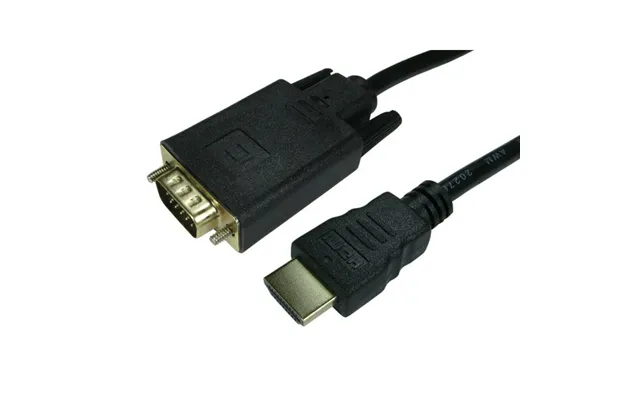
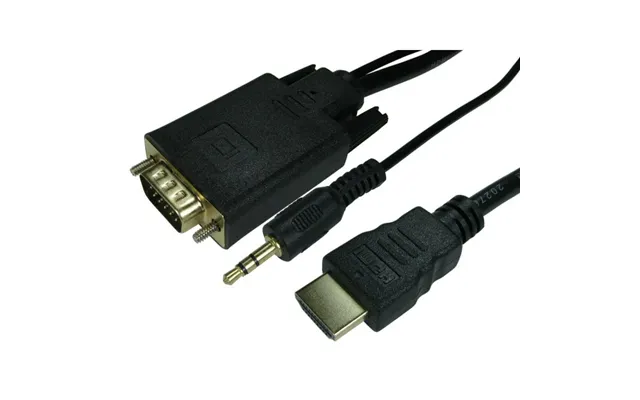
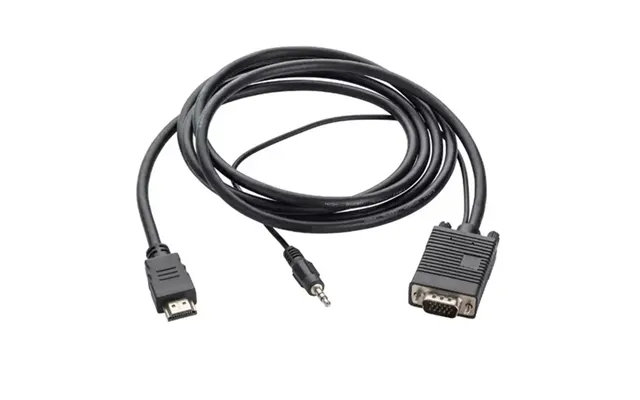
| 2m Hdmi To Vga Monitor | £ 16,83 | |
| Iiyama Md Brpcv06 Monitor Mount Accessory | £ 29,34 | |
| Manhattan Desk Mount For Monitors & Laptop Combo Full Motion | £ 56,87 | |
| Amer Mounts Hydra1b Monitor Mount Stand 81.3 Cm 32 Desk Black | £ 60,72 | |
| Urban Factory Flexee Single Spring Single Monitor Arm - Black | £ 104,59 | |
| Amer Mounts Amr4p Monitor Mount Stand 61 Cm 24 Desk Black | £ 173,90 | |
| Ergotron Lx Pro Series 45-684-292 Monitor Mount Stand 68.6 Cm 27 Desk Black | £ 177,52 | |
| Dell Dual Monitor Arm Mda20 | £ 214,03 | |
| Ergotron Ds Series Ds100 Quad Monitor Desk Stand 61 Cm 24 Black |

| £ 401,44 |