

VGA Splitters & Switches price list
Last updated Sunday, 18 Oct 2026



View 13 Offers



Loading...
Last updated Sunday, 18 Oct 2026
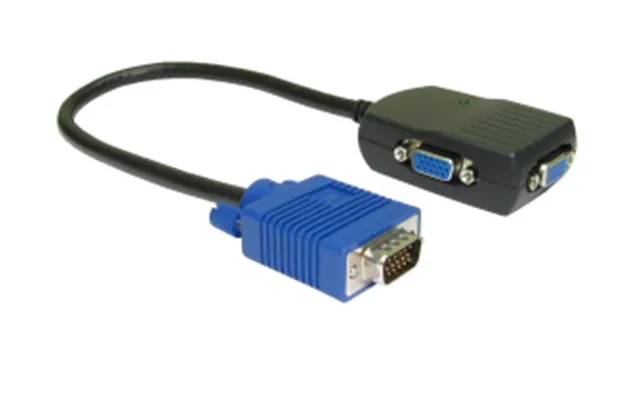
VGA splitters and switches are small but mighty tools that help you get more out of classic analog video connections. If you need to mirror one computer’s display to multiple monitors or projectors, a VGA splitter does the job by sending the same signal to two, four, or even eight screens. If you want to connect multiple PCs to one monitor and switch between them, a VGA switch is your pick. Simple idea, big impact. For classrooms, boardrooms, events, retro gaming, and reliable legacy setups, these devices keep older gear relevant and affordable. In the UK, there are plenty of options and price points—so understanding the differences and key features will help you compare offers confidently and avoid fuzzy images or unreliable switching.
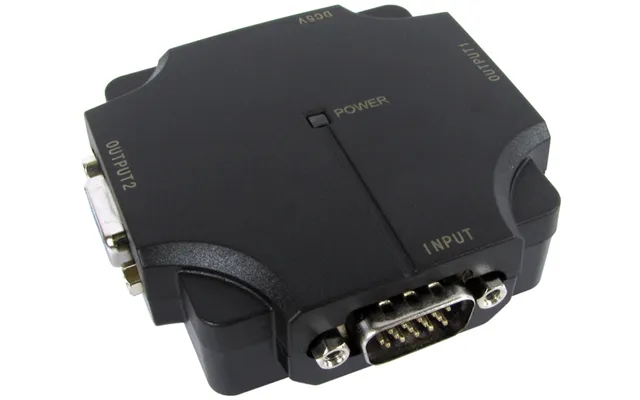
It’s easy to mix these up because they look alike and often share similar ports. But their roles are different: a splitter takes one input and duplicates it to many outputs; a switch takes multiple inputs and lets you select a single output. Both are handy in different scenarios, and both can be found in 2-port, 4-port, and higher counts. Choosing the right one depends on how many sources you have, how many displays you need to feed, and how you plan to control the setup day to day.
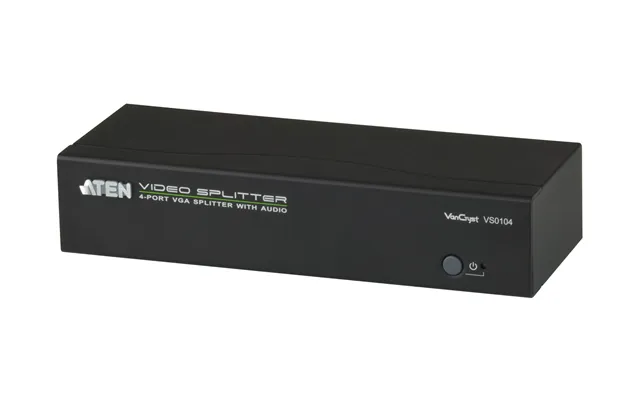
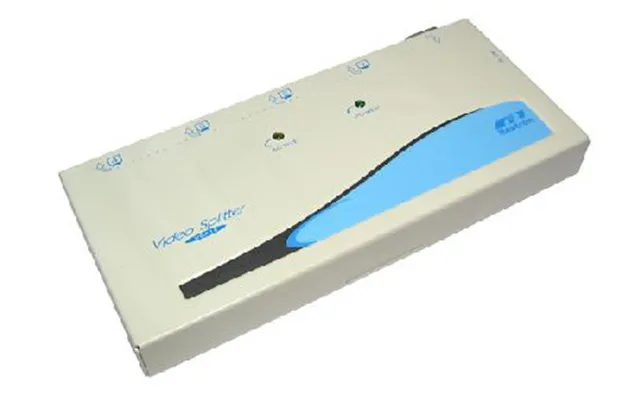
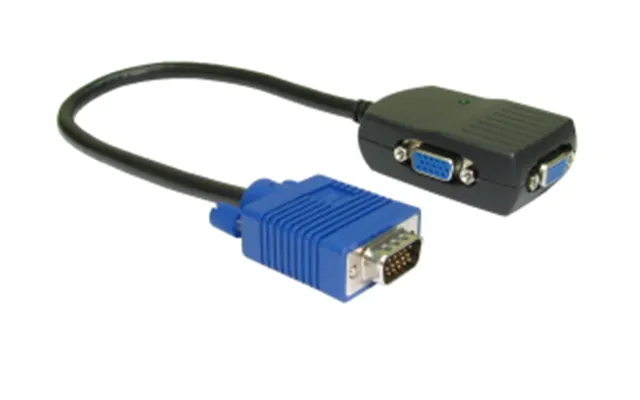
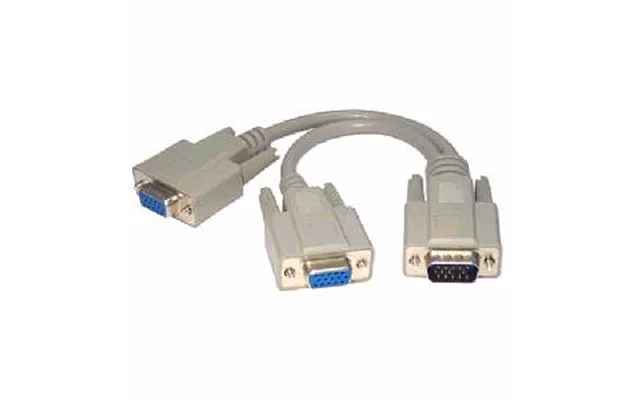
Pick a VGA splitter when you’re mirroring the same content to multiple displays at once. Think training rooms with two projectors, trade-show booths with several screens facing different directions, or a small shop window setup where a single PC drives multiple monitors. A 2-port splitter is perfect for dual displays; a 4-port or 8-port model is better for larger rooms or signage networks. For longer cable runs or higher resolution like 1920x1080 (1080p), go with an active splitter that amplifies the signal—especially if you’re using cables that stretch 25 ft, 50 ft, or more.
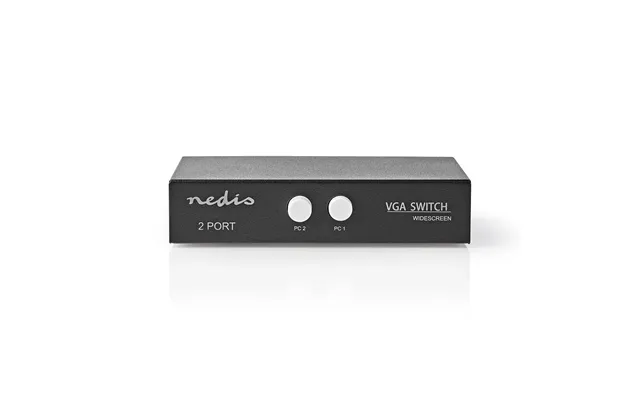
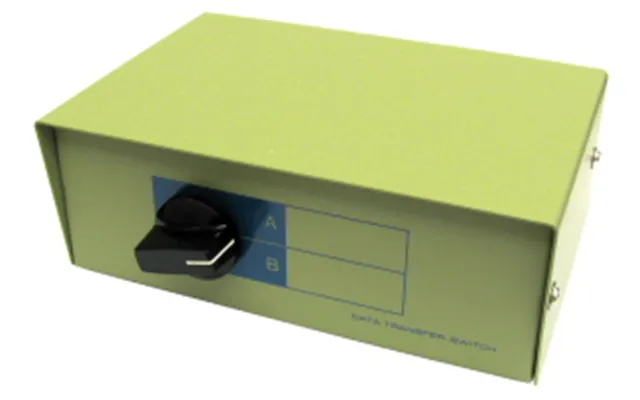
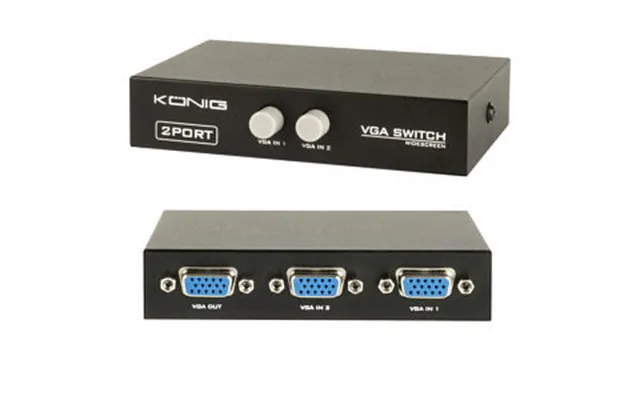
Go with a VGA switch when you have multiple sources but only one display. Picture a shared projector in a meeting room where you need to swap between laptops, or a home office where a classic desktop and a retro console share one monitor. Manual switches use a physical button to change inputs, while automatic switches detect the active source and switch on their own. If you also need to share a keyboard and mouse between computers, consider a KVM switch that supports VGA to keep your desk tidy and workflow smooth.
Not all VGA splitters and switches are created equal. Before you jump on a deal, compare the details that actually affect performance: signal quality, how far the signal travels, how many ports you need now (and later), and how the device is powered. A few specs make a huge difference in image sharpness, ghosting, and day-to-day convenience—so it pays to read the fine print and get the right match for your setup.
Count your sources or displays today—then add a cushion. If you need two outputs, a 4-port splitter gives you room to grow. The same logic applies to switches: a 3- or 4-port model can save you from buying again in six months. Buying one size up is often cheaper than replacing your gear later, especially if you’re building out a training room or signage system.
VGA is analog, but resolution still matters. Look for support up to 1920x1080 (1080p) at 60 Hz if you want crisp text and presentations. For retro gaming or older projectors, SVGA (800x600) or XGA (1024x768) is fine and typically easier to drive over longer cables. If a listing claims higher resolutions, make sure it also mentions stable performance over the cable length you plan to use. A quality splitter or switch will clearly list supported resolutions and refresh rates without vague claims.
Passive splitters simply split the signal, and they’re okay for short runs and lower resolutions. Active splitters amplify and condition the signal, giving you a cleaner image across longer distances and multiple displays. If you notice ghosting, blurring, or flicker, an active splitter is almost always the cure. Switches are usually passive on the video path, but higher-end models include buffering for more reliable output.
Analog signals fade with distance. For 1080p, try to keep cable runs under about 25 ft per leg when possible. If you need to stretch to 50 ft or beyond, use high-quality, well-shielded VGA cables and choose an active splitter with adjustable gain. Avoid daisy-chaining too many adapters, and keep power bricks away from cable bundles to reduce interference.
USB-powered splitters are convenient, but dedicated power supplies tend to be more stable—especially in pro environments and classrooms. If reliability matters, pick a model with a robust power adapter, a solid chassis, and clearly labeled ports. For switches, a tactile, well-built button or a dependable auto-sensing feature will save you headaches when the room is full and time is tight.
A metal housing dissipates heat better and handles daily wear gracefully. Look for rubber feet for desktop use and mounting holes or brackets for walls and AV racks. Clear port labels on the front and back keep setup simple and reduce mistakes during swaps or upgrades.
VGA may be legacy tech, but it remains a workhorse where reliability and compatibility are key. From quick pop-up events to permanent installations, splitters and switches solve real problems without blowing the budget. Here are common scenarios where these devices shine, along with tips to keep your visuals sharp and your workflow smooth.
Mirror one teacher’s laptop to two projectors or a projector plus a wall-mounted monitor with a 2-port or 4-port splitter. Use active models for longer cable runs to the ceiling-mounted projector. Label inputs and outputs, and keep a spare VGA cable coiled and ready—nothing kills momentum like a missing lead right before a session starts.
Show the same promo across multiple screens around a shop floor using a 4-port or 8-port splitter. If displays are far apart, run high-quality cables and plan paths away from power lines to prevent interference. For flexibility, position the splitter centrally and run equal-length cables where possible to maintain consistent image quality.
Use a VGA switch to share a single projector among several laptops. Manual buttons are simple and reliable, while auto-switching models keep things flowing by selecting the active source. Combine with a cable management box and labeled leads so guests can plug in fast without hunting for the right connector.
Old-school consoles and vintage PCs often output via VGA. A quality switch lets you flip between multiple retro systems on one CRT or LCD without frequent cable swaps that wear out ports. Keep cable runs short—under 10 ft is ideal for older gear—to preserve color and reduce blur in fast-moving scenes.
VGA gear comes in several flavors, each tailored to a particular need. The right choice depends on your resolution targets, cable distances, how often you switch sources, and whether you need to control keyboards and mice alongside video. Understanding these types helps you filter listings and compare like for like.
Passive splitters are budget-friendly and fine for short runs and modest resolutions. Active splitters add amplification and sometimes EQ controls, delivering brighter, sharper images across multiple outputs and longer cables. If you plan to run 1080p to several displays or cables longer than 25 ft, active is the safer bet.
Manual switches put you in control with a button or dial—easy, predictable, and affordable. Automatic switches detect the live input and switch over without user interaction. Auto models are great in meeting rooms but make sure the sensing is reliable, and check that the device doesn’t “hunt” between inputs if multiple sources wake up at once.
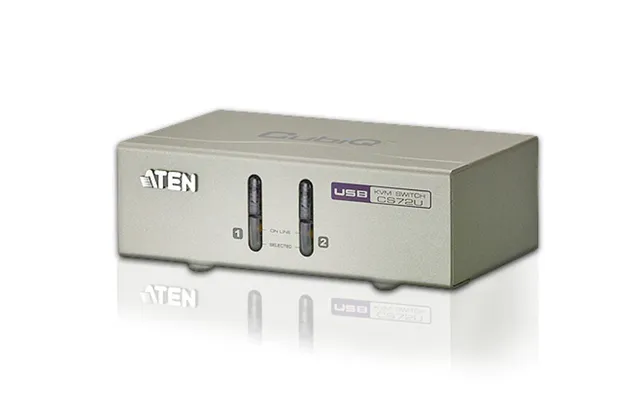
Need to share a display plus a keyboard and mouse between PCs? A VGA KVM switch is your all-in-one solution. Look for models with USB for modern peripherals and verify hotkey support if you prefer switching from the keyboard. KVMs are ideal for help desks and server corners where space is tight and efficiency matters.
Because VGA is analog, small tweaks can significantly improve the picture. Good cables, sensible distances, and the right splitter or switch make the difference between a tack-sharp desktop and a washed-out image. If you’re chasing the cleanest lines and readable fine text, these habits will help you dial it in.
Cheap leads can kill your signal. Choose cables with proper shielding and ferrite cores at the ends to reduce noise. Keep them as short as practical—under 25 ft for 1080p when you can—and avoid tight bends or kinks that stress the conductors and degrade the signal over time.
Consider the entire path: device to splitter to display. If each leg is 25 ft and you’re pushing 1080p, you’re on the edge for passive gear. This is where an active splitter or a signal booster earns its keep. For extra-long runs, some setups use VGA-to-Cat5/6 extenders, but verify compatibility and test before a big presentation.
Most monitors and projectors have auto-adjust features for analog input. Run auto-adjust after connecting through a splitter or switch to align the image, reduce shimmer, and center the picture. Fine-tune clock and phase if your display offers those controls—tiny adjustments can sharpen text dramatically.
VGA equipment spans decades of devices, so compatibility is usually strong. Still, it helps to confirm a few essentials: the maximum resolution of your display, the capabilities of your graphics output, and what your splitter or switch can cleanly pass through. A quick checklist prevents mismatches and last-minute scrambles.
Common VGA resolutions include 800x600 (SVGA), 1024x768 (XGA), 1280x1024 (SXGA), 1600x1200 (UXGA), and 1920x1080 (1080p). For presentations and office work, 1080p at 60 Hz is a sweet spot. If your projector or monitor is older, XGA might be the most stable option—don’t force higher modes just because they’re available.
Widescreen displays are typically 16:9, while some older projectors are 4:3. Match the PC’s output to the display’s native aspect ratio where possible to avoid stretching or letterboxing. If you must mix, choose a comfortable resolution that both source and display handle well, then let the display scale as needed.
Whether you’re equipping a single desk or a full suite, there’s a VGA device for your budget. Comparison platforms like ZoneOffer help you line up specifications, port counts, and real-world features side by side so you’re not guessing. The trick is matching the right tier to your workload and image expectations.
For short runs and basic needs—say, mirroring a laptop to a nearby projector or swapping two PCs on one monitor—a simple 2-port splitter or switch is perfectly adequate. Look for models with sturdy connectors and clear labeling, and check user feedback for comments about ghosting or loose buttons.
In classrooms, small offices, and multi-display signage, step up to active 4-port splitters or 3–4 input switches. Expect better amplification, more consistent performance at 1080p, and more reliable housings. If you regularly connect guest devices, an automatic VGA switch in this range can make meetings flow smoother.
For longer runs, higher reliability, and bigger display counts, choose rack-mountable active splitters with adjustable gain and EDID management. Enterprise-grade switches and KVMs offer robust power supplies, metal housings, and better shielding—exactly what you want when downtime isn’t an option and cables stretch 50 ft or more.
Good setup habits save time and protect your gear. Before you dive in, power everything down and lay out your cables so you know what goes where. Labeling helps too—future you will be grateful when it’s time to troubleshoot or expand.
Connect the PC to the splitter’s input, then run separate VGA cables from the splitter’s outputs to each display. If it’s an active splitter, plug in the power adapter first. Power your displays, then the splitter, then the PC. Run auto-adjust on each display and tweak sharpness, clock, and phase until the image is stable and crisp.
Connect each source to an input on the switch and the display to the switch’s output. If it’s a manual switch, test each button press to confirm clean switching without dropouts. For auto models, confirm that the active source is detected correctly and that the switch doesn’t flip inputs unexpectedly when devices wake from sleep.
If you see a dim or blurry image, try shorter or higher-quality cables and verify connections are snug. Ghosting usually points to long runs or cheap leads—an active splitter can fix that. If a display shows “out of range,” lower the resolution or refresh rate at the source until it locks on. And if switching is flaky, swap cables one at a time to isolate a bad lead.
While this guide focuses on VGA, some setups blend old and new. If your source or display only has digital ports, you may need an adapter or a different type of splitter or switch. Understanding the trade-offs keeps you from buying the wrong accessory at the last minute.
For modern gear, HDMI offers digital clarity and audio over one cable. If your setup is moving to HDMI but you still use VGA somewhere, a small VGA-to-HDMI converter can bridge the gap. Just note that simple passive adapters won’t work from VGA to HDMI—you need an active converter that handles analog-to-digital conversion.
Many laptops output via DisplayPort or USB-C. Adapters that convert DisplayPort or USB-C to VGA are widely available. For best results, keep the VGA leg short and use a quality adapter. If you’re planning to switch or split on the VGA side, make sure the converted signal is strong enough and stick to sensible distances.
The UK market offers plenty of options, so use comparison tools to filter by port count, resolution, active vs. passive design, and user ratings. A few smart checks can save you money and deliver a better picture from day one.
Look for explicit resolution support at 60 Hz, details about amplification and EDID handling on splitters, and clear port labeling. If the specs are vague or miss basic details, keep scrolling—good manufacturers list the essentials up front.
User reviews often reveal whether a device holds 1080p cleanly over a 25 ft cable or if a switch behaves reliably under daily use. Pay attention to comments about ghosting, build quality, and inconsistent auto-switching—those are early warning flags.
A modest warranty and a metal chassis signal confidence and durability. If you’re installing in a shared space or planning to plug and unplug frequently, prioritize sturdier construction and firm-feeling buttons to avoid failures down the line.
VGA splitters and switches remain practical, cost-effective tools for classrooms, offices, events, and retro setups. The key to great results is matching the right device to your goals: splitters for mirroring, switches for sharing, active designs for longer runs and higher resolutions, and quality cables to keep the signal clean. Compare port counts, resolution support, power options, and build quality before you buy, and you’ll sidestep fuzz, flicker, and frustration. With a clear checklist and a quick scan of side-by-side offers, you can pick gear that just works—so your audience focuses on the message, not the cabling.