All categories
Business & Offices
Electronics & Media
Fashion & Accessories
Groceries & Essentials
Health & Personal Care
Home & Living
Kids & Family
Sports & Outdoors
Search in ZoneOffer

Loading...
If your laptop feels sluggish, runs out of juice too quickly, or has a cracked screen that nags you every time the light hits it, you’re not alone. The good news? You don’t need a brand-new machine to feel brand-new. The UK market is packed with offers on laptop parts—from solid-state drives and memory to screens, keyboards, batteries, and chargers—so you can fix, upgrade, or refresh what you’ve already got. The trick is knowing what to buy, how to check compatibility, and where to compare prices quickly. That’s where using a comparison site shines. Instead of bouncing from one retailer to another, you can line up options in seconds, compare the specs that matter, and snag a better deal before the clock runs out on a limited-time offer. Ready to cut through the noise and make your laptop feel fast, cool, and reliable again? Let’s walk through the best parts to buy and how to shop smarter.
Not all upgrades are created equal. Some parts give you a night-and-day improvement in speed, battery life, or usability for surprisingly little effort. Think of your laptop like a toolkit: the right piece can transform how it performs. If speed tops your wish list, focus on solid-state drives and memory. If your laptop dies at awkward moments, look at batteries and chargers. If it’s broken or uncomfortable to use, a replacement screen, keyboard, or trackpad makes every workday smoother. Unsure where to begin? Start with the symptom that bothers you most; that usually points to the right component and keeps your budget focused on high-impact fixes.
Upgrading to an SSD takes an older laptop from “please load already” to “wow, that was fast.” You’ll feel the difference every time you boot, launch apps, or copy files. If your laptop uses a 2.5-inch drive bay, a SATA SSD is a simple drop-in upgrade. If it supports an M.2 slot, an NVMe drive can be even faster, but check the slot type first. Storage capacity depends on your needs: creators and gamers often go bigger, while everyday users can find a comfortable sweet spot without paying for space they won’t use. Pro tip: consider a clean install of your operating system for maximum speed, or clone your old drive if you want to keep everything exactly as it is.
If your browser tabs freeze or apps stumble when you multitask, more memory is your best friend. Most laptops use SO-DIMM modules, and your model will dictate the generation (such as DDR4 or DDR5) and the maximum it can handle. It’s worth checking whether your system has one or two slots and whether any onboard memory is soldered. Match the generation, speed class, and voltage to avoid headaches. The result of a memory upgrade is subtle yet powerful: fewer slowdowns, smoother switching between tasks, and far less waiting for simple actions to catch up.

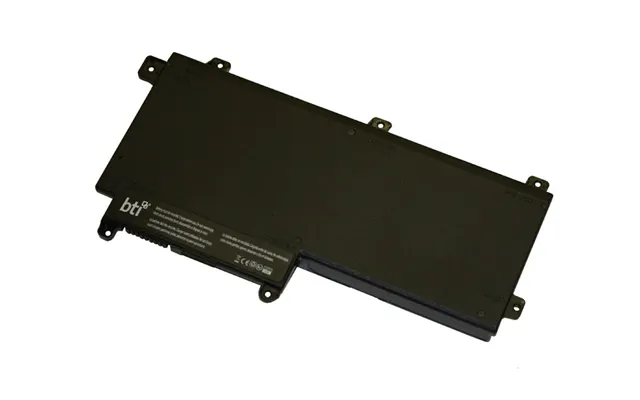
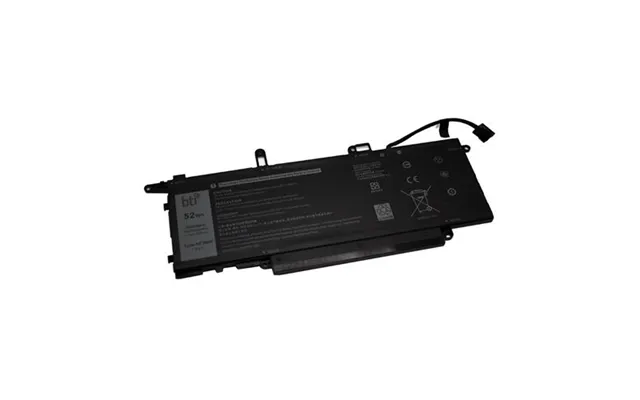
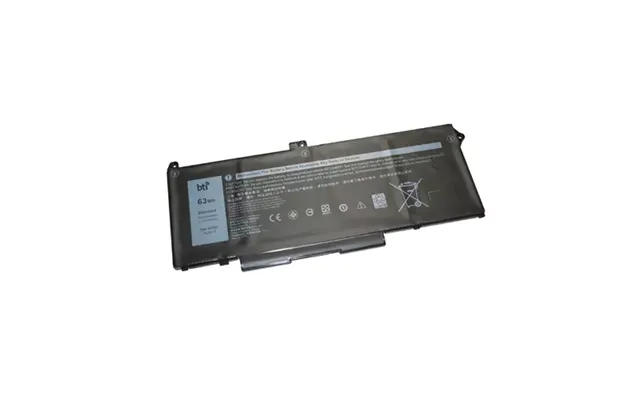
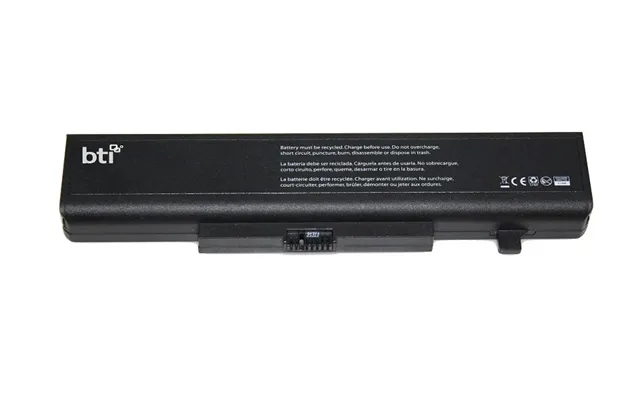
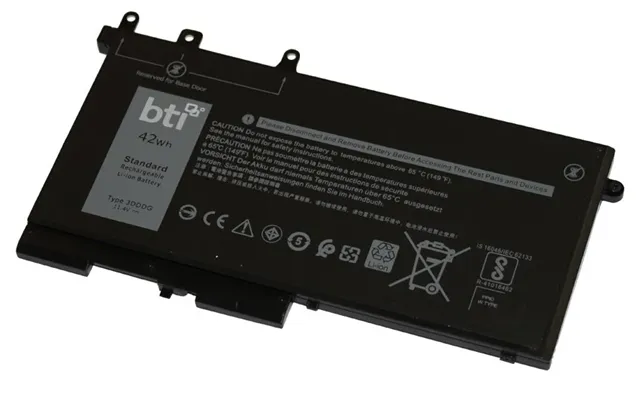
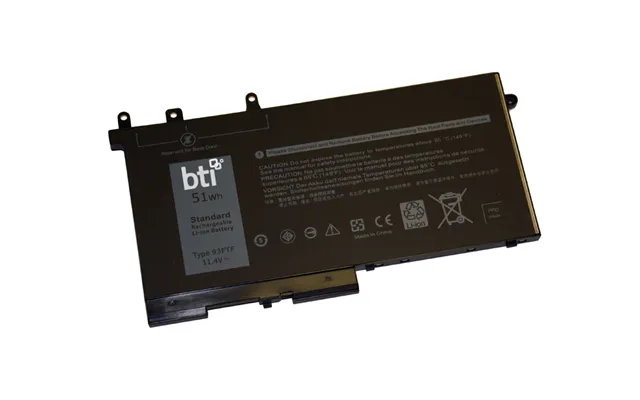
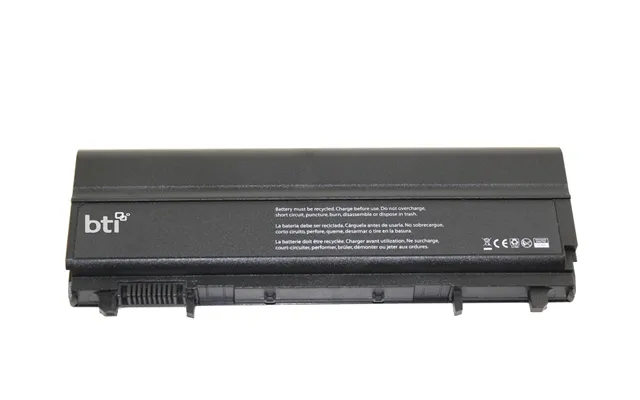
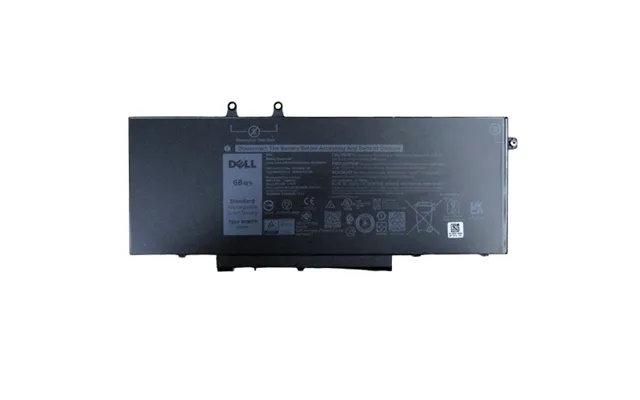
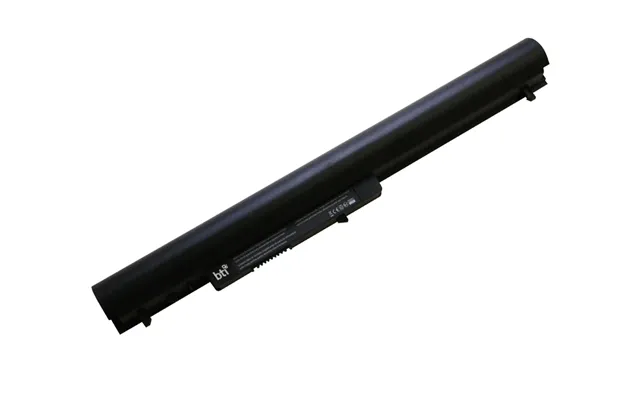
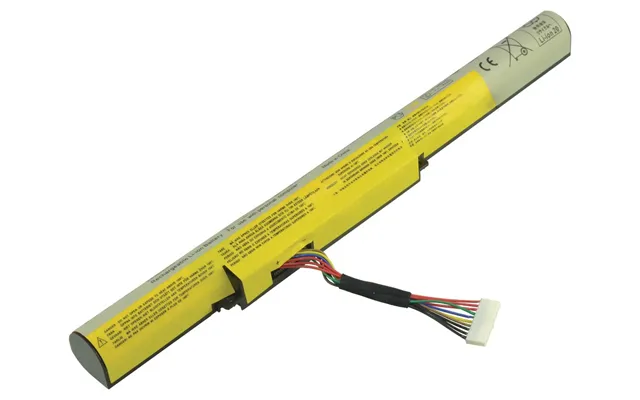
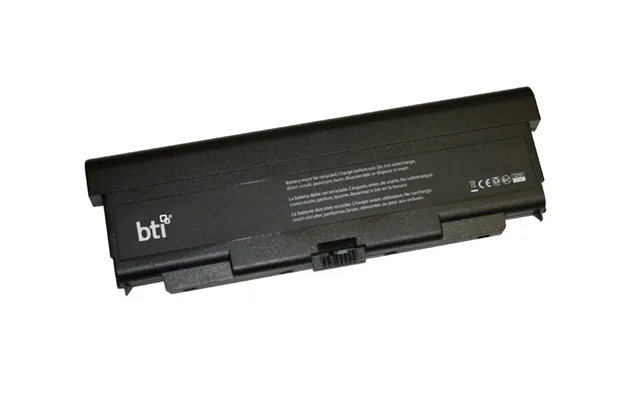
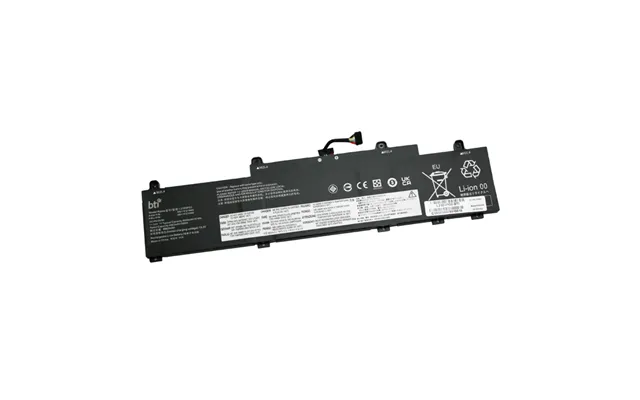
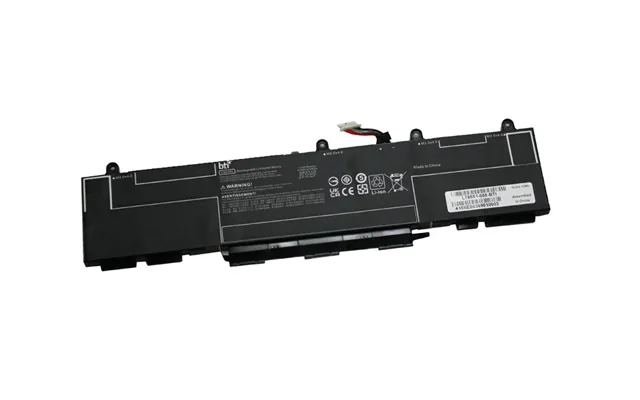
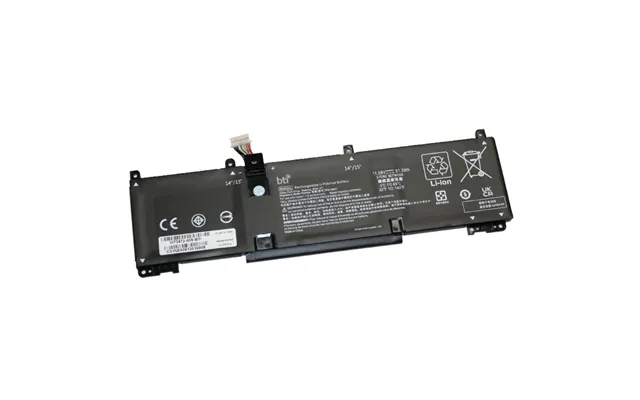
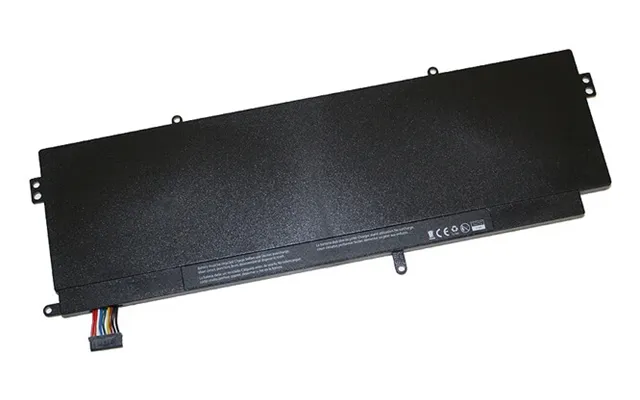
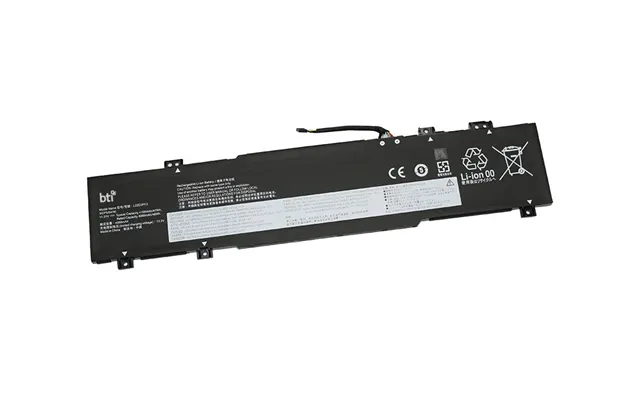
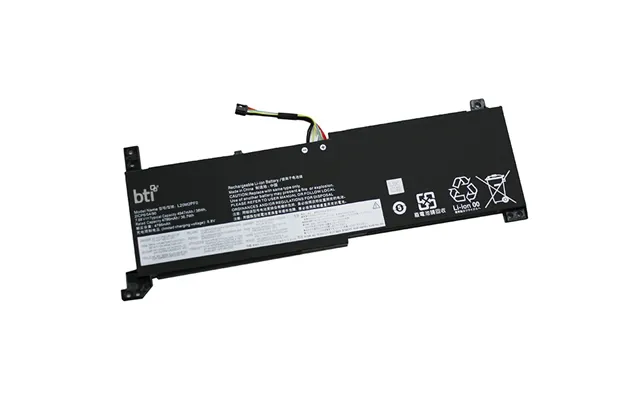
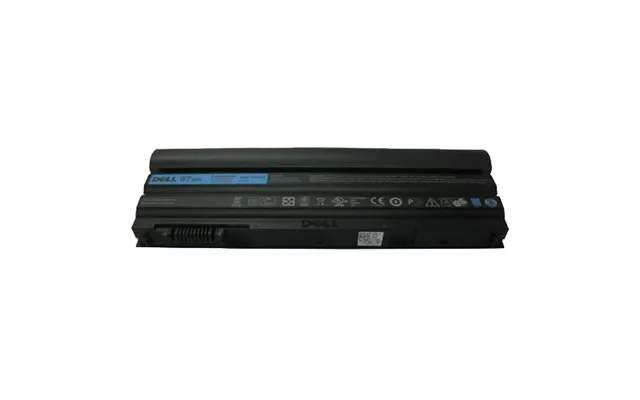
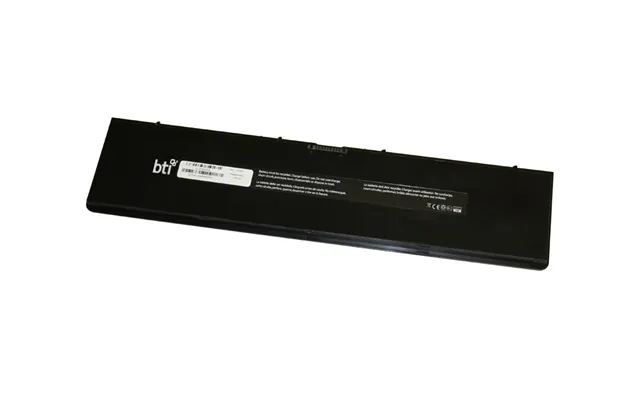
Nothing kills productivity faster than a battery that drains before lunch. Replacement batteries can give you back the freedom to roam, but compatibility matters. Always match your laptop model, the connector position, and the cell count, and only buy from reputable brands that clearly state the part number compatibility. If you’re torn between performance and price, remember that a higher-quality battery tends to age better over time. For installation, make sure the laptop is fully powered down and unplugged, and handle connectors gently to avoid bending pins or stressing cables.
Lost your charger or dealing with a flaky cable? Get the correct wattage and connector type to protect your laptop and ensure stable charging. Traditional barrel cables vary by size, while modern USB-C chargers support smart power delivery that adapts to your device. When in doubt, match the original charger’s power rating and connector style. Steer clear of suspiciously cheap chargers that lack safety certifications. A good adapter isn’t just a cable—it’s the power lifeline that keeps your device safe, fast-charging, and ready to go.
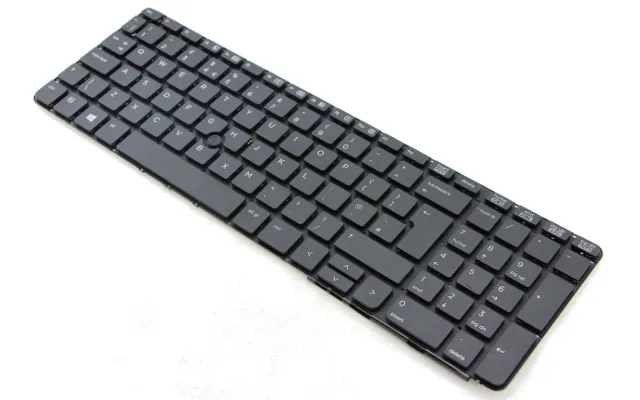
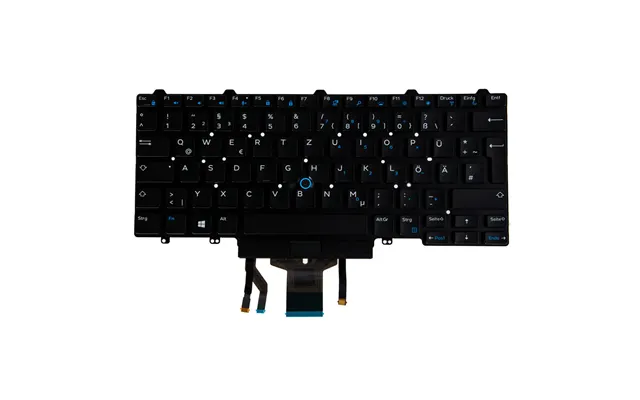
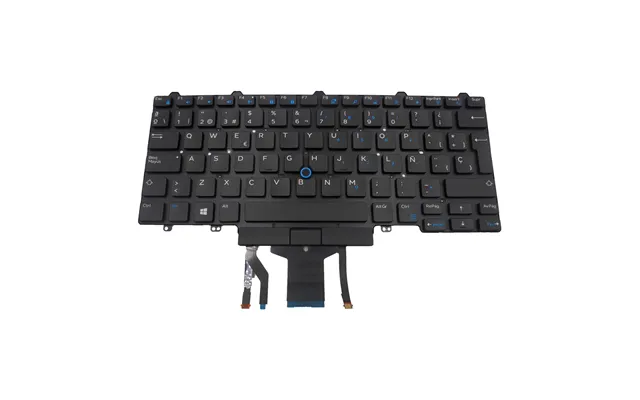
Sticky keys, broken letters, or a drifting cursor can make every task feel harder than it should be. Replacing the keyboard or trackpad restores your laptop’s comfort and productivity. Look for region-appropriate keyboard layouts, such as a UK layout with the correct key shapes and legends. Some laptop keyboards are part of a top case assembly, while others are modular. If you type a lot, it’s worth choosing a well-reviewed replacement with a sturdy key mechanism and a reliable backlight. A comfortable input device is like a good office chair—you’ll feel the difference all day long.
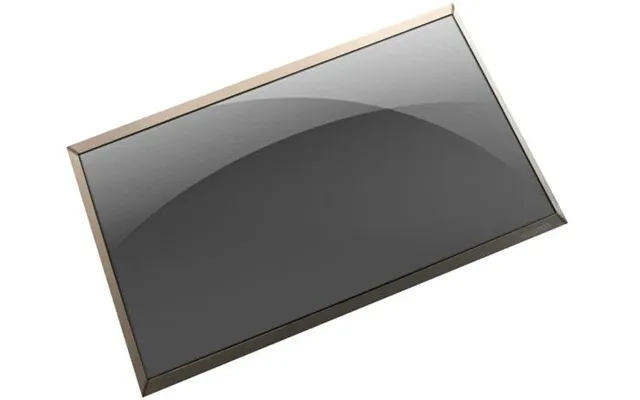
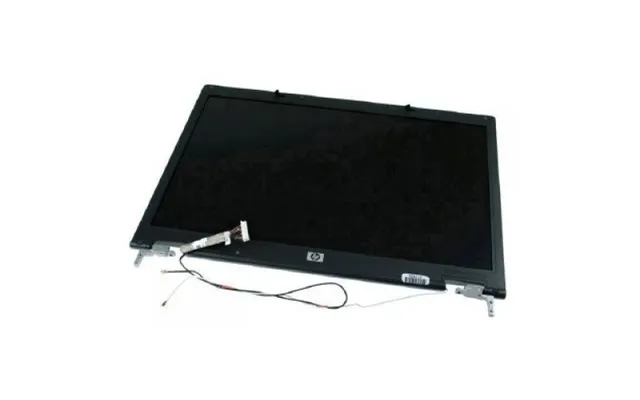
A fresh display is the perfect fix for cracked glass, dead pixels, or dull, washed-out panels. Check screen size in inches, resolution, and connector type, and verify whether your laptop uses a glossy or matte finish. If you don’t need touch, a non-touch panel can be more affordable. Creators often appreciate wider color coverage, while everyday users are well served by a sharp full-HD panel. If you’re upgrading rather than replacing like-for-like, confirm that your motherboard and cable support the new panel specs before you buy. A great screen refreshes your laptop’s entire personality—like cleaning a window you didn’t realize was foggy.
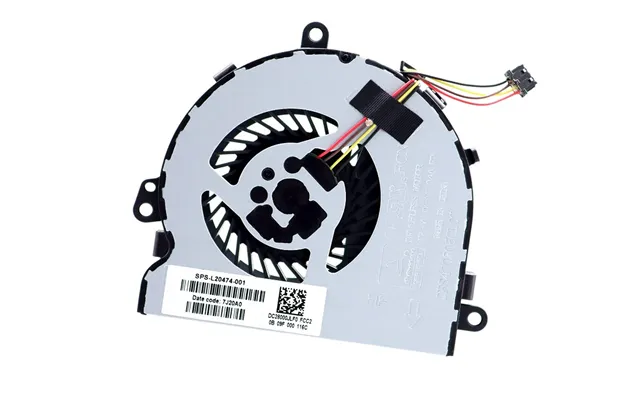
Overheating throttles performance and shortens lifespan. If your laptop sounds like a hairdryer or heats up under light use, a new cooling fan or better thermal management can help. Replacement fans are model-specific, so match the part number and shroud shape. While you’re inside the laptop, gently clear dust from vents and consider renewing the thermal interface material if your model allows it. You’ll be rewarded with quieter operation, more consistent speeds, and fewer surprise shutdowns on hot days. It’s not glamorous, but it’s essential TLC for long-term reliability.
Before you click “buy,” slow down and confirm the basics. Identify your exact laptop model (not just the brand or series) and note the year and configuration. For storage, confirm whether your system supports 2.5-inch SATA, M.2 SATA, or M.2 NVMe, and whether there are free slots. For memory, verify generation, maximum capacity, and whether any slots are user-accessible. For batteries and fans, match part numbers and connector locations. For screens, confirm size in inches, resolution, connector type, and whether your cable supports the panel you want. For keyboards, choose the correct regional layout. One more tip: check for BIOS or firmware notes related to new parts—some laptops need a quick update to play nicely with upgrades.
Laptop parts can look identical across stores, but the fine print matters. That’s why using a comparison site helps—especially when time-limited deals pop up. Look beyond the headline price: compare warranty terms, seller reputation, return flexibility, and whether the listing clearly states compatibility. If two parts look similar, use the part number as your truth. For SSDs and memory, check the controller or chip brand if listed. For screens and batteries, scan user reviews for notes on fit and longevity. Sorting by popularity can be a shortcut to proven picks, but don’t ignore quieter listings with better specs or clearer documentation. The best deal is the one that works flawlessly in your laptop, not just the cheapest click.
Still on the fence? It helps to think in practical scenarios. Whether you’re after raw speed, better battery life, or a clean fix for accidental damage, there’s a sensible parts combo for your situation. Below are common goals and the upgrades that deliver the most impact, without wasting money on specs you’ll never use.
If your laptop takes ages to start and stutters with everyday apps, a simple path is an SSD plus a memory bump. Replace an old spinning drive with a 2.5-inch SSD or a compatible M.2 SSD, then increase memory within your model’s supported limits. You’ll see faster boots, snappier apps, and fewer slowdowns when juggling tasks. This combo feels like removing ankle weights—suddenly, everything moves with purpose.
Have a trusty laptop with battle scars that still deserves a second act? Pair a fresh battery with a mid-range SSD and some memory. If the keyboard is worn or unresponsive, replace it and enjoy a clean typing experience again. While you’re at it, dust out the cooling system. The result isn’t just usable—it’s satisfying. Think of it like restoring a classic car: the right parts bring back the character, minus the drama.
Cracked panel or flickering backlight? A high-quality replacement screen tailored to your size and connector can make your laptop feel new. If you do a lot of reading or work in bright spaces, consider a matte panel to cut reflections. If you want sharper visuals for streaming or creative work, look for a higher-resolution option that your laptop supports. Be sure the cable and motherboard can drive it; otherwise, stick to a like-for-like replacement for a smooth, plug-and-play install.
If you’re always on the move, a fresh battery and the right charger are non-negotiable. Match your laptop’s model and part number for the battery, and pick a charger with the correct connector and power rating. A reliable adapter prevents slow charging and protects your laptop over the long haul. Keep a spare charger at home or in your bag, and you’ll never be tethered to one spot or caught off guard when you need power fast.
Buying new is the simplest route, especially for batteries and chargers where safety and longevity matter. But don’t sleep on refurbished parts from reputable sources; they’re often tested, cleaned, and backed by a warranty. Used parts can be a smart pick for items like keyboards, bezels, or even fans—provided wear is minimal and the seller is transparent. Screens and storage deserve extra care: inspect photos, confirm exact specs, and make sure returns are supported if compatibility goes sideways. If the price looks impossible, there’s usually a reason. Trust your instincts and prioritize sellers with a strong track record.
Swapping parts can be easier than you think, especially with a bit of prep. Power down the laptop fully and unplug before you begin. Work on a clean, dry surface and keep track of screws by grouping them where they came from. Use the right screwdriver—tiny Phillips sizes are common—and avoid forcing any connectors. For SSDs and memory, seat the parts firmly until they click or lock. For screens and keyboards, be gentle with ribbon cables and latches. If your model offers a service manual, scan it first to map the steps. And if a job looks tricky, it’s fine to hand it to a pro—your goal is a reliable upgrade, not a wrestling match with glued parts.
Laptop parts pricing hinges on brand, specs, scarcity, and season. Newer generations of memory and storage usually cost more; rare screens or niche batteries may carry a premium. You can save by choosing a capacity that fits your real-world use instead of chasing the biggest number. Timing matters too: promotions often cluster around big shopping periods. Comparing across multiple sellers helps you spot genuine bargains versus flashy banners. When two options look alike, prioritize clarity in the listing, stronger warranty support, and detailed compatibility notes—those are worth a few extra pounds because they reduce hassle and risk.
Trending parts mirror what most users need: SSDs for fast storage, memory kits for smoother multitasking, screens for accidental damage, and batteries to retire the charger anxiety. There’s also steady interest in USB-C chargers with robust power delivery, replacement keyboards with UK layouts, and cooling fans for machines that run warm after years of service. The best way to capitalize on popular offers is to compare options side by side, study the part numbers, and strike when a trusted seller drops a price. Popular doesn’t have to mean pricey, especially when you’re watching multiple listings and timing your purchase.
A great laptop isn’t defined by its age; it’s defined by how well it fits your life. With the right parts—a quick SSD, the right memory, a fresh battery, a crisp screen, a comfy keyboard—you can turn a tired device into a responsive, reliable daily driver. Shopping smart means verifying compatibility, comparing offers, and choosing sellers that stand behind what they sell. Whether you’re chasing speed, fixing damage, or simply extending your laptop’s useful life, the UK market is rich with options and deals. Use a trusted comparison approach, focus on the parts that solve your specific problem, and enjoy the satisfaction of a laptop that works the way you always wanted.
| Laptop Parts | Price | |
|---|---|---|
| Asus 04071-01920300 Laptop Spare Part Speaker | £ 17,99 | |
| Microsoft Cig-00002 Laptop Spare Part Feet | £ 19,53 | |
| Lenovo 04x4692 Laptop Spare Part Dc-in Jack | £ 31,31 | |
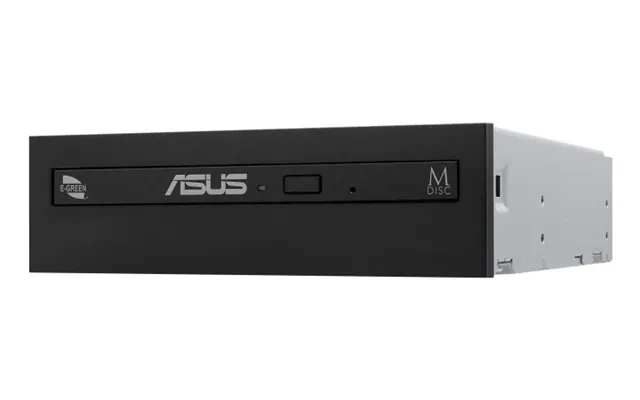
| Asus Drw-08d6mt Oem Optical Disc Drive Internal Dvd Rw Black | £ 33,75 | |
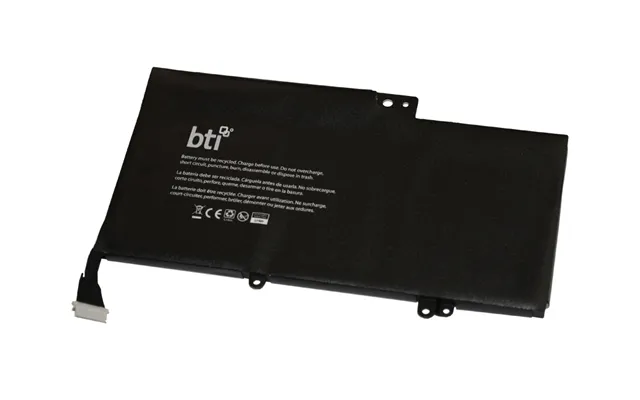
| Bti 40wh 3 Cell Hp-x360 Compatible Battery For Hp - Compaq Pavilion 24 | £ 49,33 | |
| Dell 555-bfko Laptop Spare Part | £ 64,67 | |
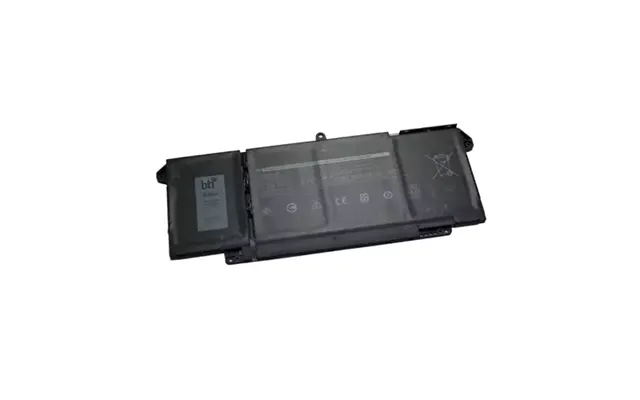
| Bti 7fmxv Compatible 63wh 4-cell Battery For Dell Latitude 5320 | £ 73,37 | |
| Lenovo 04x5876 Laptop Spare Part Display | £ 94,39 | |
| Lenovo 01hy592 Notebook Spare Part Display | £ 110,02 | |
| Acer Hb.70511.004 Laptop Spare Part Motherboard | £ 387,65 |