

Print Servers price list
Last updated Monday, 19 Oct 2026




View 14 Offers




Loading...
Last updated Monday, 19 Oct 2026
Ever wished you could place your trusty USB printer anywhere and let everyone print to it without playing “cable musical chairs”? That’s exactly what a print server does. It turns a standard printer—often a simple USB or parallel‑port model—into a networked printer that anyone on your network can use. Whether you’re setting up a home office, running a small business, or keeping an older but reliable laser printer in service, a print server gives you network flexibility, fewer cords, and a surprisingly low‑cost way to share one printer with multiple devices.
On a big comparison site like ZoneOffer, you’ll usually see this category presented simply as Print Servers with sections like Popular Offers and price lists. That’s your cue that there are options for every need—from ultra‑budget single‑port USB adapters to multiport wired and wireless units with smarter management features. The good news? You don’t have to buy a new printer to get network convenience. A compact print server can make your existing printer feel a lot more modern.
Let’s be honest: replacing a perfectly fine printer just to gain network access hurts the budget and the planet. A print server helps you stretch that investment by adding network sharing and placement flexibility without changing your workflow. If you already love your printer’s print quality, toner efficiency, or reliability, adding a print server is often the fastest, most affordable upgrade you can make.
There’s also a productivity angle. Once your printer lives on the network, everyone can print without plugging in a cable or moving laptops around. You can tuck the printer in a hallway nook or storage shelf, keep your desk clear, and reduce the “who’s plugged in now?” confusion. It’s a tidy upgrade that pays off daily.
When you scan a price list for print servers, you’ll typically notice three broad segments. Budget models cover single‑port USB adapters with simple wired connections and basic protocol support. Mid‑range options add features like wireless connectivity, better firmware tools, and compatibility with more printer types. Premium and pro‑leaning devices often support multiple printers, legacy ports, higher throughput, and robust management suited to small offices and specialty workflows.
If you’re using a basic single‑function printer, a budget wired unit usually does the trick. If you prefer flexible placement with fewer cables, a wireless print server is worth it. And if you’re sharing among multiple users with heavier print jobs—think marketing materials, graphics, or multi‑page reports—stepping up to a higher‑spec wired model tends to deliver smoother, faster results.
Budget single‑port units are the simplest “plug, connect, print” solution. They typically offer a USB input for the printer and an Ethernet jack for your router. Models in this class are great for standard inkjets and laser printers that don’t need advanced bi‑directional functions beyond status and job handling. They favor reliability and simplicity, offering network printing via common protocols so Windows and macOS machines can connect without headaches.
Look for brands known for solid networking gear and good firmware support. Well‑known examples in this space include compact single‑port devices from TP‑Link, IOGEAR, StarTech, and D‑Link. While features vary by model, the core benefit remains the same: dependable, low‑cost network printing without replacing your printer.
Want to ditch the Ethernet run and position your printer where it’s convenient? Wireless print servers solve the cable problem. They connect your printer to your Wi‑Fi so you can put the printer on a shelf, in a corner, or in a shared hallway—wherever makes sense. Many home offices choose this route to keep workspaces uncluttered.
Wireless models from brands like TP‑Link and Edimax are common choices. Just remember that placement matters: put the print server in a spot with strong signal, and treat it like any other Wi‑Fi client device. For offices with denser walls or tricky layouts, a wired model with a small network switch may still be the better call for consistent performance.
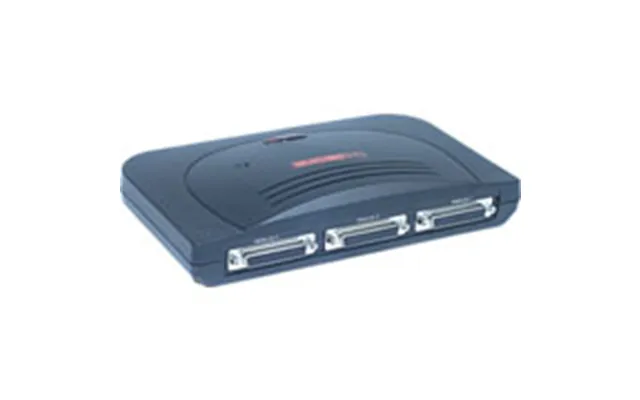
If you’re juggling more than one printer—or keeping a venerable parallel‑port printer alive—multiport or legacy‑friendly print servers are tailor‑made for you. You’ll find 2‑port or 3‑port devices that can handle multiple USB printers, and some models retain parallel ports for older business‑class printers still kicking out flawless pages.
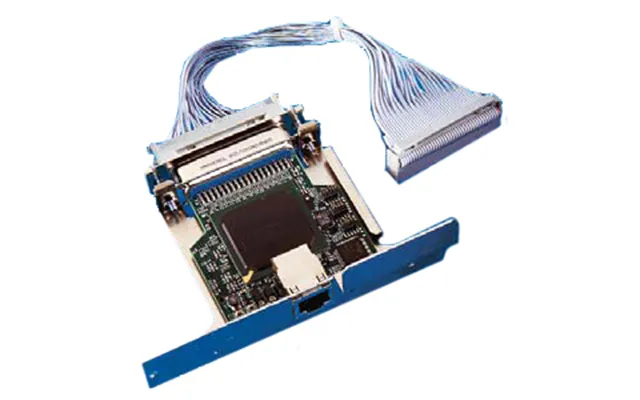
Here, brands like StarTech, D‑Link, and enterprise options like HP JetDirect modules (for certain HP printers) are often on shortlists. The draw is stability and support for environments where the printer workload is heavy, the jobs are frequent, or the hardware is specialized. It’s not flashy—it’s just rock‑solid printing day in and day out.
Spec sheets can look like alphabet soup, but a few details really do matter. You’ll want to match protocol support to your operating systems, decide between wired and wireless placement, and check for management features that make life easier. Compatibility, throughput, and firmware quality are the trio that typically separates a smooth experience from a frustrating one.
Also consider how many users will print at once, how large your typical print jobs are, and whether your printer has any quirks (for example, special drivers or advanced features like secure print or page accounting). The more “special” your workflow, the more you’ll benefit from a higher‑end print server with stronger firmware and better status reporting.
The big three network printing methods you’ll see are IPP, LPR/LPD, and RAW. Most modern computers can talk to at least one of these out of the box. Bonjour service discovery can make Macs see the printer automatically, while Windows machines often add it via the Add Printer wizard using TCP/IP. The result is consistent, driver‑based printing without needing clunky software layers.
What about mobile printing? Some environments add mobile support via platform tools, but dedicated print servers generally don’t turn a non‑mobile printer into a full mobile‑native device by themselves. If native mobile compatibility is a dealbreaker, verify the feature in the product documentation or consider a printer that already offers it. When in doubt, look for devices that list compatibility with your exact printer model series and your operating systems.
For raw consistency, wired Ethernet is still king. If your office already has a network jack where the printer will sit, a wired single‑port unit is usually the most reliable, especially for bigger print jobs and many users. Wireless gives you placement freedom and fewer cables, but you’ll want a strong signal and minimal interference for smooth performance. Think of it this way: wired is like a paved highway; wireless is a good side road that depends on the weather.
Performance also depends on the print server’s internal hardware and firmware. Larger documents with graphics or complex fonts benefit from a device that can buffer data efficiently and keep connections stable. If you frequently print multi‑page color reports or design proofs, step up to a better‑specced box for fewer hiccups.
Even a humble print box lives on your network, so treat it with the same care you’d give any connected device. Change the default admin password, update firmware, and use secure wireless settings if you go Wi‑Fi. In business settings, look for models that support administrative controls, user authentication features, and logging so you can keep tabs on who’s printing and when.
If your network segments guest users or uses advanced authentication, double‑check that your print server can live comfortably in that environment. Simpler devices can still be perfectly safe when configured sensibly—just avoid leaving default settings untouched.
Most print servers follow the same setup path. First, connect your printer to the print server’s USB or parallel port, then connect the print server to your network (via Ethernet or Wi‑Fi). Next, power it up and let your router assign an address. Many devices include a tiny setup utility or a browser‑based dashboard you can reach by typing the print server’s address into a web browser. From there, you’ll name the printer, confirm the protocols you want to use, and save.
On each computer, add the printer using the operating system’s standard method. Often, you’ll select a network printer and point it at the print server’s address, then pick or install your printer’s driver. After that, print a test page to confirm everything’s talking nicely. If your office runs more than one printer, give each one a clear name—nothing slows down a busy day like guessing “which HP is this?”
Start by updating the print server’s firmware before you connect users; it’s a two‑minute step that prevents many common quirks. Reserve the print server’s address in your router to stop it from changing; consistency helps prevent “it worked yesterday” mysteries. Confirm the printer driver is the correct one for your exact model, not just a “close enough” series driver. Lastly, print a test page from each computer type you support so you can catch OS‑specific issues early.
Going wireless? Place the print server and printer in a location with strong signal and minimal obstructions. If you notice delays or dropped jobs, try repositioning the device or switching to a wired connection for mission‑critical print runs.
One classic trap is expecting full multifunction support through a basic print server. Many units handle printing beautifully but don’t pass through scanning or fax functions over USB. If you rely on scanning, plan to connect the printer directly to a computer for scan jobs or look for a specialized device that explicitly supports multifunction passthrough.
Another common hiccup is driver mismatch. Even if network discovery works, the wrong driver can cause missing features, odd page margins, or garbled output. Always match your driver to the exact printer model and confirm duplex, tray, and paper settings after installation. It’s a few extra clicks that save a lot of head‑scratching later.
Print servers are unglamorous heroes. They quietly keep documents flowing in homes, shops, studios, and offices where a single reliable printer serves multiple users. They’re especially useful when space is tight, cables are messy, or the printer you love wasn’t built with networking in mind. If your team prints a steady stream of invoices, labels, contracts, or proofs, a print server can keep that pipeline moving without forcing a printer upgrade.
They also excel in mixed environments where Windows and macOS machines need to share the same printer. Instead of juggling USB cables or enabling one computer as a “host” all day, the print server takes on the sharing role 24/7, no human babysitting required.
For households, the win is convenience: the family inkjet can live off the desk and still be available to every laptop or tablet at home. If you work remotely, you can keep the printer near your networking gear for a neat, tidy setup. A compact wired unit is usually the fastest, most reliable choice here, while a wireless model shines when the router is far from the ideal printer spot.
If you’re balancing school assignments, tax documents, and occasional photos, choose a print server with easy discovery so every device finds the printer without a fuss. That way, printing doesn’t become a family tech support project.
In small offices, print servers cut cable clutter and centralize printing. Reception can print labels while accounting fires off reports and the manager sends contracts—all to the same sturdy laser printer parked in a common area. A capable wired print server keeps jobs moving quickly and avoids the “whose turn is it to plug in?” dance.
If you operate in a co‑working or shared space, pick a device with straightforward admin controls and good logging. That makes it easier to see who printed what, when, and to troubleshoot if something stalls. A little visibility goes a long way in shared environments.
Some of the most reliable printers out there are older workhorses with parallel ports or specialized drivers. A legacy‑friendly print server can keep those units productive for years, sparing you the cost and downtime of replacing gear that still does the job beautifully. This is common in engineering offices, print shops, and schools where certain printers deliver unique value.
Here, consider multiport models and units that explicitly mention compatibility with your printer series. Specialty workflows often benefit from better firmware and stronger protocol support, so lean toward established brands with a track record in business environments.
While the exact “best” device depends on your printer and network, a few families consistently earn attention. Single‑port wired USB units from TP‑Link, StarTech, D‑Link, and IOGEAR are popular for simple, dependable printing. For wireless placement, compact units from TP‑Link and Edimax are common go‑tos and offer cleaner setups where running a cable is a pain.
Need multiple printers or legacy support? Multiport models from StarTech and D‑Link are worth a look, and HP JetDirect modules remain a staple for compatible HP printers in professional settings. If multifunction scanning over the network is a must, check specialized devices from vendors like Silex that explicitly list support for multifunction passthrough; always confirm capabilities against your exact printer model.
Sometimes the best print server… is no print server at all. If you’re already shopping for a new printer, consider a model with built‑in Ethernet or Wi‑Fi. It may cost a bit more up front but removes a device from your setup and often adds native mobile support and management tools. Just make sure it meets your workload needs before you retire the old printer.
Another option is using a router or NAS with a USB printer port. These work well in simple scenarios, though they can be less flexible than dedicated print servers. In more advanced setups, some people dedicate a small always‑on computer to act as a print host—useful when you need special drivers or software filters—but that adds complexity and maintenance. For most homes and small offices, a dedicated print server is the simpler, cleaner answer.
When printing stalls, start with the basics: verify the print server’s status lights, confirm the network cable or Wi‑Fi connection, and print a test page from the device’s admin panel if available. On computers, remove and re‑add the printer using the correct driver, and check that your firewall isn’t blocking printing protocols. If jobs vanish into the ether, power‑cycling the printer and print server can clear stuck queues.
For maintenance, set a reminder to check for firmware updates a few times a year. Updates often improve compatibility and reliability. Label your print server with its network address and admin URL so future you (or your IT helper) can jump in fast if anything changes on the network. Little touches like that keep your setup running smoothly over the long haul.
Keeping a good printer in service is a win for both budget and waste reduction. A small print server uses modest power and can postpone the need for a new device. To save even more, configure your printer for duplex by default and set draft mode where quality isn’t critical—those habits trim paper and toner use without hurting readability.
If energy use matters to you, place the printer and print server on a smart switch so they sleep outside work hours. You’ll cut idle time without sacrificing convenience. And because print servers are compact and affordable, they’re a great bridge solution while you plan longer‑term upgrades at your own pace.
Print servers are the unsung fix for a very real problem: sharing a perfectly good printer without tangles, downtime, or big upgrades. Whether you want a basic wired adapter, a cleaner wireless setup, or a multiport device for heavier workloads, there’s a fit for every environment. When you browse a comparison site like ZoneOffer, you’ll see Popular Offers and price lists that span budget to pro, making it easy to match features to your needs and snag a great deal. Pick the right class, double‑check compatibility with your printer and operating systems, and you’ll enjoy smooth, no‑drama printing for years to come.