All categories
Business & Offices
Electronics & Media
Fashion & Accessories
Groceries & Essentials
Health & Personal Care
Home & Living
Kids & Family
Sports & Outdoors
Search in ZoneOffer

Loading...
When your computer runs like a dream, you barely notice it. But the moment apps slow, files scatter, or a surprise pop-up crashes the party, you feel every hiccup. That’s where computer utilities and maintenance software steps in—keeping your system clean, secure, organized, and ready for anything. If you’re hunting for value in the UK, comparison platforms like ZoneOffer help you weigh features, versions, and prices across multiple retailers so you land the right tool at the right price. After all, why overpay for protection or performance when you can compare smartly and snag a deal?
Think of your computer like a car. The operating system is the engine, your apps are the passengers, and utilities are the skilled mechanics, valets, and security guards that keep everything humming. Utilities don’t replace your OS—they enhance it. From everyday tune-ups to deep diagnostics, these tools handle everything the OS doesn’t do well or doesn’t automate.
Whether you use a desktop for gaming, a laptop for work, or a family computer for everything in between, maintenance software prevents slowdowns, cleans digital clutter, protects against threats, and keeps your files safe from accidental loss. The right set of tools can extend your device’s usable life, save you money on hardware upgrades, and cut downtime. Who doesn’t want fewer headaches and more productivity?
There’s no one-size-fits-all utility. Your ideal toolkit depends on how you use your computer, what you store on it, and how much automation you want. Here are the categories you’ll see most often when comparing deals and features.
These tools sweep away junk files, temporary caches, leftover installers, and browser clutter. Many offer startup managers to trim the list of programs that auto-load, shaving seconds off boot time and freeing resources. Look for options with a clear dashboard, one-click cleanup, and the ability to schedule routine maintenance so you don’t have to remember it.
Antivirus and anti-malware software scans for threats, blocks suspicious activity, and isolates dangerous files before they can wreak havoc. Some suites include firewalls, email scanning, and safe browsing features. If you handle sensitive work or shop online frequently, a well-rated security suite is non-negotiable.
If your storage fails or you accidentally delete something important, backup software is your lifeline. Full system images, file-level backups, and rapid restore options protect your work, photos, projects, and peace of mind. Tools with easy restore wizards and scheduled backups are worth their weight in gold.
Partition managers, disk cloning utilities, and defragmentation tools help you reorganize space, migrate to new drives, and keep performance steady. If you plan to upgrade storage or create dual-boot setups, a reliable disk utility can simplify a complicated job.
Outdated drivers cause crashes, freezes, and odd glitches. Driver utilities scan your hardware and help you update components for better stability and performance. Choose tools with backup and rollback features so you can reverse a problem update with minimal fuss.
Password managers generate strong credentials, store them securely, and autofill them when you log in. Privacy tools add extras like file shredding, encrypted vaults, and webcam/microphone protection. If you reuse passwords (many people do), a password manager is a simple upgrade that pays off immediately.
Prices vary widely across retailers and seasons, and licensing models can be confusing. Comparing before you buy helps you catch the best offer and choose the right package for your household or office.
If you’re the only user with one computer, a single-device license is budget-friendly. Households with several laptops, a desktop, and maybe a home office PC often save with multi-device plans. Always check the device limit and whether mobile apps are included.
Subscriptions keep you on the latest version with continuous updates, which is valuable for security software. Lifetime (or perpetual) licenses can be cheaper long-term for utilities like backup or disk management. It’s a trade-off: ongoing updates and features versus a one-time expense.
Some plans cover multiple users and platforms in one bundle. If you switch between Windows and Mac, or share with family, cross-platform coverage and separate user profiles can simplify setup and cut costs.
Many brands offer limited free editions or full-feature trials. Bundles that combine cleanup, security, backup, and privacy tools in one installer are convenient and often discounted. Just confirm you’re getting the tools you’ll actually use—extras you never touch add clutter.
Two utilities can look identical on the surface but behave very differently once installed. A quick checklist keeps you focused on what matters.
Make sure the software supports your operating system and version. Read notes about resource usage—utilities should make your PC feel faster, not slower. If available, try a free trial and pay attention to how responsive your system feels.
Great utilities work quietly in the background. Look for scheduled scans, real-time protection, and one-click tasks. If a tool needs constant hand-holding, you’ll stop using it, and that defeats the point.
For security tools especially, frequent updates are essential. Good vendors publish clear change logs, offer accessible support, and explain features without jargon. If a brand is a black box, think twice.
Before cleaning, updating drivers, or changing partitions, the software should offer restore points or rollbacks. It’s your parachute. If something goes wrong, a few clicks should put you back where you started.
Below are examples of well-known tool types that regularly appear in comparisons. Consider them starting points, not one-size-fits-all recommendations. Always compare current deals, versions, and features across retailers on a trusted comparison site.
Look for suites that combine junk cleanup, startup control, browser hygiene, and performance monitoring. Names you’ll often see include CCleaner, IObit Advanced SystemCare, and Norton Utilities. The best picks are lightweight, clear about what they remove, and offer restore options. If you want set-and-forget tidying, these suites are a strong first stop.
You’ll find familiar brands like Bitdefender, Norton, Malwarebytes, Avast, and Kaspersky. Consider malware detection scores, web protection, and email filtering. If you work from home or handle personal finance on your PC, lean toward a suite with firewall controls and phishing protection. Prefer a second opinion? Many users pair a primary antivirus with an on-demand anti-malware scanner.
For full-image backups, file-level backups, and disk cloning, tools such as Acronis Cyber Protect Home Office, Macrium Reflect Home, EaseUS Todo Backup, and AOMEI Backupper appear frequently in comparisons. Focus on ease of restore, scheduling options, and bootable rescue media. If you manage family devices, choose software that supports multiple backup profiles and destinations.
When upgrading to a larger drive or reorganizing partitions, utilities like Paragon Hard Disk Manager, AOMEI Partition Assistant, and MiniTool Partition Wizard can help. Prioritize data safety features, preview modes, and clear step-by-step wizards. If you’re new to partitioning, a guided workflow makes a world of difference.
Driver utilities such as Driver Booster and Driver Easy scan your system and suggest updates. Choose tools that verify sources, create backups, and allow easy rollbacks. Drivers are powerful; a cautious tool with safety checks beats a reckless one every time.
For password management and secure vaults, you’ll often compare 1Password, Dashlane, LastPass, and Bitwarden. If privacy extras matter, look for encrypted file storage, secure notes, and breach monitoring. A good password manager is like a high-security keyring—you set it up once and it pays off every day.
Some security suites bundle VPNs or identity-monitoring features. Separate VPNs like NordVPN and ExpressVPN show up in comparisons too. If you travel, work remotely, or often use public Wi-Fi, a trustworthy VPN adds a valuable shield to your toolkit.
Utilities often go on sale. A little timing and a quick comparison can shave a tidy sum off the sticker price and unlock better plans for the same budget.
Watch for promotions around back-to-school season, major shopping days, and new product releases. Vendors frequently roll out time-limited discounts; comparison pages make those easy to spot side-by-side.
If you’re a student or teacher, some brands offer educational discounts. Keep a proof of status handy and check terms—matching the right license to your role can mean a significant reduction.
Sometimes it’s cheaper to buy a new license than to renew an existing one, depending on the vendor’s pricing. Before you renew, compare current deals across retailers—you might get more features for less by switching tiers or bundles.
Upgrading from a free edition or switching from a competing product? Vendors often offer crossgrade discounts. If you’re moving to a higher tier (like adding backup or privacy tools), bundle pricing can be the better bet.
Buying the software is only half the equation. A few simple habits turn good tools into everyday time-savers.
Schedule weekly cleanups, monthly backups, and daily quick malware scans. Keep it light; you don’t need to hammer your system. A well-tuned schedule works like autopilot—quiet, consistent, and reliable.
Run a single real-time antivirus, then add an on-demand anti-malware scanner for second opinions. Use one driver updater at a time. Overlapping tools can cause conflicts and slowdowns. Harmony beats redundancy.
Create a bootable rescue drive with your backup tool and keep at least one full system image current. If your PC refuses to boot, you can restore your entire setup rather than starting from scratch. When problems strike, you’ll be glad you planned ahead.
If a utility feels heavy, tweak its settings or try another option. Good tools are flexible. Your PC should feel faster and smoother, not weighed down by the cure.
Even smart users slip up. Sidestep these pitfalls and your system will thank you.
Three cleaners don’t clean three times better. They can step on each other’s toes, duplicate work, and cause conflicts. Pick one solid suite and stick with it.
Tools that purge browser sessions, cookies you need, or obscure registry entries can cause headaches. Start with conservative settings, review what’s being removed, and bookmark exclusions for apps you rely on.
Everyone plans to back up “tomorrow.” The day you need a backup is the day you’ll wish you had one. Set a schedule now and let automation do the heavy lifting.
Subscriptions often default to auto-renew. If you like the product, great—enjoy uninterrupted protection. If you’re price-sensitive, set a reminder to compare renewal pricing with current deals before the date rolls around.
Modern operating systems include decent basics: built-in security, basic cleanup, and simple backup options. For light use, those may be enough. But paid utilities typically add stronger malware defenses, deep automation, better restore tools, and faster support. If you work remotely, manage family devices, or store important projects locally, the upgrade to a well-reviewed paid solution is often worth it. The sweet spot? Combine built-in tools with a few targeted utilities—backup you trust, security that’s actively maintained, and a clean-up tool that respects your settings.


Start with your goals. Want a faster, tidier PC? Consider an optimization suite plus a dependable backup tool. Need ironclad protection? Pair a top-tier security suite with a password manager and optional VPN. Upgrading storage or moving to a new drive? Add a partition manager and cloning utility. Then compare prices and plans across retailers on a trusted comparison platform like ZoneOffer to find the plan that fits your needs and budget. The result is a resilient, responsive setup tailored to the way you actually compute.
You don’t need to be a tech pro to keep your system secure, fast, and organized. With the right utilities, most maintenance becomes automatic—quietly cleaning, protecting, and backing up while you get on with more interesting things. Compare features and deals, pick tools that respect your time, and set a simple schedule. In a week, you’ll feel the difference. In a year, you’ll wonder how you ever lived without them.
| Computer Utilities & Maintenance Software | Price | |
|---|---|---|
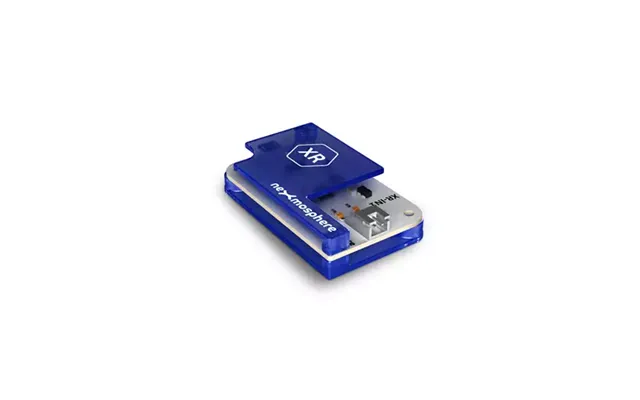
| Nexmosphere Xr Antenna Driver | £ 72,17 | |
| Hpe Storeonce Vsa 4tb Base Ltu | £ 2.869,38 | |
| Hpe Storeonce Vsa 4tb Base Ltu | £ 2.869,38 | |
| Hewlett Packard Enterprise Msa 512-snapshot Software E-ltu | £ 4.399,38 |